
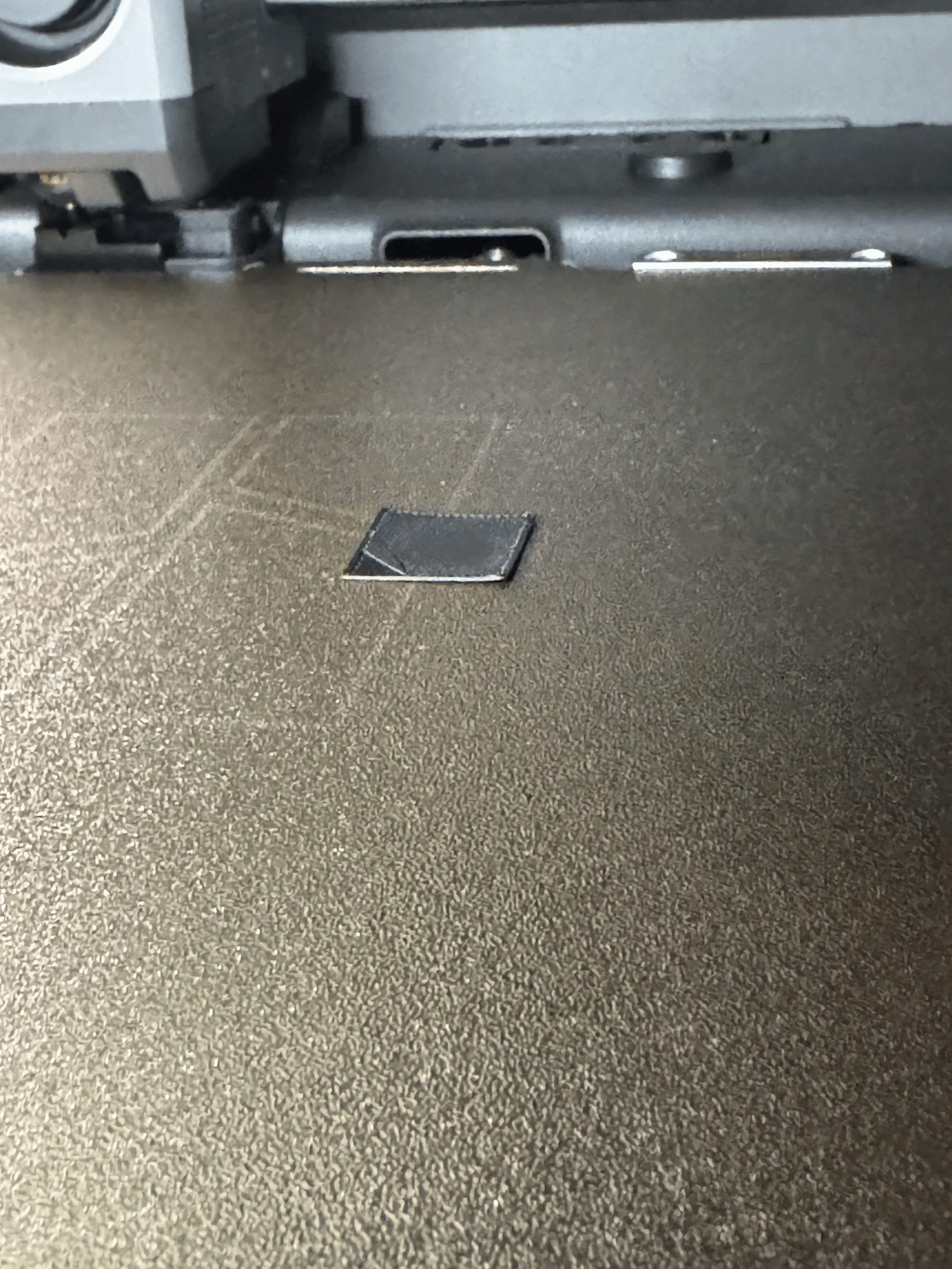
Here’s something most troubleshooting guides won’t tell you upfront:
If your P2S first layer isn’t sticking, there’s roughly a 50/50 chance the fix is just washing your build plate with dish soap.
Not wiping it with alcohol. Actually washing it. At the kitchen sink. With soap.
I know that sounds too simple. But after digging through dozens of P2S adhesion threads on the Bambu Lab forum, that’s what the data shows. Half the time, it really is that easy. The other half? That’s what the rest of this guide is for.
The P2S first-layer adhesion problem is real and widespread. One user said he gets at least one failed print per day — and he never had this issue with his A1. A keychain maker who prints for a living said his P2S couldn’t match the first-layer consistency of his older A1, even after weeks of tweaking.
So I went through every P2S first-layer thread I could find, cross-checked them with Bambu Lab’s official Wiki, and sorted them by how often each fix actually works.
Here’s the short version:
- Wash the plate properly → fixes it ~50% of the time
- Fix the Z offset → fixes it ~60% of the time (when cleaning didn’t help)
- Re-run calibration → fixes it ~20–30% of the time
- Everything else → plate mismatch, warped bed, or P2S-specific quirks
Now let’s go through each one.
Quick Diagnosis: What Does Your Failed First Layer Look Like?
Before you change any settings, run a first-layer test. Bambu Studio has one built in. Or just print a simple 100×100mm square, one layer thick.
Then look at what happened.
Gaps between the lines, and they separate when you peel them off? → Your nozzle is too far from the bed. Jump to Section 4: Z Offset.
Filament looks smashed flat, hard to remove, ridges on the edges? → Your nozzle is too close. Also Section 4, but you’ll move the nozzle up instead of down.
Sticks fine in the center, but peels at the corners? → Your heatbed might be slightly uneven. Go to Section 5: Uneven Heatbed.
Random patches that won’t stick, but the rest of the bed prints fine? → Dirty plate. Start at Section 1: Clean the Plate.
Everything was fine last week, now nothing sticks? → Probably oil buildup plus old calibration data. Start at Section 1, then Section 3.
PETG specifically won’t stick, even though your settings look correct? → This is super common on the P2S. Start at Section 1, then check Section 2 to make sure you’re using the right plate.
Find your pattern. Go straight to the fix. No need to read everything.
1. Clean the Build Plate
How often this fixes it: about 40–50% of the time.
I know, I know. “Clean the plate” is the most boring advice on the planet.
But here’s the thing — there’s a good chance you’re not cleaning it well enough.
The most common mistake? Wiping the Textured PEI plate with isopropyl alcohol (IPA) and thinking that’s enough.
It’s not.
The textured surface has tiny grooves that trap finger oils, dust, and leftover filament bits. IPA just pushes that stuff around. It doesn’t actually lift it out.

What works instead:
Take the plate off the printer. Bring it to your kitchen sink. Wash it with warm water and regular dish soap — Dawn, Fairy, whatever you have. Scrub gently with the soft side of a sponge. Rinse well. Dry with a clean paper towel.


And then — this is important — don’t touch the print surface after drying.
The natural oils on your fingers are enough to ruin adhesion on the exact spot you touched. I’ve seen forum posts where users figured out their failure pattern matched their fingerprints from handling the plate.
Here’s a quick reference for each plate type:
Textured PEI: Soap and water. Every 5–10 prints. IPA wipes don’t do much on this surface.
Smooth PEI: IPA (90% or higher) works fine. Wipe before every print session. Do a full soap wash every 15–20 prints.
Cool Plate (SuperTack): Apply Bambu Lab glue stick before every print. This plate is designed to work with glue. It’s not optional.

One thing you should never use: Acetone. On any PEI plate. It damages the coating permanently. I’ve seen multiple forum threads where users tried to “deep clean” with acetone and made the problem worse.
2. Match Your Plate Type in the Slicer
This one is embarrassingly simple. And it causes way more failures than it should.
When you pick a build plate in Bambu Studio, the software automatically sets the bed temperature and Z offset for that specific plate.
So if you accidentally slice for Cool Plate but you’re actually printing on Textured PEI, your bed temperature will be about 20°C too low. And the nozzle height will be off.
The result? Your print won’t stick. And you won’t get any warning about it.
Here’s a quick cheat sheet:
| Build Plate | Best For | PLA Temp | PETG Temp | ABS Temp | Glue? |
|---|---|---|---|---|---|
| Textured PEI | PLA, PETG, ABS | 55–65°C | 70–80°C | 90–100°C | No for PLA. Optional for PETG. |
| Smooth PEI | PLA, PETG, ABS, Nylon | 55–65°C | 70–80°C | 90–100°C | No for PLA. Yes for others. |
| Cool Plate | PLA only | ~35°C | ❌ Don’t | ❌ Don’t | Always |
| Engineering Plate | All materials | 55–65°C | 70–80°C | 90–100°C | Always |
Two things to watch out for on the P2S:
Old plates from a P1S or X1C will physically fit the P2S. But the printer won’t recognize them because the QR code is different.
You’ll see a “Build plate not recognized” warning. Just tap “Resolved” or turn off Build Plate Detection in the settings. The plate works fine — the printer just can’t read the old label.
Don’t print PETG on the Cool Plate. PETG sticks so hard to the SuperTack surface that it can literally rip the coating off the plate when you try to remove your print.
Use Textured PEI for PETG instead, and apply a thin layer of glue as a release agent if parts are sticking too aggressively.


3. Re-Run Bed Leveling Calibration
How often this fixes it: about 20–30% of the time.
The P2S uses something called an eddy current sensor for automatic bed leveling. Think of it like a tiny metal detector that maps the surface of your bed before each print.
It works great — when it has clean data.
But calibration can get “stale” over time. Moving the printer, swapping the build plate, or even running a lot of prints can cause it to drift slightly.
Before you re-calibrate, do two quick things:
First, clean the nozzle tip. If there’s a blob of old filament stuck on the nozzle, it throws off the sensor readings. Bambu’s Wiki warns about this specifically, and most users skip it.
Second, check the nozzle wiper — that little steel sheet at the back-left of the build area. If it’s bent or covered in old filament, the nozzle can’t get properly cleaned before probing. Dirty wiper = dirty readings = bad leveling.
Then re-run calibration: Go to Settings → Calibration → Print Calibration on the touchscreen. Run Auto Bed Leveling and then High-temperature Bed Leveling.
One P2S quirk worth knowing: If you’re printing with ABS and run a first-layer test, the printer might spend 30+ minutes just preheating before the actual test starts.
That’s not a bug.
The P2S doesn’t have a built-in chamber heater. It uses the heatbed to slowly warm the enclosed space above 50°C before printing with high-temp materials.
One forum user reported waiting 52 minutes for a 25-minute ABS test print. Annoying? Yes. But the preheat step makes the bed surface more stable, which means better first-layer adhesion.
4. Adjust the Z Offset (G29.1)
How often this fixes it: about 60% of the time (when cleaning and calibration didn’t work).
This is the step that scares most beginners.
It really shouldn’t.
Here’s what’s happening:
The Z offset tells the printer exactly how high the nozzle should sit above the bed when printing the first layer.
Too high = gaps and weak sticking.
Too low = filament gets smashed flat and sticks too hard.
On Prusa printers, you adjust this with a simple knob. On the P2S, you change a line of code called G29.1 inside Bambu Studio.
Think of it as a tiny nudge — you’re telling the nozzle to move a fraction of a millimeter up or down.
The P2S defaults are:
- Textured PEI Plate:
G29.1 Z{0.01}(nozzle raised 0.01mm) - Other plates:
G29.1 Z{0.03}(nozzle raised 0.03mm)
How to know which way to adjust:
First layer has gaps and won’t stick? → Lower the number. Change Z{0.01} to Z{-0.01} or Z{-0.02}.
First layer is smashed flat with flared edges? → Raise the number. Change Z{0.01} to Z{0.03}.
Move in 0.01mm steps. That’s roughly the thickness of a thin piece of paper. Small changes make a big difference here.
How to change it (step by step):
- Open Bambu Studio
- Go to Printer Settings → Machine start G-code
- Scroll to the bottom — you’ll see
G29.1lines grouped by plate type - Find the line for your plate
- Change the Z value
- Save, re-slice, and print a test
Quick tip: Copy the entire start G-code into a text editor before you touch anything. One accidental deletion can cause weird problems that have nothing to do with your first layer.
A known issue: There’s a bug report on GitHub (#8851 for Bambu Studio) where the P2S default Z offset values may be wrong for some plate setups — especially third-party plates like the BIQU CryoGrip. One user fixed it by flipping Z{0.03} to Z{-0.03}. If you’re using a non-Bambu plate and seeing consistent gaps, try that. <!– [IMAGE: Screenshot of G29.1 lines in Bambu Studio machine start G-code, with the Z value highlighted] –>
5. Deal With an Uneven Heatbed
Nobody wants to hear this one.
But some P2S units shipped with heatbeds that aren’t perfectly flat.
The telltale sign: your first layer fails in the same spots every time — usually certain corners or specific areas of the bed — no matter what you do. One P2S owner documented two cold spots and two hot spots on his bed. Filament stuck great in the warm zones and peeled right off in the cold ones. Every. Single. Print. <!– [IMAGE: First-layer test print showing consistent failure zones — cold spots where filament didn’t adhere] –>
That’s not a settings problem. That’s hardware.
But before you contact support, try these:
Give the bed more time to warm up. Heat the bed to your target temperature (55°C for PLA) and wait at least 5 minutes before starting the print. The P2S doesn’t have a chamber heater — the heatbed does all the warming. It needs time to stabilize. For ABS, some users wait 10–15 minutes.
Loosen and re-seat the heatbed. Uneven pressure from the four fixing screws can actually warp an otherwise flat bed. Loosen all four screws, then re-tighten them evenly. Re-run calibration after.
Try manual leveling. The P2S has three adjustable leveling screws on the heatbed (the rear-right one is fixed). Here’s how:
- Download the manual leveling G-code file from Bambu’s Wiki
- Load it onto a USB drive, plug it into the P2S
- Preheat the bed to 55°C and wait 5 minutes
- Tighten all three adjustable screws clockwise first (this gives you a consistent starting point)
- Back each screw off to a middle position
- Run the G-code — the toolhead moves to three corners in three rounds
- At each corner, slide a piece of paper between the nozzle and bed. Adjust the screw until you feel slight resistance when sliding the paper
- Repeat for all three rounds
It takes about 5 minutes once you’ve done it before. You won’t need to do it often — just when auto-leveling can’t handle a bed that’s physically out of level.
If none of that helps? Open a support ticket with Bambu Lab. Include photos of your first-layer test showing the pattern. Bambu has replaced heatbeds for P2S owners with documented warping.
A warped bed isn’t something you can fix with settings. And you shouldn’t have to try.
6. P2S-Specific Things That Catch People Off Guard
These aren’t the main causes of first-layer failure. But they’re details unique to the P2S that can quietly make an adhesion problem worse — and most guides don’t mention them.
Close the Door and Put the Lid On (Seriously)
This one trips up a lot of new P2S owners.
The P2S has a feature called Adaptive Airflow. It automatically switches between pulling air from inside the chamber and from outside, depending on what material you’re printing and what stage the print is at.
Here’s the catch: the system assumes the chamber is sealed.
If your front door isn’t fully latched, or the glass top panel isn’t seated properly, outside air leaks in. The chamber temperature drops unevenly. Some areas of the bed cool faster than others.
The result? Your first layer sticks in some spots and peels in others — and it looks a lot like a dirty plate or a warped bed problem.
This is especially noticeable on longer prints (1+ hours) where the chamber has time to cool gradually. Short prints might be fine, which makes this even harder to diagnose.
Quick check: Before your next print, push the front door until you hear it click. Make sure the glass top is flat with no gaps at the edges. If you’ve been printing with the door cracked open for ventilation — that’s likely making your adhesion problem worse.
Check the Nozzle Buckle
The P2S uses a quick-release clip to hold the nozzle/hotend assembly. The P1S used screws. This is faster and more convenient — but it also means the nozzle can come slightly loose without you noticing.
If the buckle isn’t fully locked, the nozzle might shift a tiny amount during printing or bed leveling. That tiny shift is enough to throw off your first-layer height.
Bambu’s Wiki calls this out specifically for the P2S and H2 series. Before you re-calibrate or adjust your Z offset, check the buckle first. Push it until it clicks. If you’re not sure whether it’s fully locked, undo it and re-lock it.
Quick Fixes (When You Need to Print Right Now)
Sometimes you don’t have time to troubleshoot. You just need this print to stick tonight.
Here are the fastest workarounds:
Add a brim (3–5mm). Great for small parts or tall, skinny models that tend to tip over. A brim gives the first layer more surface area to grip the bed. You can peel it off after. Takes two seconds to turn on in Bambu Studio under Plate Adhesion.
Slow the first layer down to 20–30 mm/s. Slower speeds give the filament more time to bond to the plate. This helps with any material, but especially PETG.
Bump the bed temp up by 5°C. If you’re at 55°C, try 60°C. Hotter bed = stronger grip. Just don’t go above 70°C for PLA or you’ll get elephant foot (a flared-out base layer).
Make the first layer thicker. Set first-layer line width to 0.5mm and height to 0.25mm. This creates a wider, squishier base that grabs the plate harder. Bambu’s Wiki recommends these exact values.
Use glue stick as a last resort. Yes, PEI plates are supposed to work without glue. But if you’re stuck waiting for a replacement bed or a support ticket response, a thin layer of Bambu Lab glue on Textured PEI will get the job done. It’s a temporary fix, not a permanent solution.
FAQ — Common Questions About P2S First-Layer Problems
Does the P2S work with old P1S build plates?
Yes. They fit physically. The P2S won’t auto-detect them because of the different QR code, so you’ll see a warning. Just dismiss it or turn off plate detection. Print quality isn’t affected.
Should I use glue on the Textured PEI plate?
For PLA — no. If you need glue for PLA to stick, something else is wrong (dirty plate, bad calibration, or warped bed). For PETG — some users apply a thin glue layer not for sticking, but as a release agent, because PETG can bond so hard to bare PEI that it tears the surface when you remove the print.
How often should I wash the plate with soap?
Every 5–10 prints for Textured PEI. For Smooth PEI, a quick IPA wipe between prints is fine, with a soap wash every 15–20 prints.
My first layer looks great in the center but peels at the edges. Why?
That’s a classic sign of a slightly concave (curved inward) heatbed. The center is closer to the nozzle, so it prints fine. The edges are just a tiny bit farther away. Try manual leveling (Section 5). If the pattern keeps happening, submit a support ticket with photos.
Can I adjust the Z offset from the P2S touchscreen?
No. The P2S doesn’t have an on-screen Z offset option like Prusa printers do. You need to edit the G29.1 value in Bambu Studio’s machine start G-code. It takes about 30 seconds once you know where to look — Section 4 has the step-by-step.
I’ve tried everything and it still doesn’t stick. Now what?
If you’ve washed the plate, checked the slicer settings, re-calibrated, adjusted the Z offset, preheated properly, and sealed the chamber — and you’re still seeing adhesion failures in the same spots — it’s almost certainly a hardware issue. A warped or unevenly heating heatbed.
Stop chasing settings. Take photos of your first-layer tests, pull your printer logs, and open a ticket with Bambu Lab support.
Don’t spend weeks trying to fix something that isn’t a settings problem.
What to Read Next
If your first layer is sorted out, the next most common P2S headache is clogging — especially if you’re printing with PETG or switching materials often through the AMS. We’ve got a full guide on that here: How to Fix and Prevent Clogging on the Bambu Lab P2S (coming soon).
And if you’re still figuring out which filament works best on this printer, check out Best PLA Brands & Settings for the Bambu Lab P2S (coming soon) — we tested the most popular options and found some surprising differences.
This guide is based on Bambu Lab’s official P2S Wiki, community reports from the Bambu Lab forum, Reddit’s r/BambuLab, and the BambuStudio GitHub issue tracker. We’ll update it when new firmware or community fixes come out.
Last updated: February 2026.

Leave a Reply