Introduction
A well-maintained 3D printer doesn’t just work better—it works longer. The Creality Hi Extruder Kit is designed for precision, but it requires regular care to prevent issues like clogs, filament jams, and dull cutters.
Whether you’re a hobbyist or a professional, this detailed guide provides actionable steps to keep your printer performing at its best.
No products found.
Extruder Gear Assembly Maintenance
When Should You Maintain the Extruder Gears?
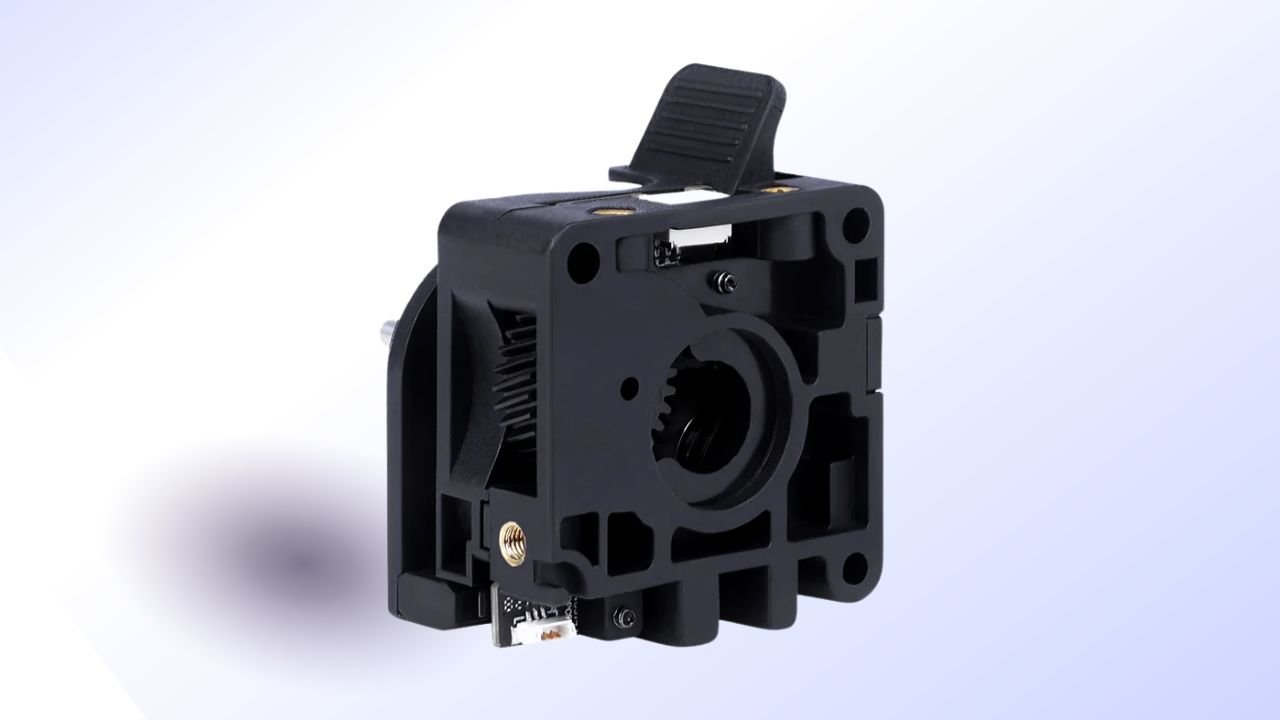
Think of the extruder gears as the heart of your printer’s operation. When they function smoothly, your prints reflect that precision. Here’s how to identify when maintenance is required:
- Routine Checks: Inspect monthly for filament debris, dust, or wear.
- Signs of Trouble: Grinding noises, filament slipping, or uneven extrusion are all red flags.
How to Maintain Extruder Gears
Cleaning the Extruder Gears
| Step | Action |
| 1. Disassemble | Follow the tutorial “Clearing Clogged Extruder” to safely dismantle the unit. |
| 2. Brush and Clear | Use a small brush or compressed air to remove dust and filament particles from the gears. |
| 3. Reassemble | Ensure all parts are aligned properly to avoid operational issues. |
Resolving Filament Jams
If filament gets stuck, follow these steps:
- Remove the extruder gear gently.
- Use pliers to cut and pull out the jammed filament as close to the blockage as possible.
- Check the gears for cracks or wear, and replace them if necessary.
Clearing a Clogged Nozzle
Troubleshooting Flow:
1️⃣ Heat the Nozzle → 2️⃣ Insert Cleaning Needle → 3️⃣ Remove Blockage → 4️⃣ Replace Nozzle (if necessary)
- Heat the Nozzle: Set the temperature to match the filament type (e.g., PLA at 200°C).
- Insert a Cleaning Needle: Heat the needle’s tip and gently insert it into the nozzle to remove blockages. Wait for it to cool before pulling it out.
- Replace if Necessary: If the blockage persists, replace the nozzle by following the “Replace the Hotend” tutorial.
Integrated Material Break Detection Module Maintenance
When Should You Maintain the Material Break Detection Module?
This module ensures the printer detects when filament is present. Here’s when to check it:
- The blue light doesn’t activate when filament is inserted.
- The light stays on even when there is no filament.
Maintenance Steps for the Material Break Detection Module
| Issue | Solution |
| Leftover filament in extruder | Retract filament from an external spool holder before loading new material. |
| Broken filament in tube | Inspect and remove small pieces to prevent false detection. |
| False detection (blue light) | Clear debris or replace the detection port buckle if loose or broken. |
Filament Cutter Maintenance
When Should You Inspect the Filament Cutter?
The filament cutter ensures clean and precise cuts during changes. Over time, its blade can dull, especially with tougher materials. Monitor for:
- PLA/ABS and Similar Filaments: Check after every five rolls.
- Fiber-Reinforced Filaments: Inspect after each roll due to increased wear.
Steps to Maintain the Filament Cutter
Checklist for Maintenance
- Inspect the Blade: Remove the cutter and check for dullness, chips, or warping.
- Replace if Needed: Install a new blade if cutting performance has declined.
- Recalibrate After Replacement: Adjust the cutter to ensure smooth operation.
Testing the Cutter
✅ Run a short print test to confirm the cutter functions as expected.
✅ Recalibrate if problems persist.
Input Shaping Maintenance
Why Is Input Shaping Important?
Input shaping helps ensure alignment and compensates for belt stretching.
Perform calibration:
- Frequency: Once per month.
Steps to Calibrate Input Shaping
| Step | Action |
| 1. Clear the Extruder | Remove all filament to avoid calibration errors. |
| 2. Run Calibration | Navigate to Settings → Device Self-Check → Check Input Shaping → Calibrate. |
| 3. Follow the Prompts | Allow the system to adjust settings automatically. |
Troubleshooting and FAQs
Common Issues and Solutions
| Problem | Solution |
| Persistent nozzle clogs | If cleaning fails, replace the nozzle. |
| Material break detection issues | Ensure the sensor is free of debris and the buckle is intact. |
| Filament cutter malfunctions | Verify the blade’s sharpness and recalibrate if necessary. |
Key Safety Tips
- Handle Heated Parts Safely: Allow all components to cool before handling.
- Follow Video Guides: Use official tutorials for accurate and safe maintenance.
- Perform Regular Inspections: Proactive checks prevent small issues from escalating.
Conclusion
Proper maintenance of your Creality Hi Extruder Kit ensures consistent, high-quality prints and extends the life of your 3D printer. By following these easy steps, you can avoid interruptions and keep your printer in peak condition. Set aside a little time each month for upkeep and enjoy a hassle-free 3D printing experience. Happy printing!