
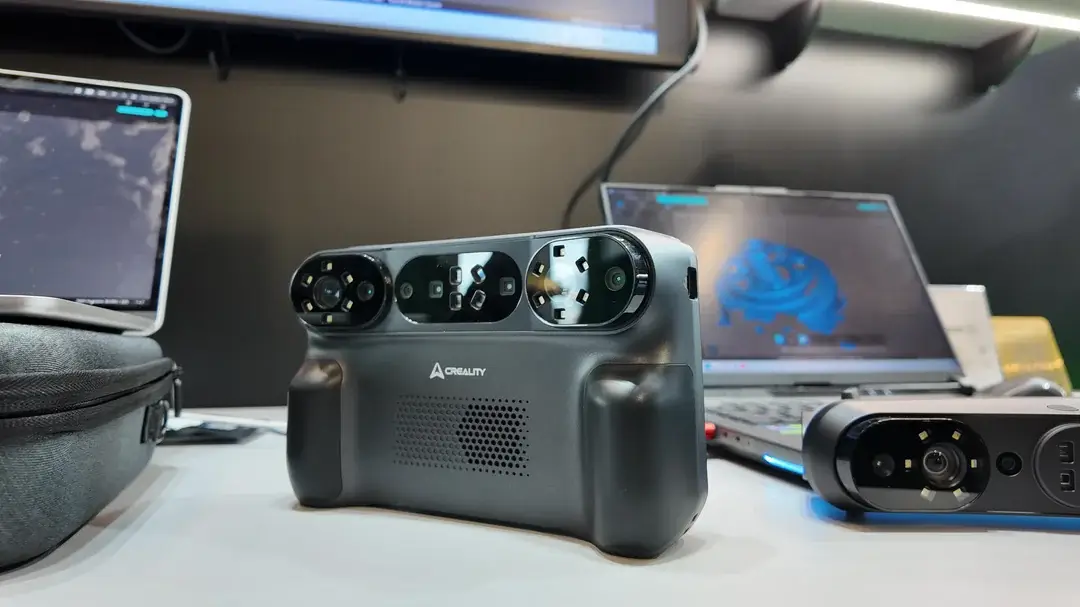
Quick Answer
Think of Creality Sermoon P1 22/7/1 as speed / detail / deep features—pick the mode based on the object’s geometry, not the size alone.
- Use 22-line cross laser for fast coverage (big shapes, first pass, getting a “complete scan” quickly).
- Use 7-line parallel laser for higher detail (edges, small features, tighter tolerance areas).
- Use 1-line laser for deep holes, grooves, and recesses (hard-to-see geometry where wider patterns miss data).
If you’re a beginner: do a 22-line first pass, then switch to 7-line for important details, and 1-line only when you need to “reach into” holes or narrow slots.

- ➤【High-Precision Dual-Technology Scanning】-Master any scanning challenge with dual-engine precision. The Sermoon P1 combines Blue Laser and…
- ➤【Flexible Standalone & PC Connected Modes】-Work freely anywhere. Operate completely independently using the built-in 6-inch touchscreen and…
- ➤【Complete All-in-One Portable Kit】-Ready to scan right out of the box. The package includes: the scanner, high-precision glass calibration…
- ➤【Smart & Simplified Data Processing】-Transform scans into models in just a few steps. Use intuitive built-in tools to seamlessly fuse, align,…
- ➤【Professional Hardware for Unmatched Performance】-Powered by pro-grade specs to handle complex data with ease. Featuring 24GB RAM, 256GB…
Laser mode cheat sheet
| Mode | Use it when | Don’t use it when |
|---|---|---|
| 22-line cross | fast first pass, full coverage, larger surfaces | deep holes, tiny recesses, very narrow slots |
| 7-line parallel | edges & critical details, parts that must fit | you only need a rough shape or fast draft |
| 1-line single | holes, grooves, recesses, cavities | full scan of the entire object (too slow/limited) |
What “Laser Line Modes” Actually Are
Laser line scanners work by projecting laser lines onto an object and measuring how those lines deform across the surface.
More lines usually means you can capture more area at once (faster), but fewer lines can help with precision and tricky geometry (because the scanner can focus on a smaller region and reduce “visual confusion”).
On the Creality Sermoon P1, the three laser configurations are commonly described like this:
- 22 cross lines → fast scanning
- 7 parallel lines → detail scanning
- 1 single line → deep-hole scanning
As announced for Sermoon P1: Creality has highlighted three blue-laser line configurations—22 cross lines (fast coverage), 7 parallel lines (detail), and 1 single line (deep holes/recesses). This guide explains how to choose between them in real projects.
Mode 1: 22 Cross Laser Lines (Fast Scan Mode)
What it’s best at
- Capturing the overall shape quickly
- Scanning medium to larger objects with lots of surfaces to cover
- Getting a “complete” first draft scan fast, so you can refine later
What it feels like in real use
This mode is usually the easiest for beginners because it gives you fast progress and helps you build confidence. You move around the object and the scan fills in quickly.
When it can struggle
- Very tight holes, narrow slots, or deep recesses
- Reflective surfaces (depending on angles), where many lines can create confusing reflections
- Ultra-fine detail areas where you want maximum sharpness
Beginner tip: Use 22-line as your first pass almost every time. It creates the “base” your later detail passes depend on.
Mode 2: 7 Parallel Laser Lines (Detail Mode)
What it’s best at
- Capturing sharper edges and finer surface changes
- Scanning mechanical parts where detail matters
- Improving scan quality in “important zones” (fit surfaces, edges, alignment faces)
What it feels like in real use
This mode usually scans slower than 22-line, but the output tends to look cleaner around edges and fine geometry. Think of it as “zooming in” on what matters.
When it can struggle
- Large, featureless areas (you’ll spend more time for little gain)
- Very deep holes (you still may need 1-line)
- Objects that you only need a rough model for (overkill)
Beginner tip: Don’t use 7-line everywhere. Use it like a brush—apply it to key regions.
Mode 3: 1 Single Laser Line (Deep Hole / Recess Mode)
What it’s best at
- Holes, grooves, slots, and cavities
- Recessed logos, channels, internal corners
- Geometry that’s “hidden” from wider patterns
Why a single line helps
When you project many lines at once, the scanner can lose clean visibility in narrow spaces. A single line is easier to aim into a recess, and it reduces interference from reflections and overlapping lines.
How to use it (practical tips)
- Slow down and change angles (don’t expect one angle to see inside a hole)
- Keep strong overlap with the surrounding surfaces so alignment stays stable
- Treat it as a “detail patch tool,” not a full-scan mode
Beginner tip: Switch to single-line only when you see “missing data” in holes or grooves after your first pass.
Which Mode Should You Use?
Use 22-line cross when:
- You want a fast, complete scan
- You’re scanning a larger object
- You’re doing your first pass
Use 7-line parallel when:
- You need cleaner edges and finer detail
- It’s a mechanical part or fit matters
- You’re refining important surfaces
Use 1-line single when:
- You need to capture holes, grooves, or recessed geometry
- You see missing data after the first pass
- The object has deep features the scanner can’t “see into” otherwise
Key Takeaway: Start broad (22), refine (7), and fix deep geometry (1).
The Best Beginner Workflow (Fast + High Quality)
Here’s a simple workflow that works for most projects:
- Base scan with 22-line cross mode
- Walk around the object, get full coverage
- Refine with 7-line mode
- Focus on edges, key surfaces, and small features
- Patch deep features with 1-line mode
- Fill holes, slots, grooves, and recesses
- Export your file and do cleanup once (instead of after each pass)
Practical technique tips (these matter more than mode)
- Keep steady overlap between passes (aim for “clear overlap,” not random jumps).
- For holes/recesses, scan slowly from multiple angles instead of forcing one angle.
- Maintain a consistent distance during each pass (follow Creality’s in-app guidance when available).
This 3-step workflow is faster than trying to “perfect scan” in one mode—and the technique tips are what make results consistent.
Common Mistakes
Mistake 1: Using 7-line everywhere
Fix: Use 7-line only where detail matters. Otherwise you waste time and create huge files.
Mistake 2: Trying to scan holes with 22-line mode only
Fix: If you see missing data in recesses, switch to 1-line and scan slowly with multiple angles.
Mistake 3: Switching modes without overlap
Fix: When you change modes, rescan a bit of the surrounding area so alignment stays stable.
Mistake 4: Moving too fast in 1-line mode
Fix: Slow down, keep the scanner distance consistent, and scan from different angles.
Key Takeaway: Mode choice helps, but your technique (overlap + speed + angles) is what makes scans clean.
FAQ
Q: Is 22-line mode lower quality than 7-line?
A: Not “bad,” just optimized for speed. 22-line is great for base geometry; 7-line usually refines edges and fine detail better.
Q: Do I need to use all three modes every time?
A: No. Many objects only need 22 + 7. Use 1-line when the object has deep holes, grooves, or recessed features.
Q: If my scan looks noisy, should I switch modes?
A: Sometimes, but first check lighting and technique (steady speed, consistent distance, overlap). Mode helps most with geometry type (holes vs surfaces), not random noise.
Key Takeaway: Use the simplest mode combo that gets you the result—don’t add complexity unless the object demands it.


Leave a Reply