
Table of Contents
If this is your first 3D printer, slow down for a second.
You’re not late. You’re not behind. And you’re not supposed to know everything yet.
Most beginners open the box with one simple hope:
“I just want it to work. I don’t want to break anything.”
That’s exactly what this guide is for.
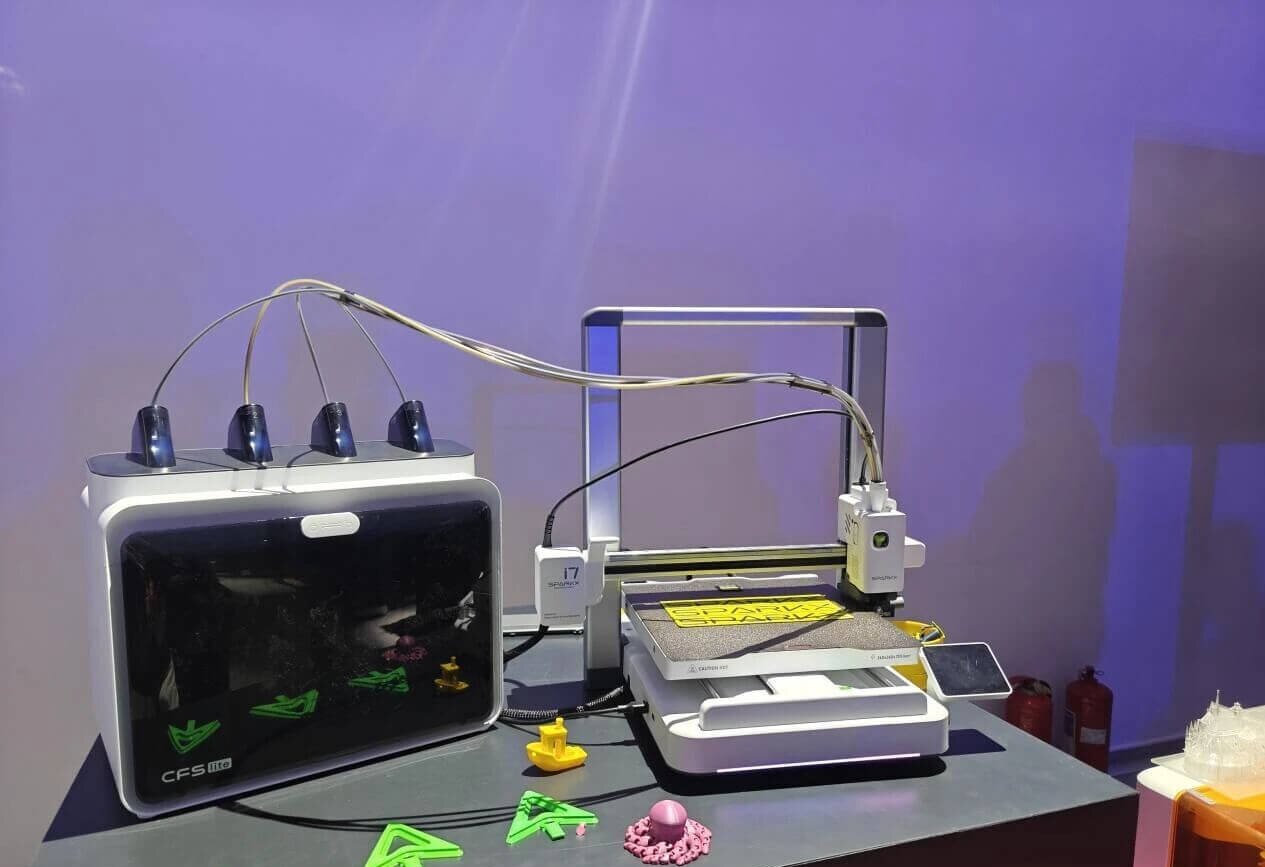
In this guide, I’ll walk you through the first setup and first print on the SparkX i7, step by step. No jargon. No guessing. Just the right order.
By the time you finish this guide, you should be able to:
- Power on the printer the right way
- Load PLA filament without grinding or clicking
- Run Auto Leveling with confidence
- Start the built-in test print
- Tell—within 30 seconds—whether your first layer is good or not
Before we touch any menus or buttons, let’s make sure you have the right basics ready.
This takes about 30 seconds, and it prevents most beginner problems.

What do I need before I start the SparkX i7 setup?
You don’t need much. But if you skip these basics, your first print can fail for boring reasons—like the printer wobbling, or the bed being dusty.
Here’s what to prepare:
- A steady table (no wobble)
- PLA filament (best for a first print)
- A normal power outlet
- A little space around the printer (the bed moves forward and back)
- (Optional but helpful) paper towel + rubbing alcohol to wipe the bed
That’s it.


Why PLA first?
PLA is the easiest filament to start with. It melts nicely and usually sticks well. If you start with harder materials on day one, you might think the printer is broken when it’s really just the material being picky.
You may also like
Where should I place the printer?
Put it somewhere flat and stable. If the table shakes, the print can look messy—even if the machine is fine.
One quick safety note before we unbox: The nozzle and bed can get hot.
So when the printer is on, keep fingers away from moving parts.
Alright—now let’s open the box the right way, so you don’t get stuck later.
What’s in the box for SparkX i7?
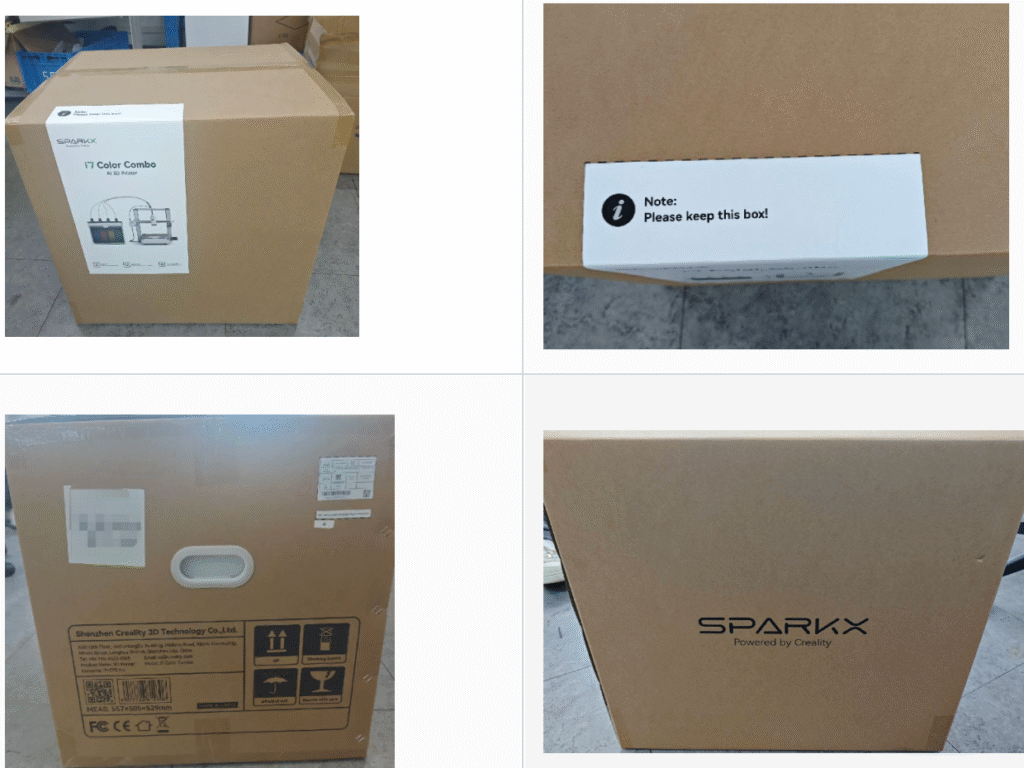
This part looks simple, but it’s where many beginners accidentally create problems for themselves.
The printer may turn on even if something is still locked inside—but it won’t move correctly. Then it feels broken, even when it isn’t.
So take this slow. You only do it once.
Step 1: Place the printer and don’t power it on yet
- Put the printer on your table
- Don’t plug it in yet
- Take a moment to look inside the frame
You’re just checking—no buttons, no menus.
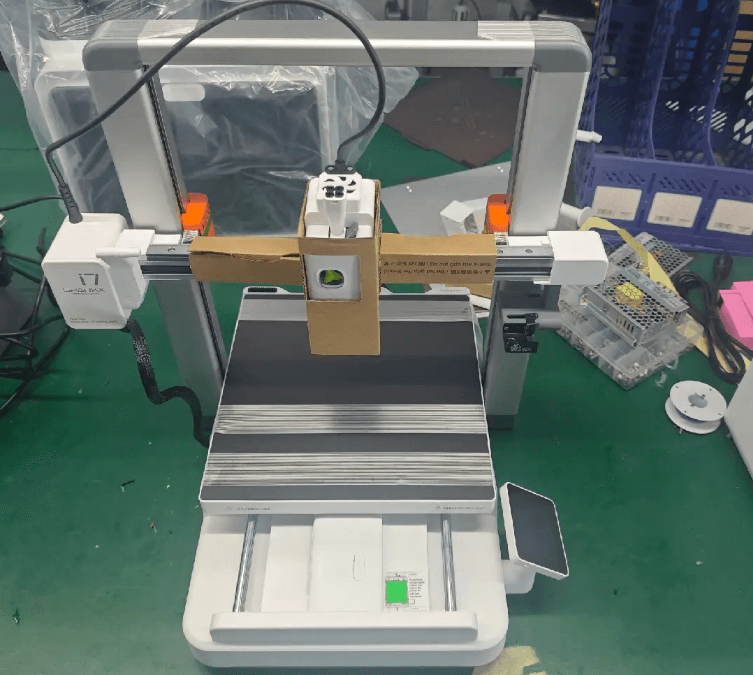
Step 2: Remove all packing and shipping locks
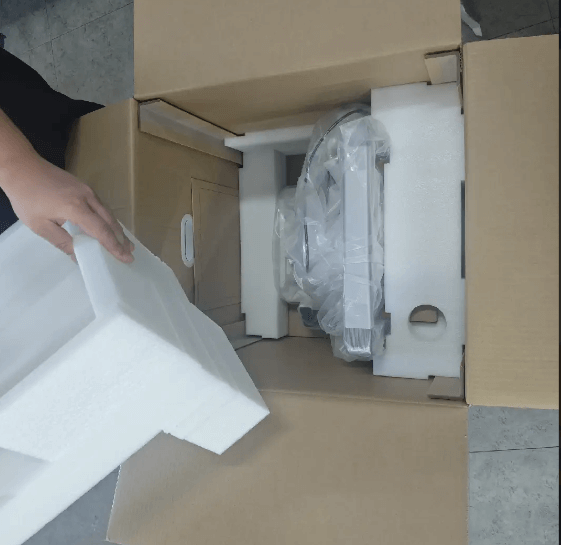
Inside the printer, look for anything that clearly doesn’t belong there long-term:
- Foam blocks
- Tape
- Zip ties
- Cardboard pieces
- The X-axis shipping lock bracket (this one is easy to miss)
This lock is only there to keep things from moving during shipping.
If you leave it on, the printer can’t move the way it should.
✅ You should see:
- The printhead area is clear
- The bed area is clear
- Nothing is touching the rails or belts
If something looks stuck, don’t force it. Go back and check again—there’s almost always one last piece of foam hiding somewhere.
Step 3: Quick “what’s in the box” check
Your box may look a little different depending on region or batch, but most SparkX i7 boxes include:
- The SparkX i7 printer
- A power cable
- Basic tools or accessories (as included)
- A quick start card or QR code
- Sometimes a small sample filament or spare parts

If anything looks damaged, take a photo now. You probably won’t need it—but if you ever contact support, it saves time.
Step 4: One last check before power-on
Before you move on, do this simple test:
- Gently push the bed a small amount (no force)
- You’re not testing strength—just freedom of movement
✅ You should feel: smooth movement, no hard stop, no scraping sound.
If it doesn’t move smoothly, stop and look again for packing material or a shipping lock.
Once everything is clear, you’re ready to power on the printer.
How do I set up SparkX i7 for the first time?
Now you can plug it in.
This is the moment some beginners get nervous, because the printer will move and make sounds. That’s normal. It’s just doing a first-time check to make sure everything works.
On the first power-on, the SparkX i7 may run a self-check / calibration. This can take
around 10 minutes
Before you start, make sure the print plate is seated flat and clean.
During self-check, movement, vibration, and noise can be normal.
Try not to power off during self-check unless the screen shows an error.
Step 1: Power on
- Plug in the power cable
- Turn the printer on
- Follow the first-time prompts on the screen (language, basic setup)
✅ You should see: a startup screen, then a simple setup flow.
Step 2: Let the printer run the self-check (don’t interrupt it)
On the first power-on, the SparkX i7 may run a self-check / calibration routine. This can take around 10 minutes.
During this time, the printer may:
- home the axes (move to find its “zero” position)
- move the bed and toolhead around
- pause, then move again
✅ You should see: the routine completes without errors.
What you should NOT do:
- Don’t push parts by hand while it’s moving
- Don’t turn it off mid-check unless you see a clear error
- Don’t worry if it pauses for a moment—pauses are normal
When the self-check finishes, you’re ready for the next part: loading PLA filament.
And I’m going to be honest—this is where most first-day failures happen. Not because the printer is bad, but because people rush and skip one small detail.


How do I load PLA filament on the SparkX i7 (so the first print actually works)?
This part is important, because SparkX i7 can be used in two different ways:
- Spool holder + PTFE tube (single spool)
- CFS Lite (the multi-spool box)
Pick the one you have below and follow only that path.
If you’re using the spool holder + PTFE tube (single spool)
This is the basic setup the i7 manual describes:
- Assemble the spool holder.
- Connect the PTFE tube between the spool holder and any Toolhead filament hub port.
- Clip the Toolhead data cable and the PTFE tube into the PTFE tube hub. Don’t skip this step.
- Put your PLA spool on the holder, then feed the filament into the toolhead through the PTFE tube.
✅ You should feel: the filament goes in smoothly (no hard stop).
If it stops early, don’t force it—pull it back out and try again.

If you’re using CFS Lite (the multi-spool box)
If you bought the CFS Lite bundle, the loading action is simpler:
- Insert the filament into the CFS Lite feed port — it auto-loads.
- If you need to, go to the Filament page and edit filament info.
- Creality/RFID filament can be read automatically.
- For third-party filament, you may need to set type and color on the printer screen.
✅ You should notice: when you gently push the filament in, you’ll feel a pulling force and the CFS starts loading by itself.

How do I start the first print from the built-in file? (the safest way)
Before you tap “Print,” do one small check first:
- Make sure the print plate is sitting flat on the bed
- Make sure it’s clean and free of bits (no loose plastic, no dust)
Now start the print:
- On the Home screen, tap Print File
- Pick the test model (or any file you want to print)
- Tap Print
- If you see an option called Print Calibration, it’s recommended to turn it on for the first print
Then wait for the printer to finish.
When the print is done, let the bed cool down completely before you try to remove the model.
How do I know if my first layer is good?
When you start a print, don’t walk away right away.
Watch the first lines go down on the plate. This quick check saves the most time.
Here’s what “good” looks like:
- The lines look smooth
- They look slightly pressed down (not round like spaghetti)
- They stick and don’t slide around
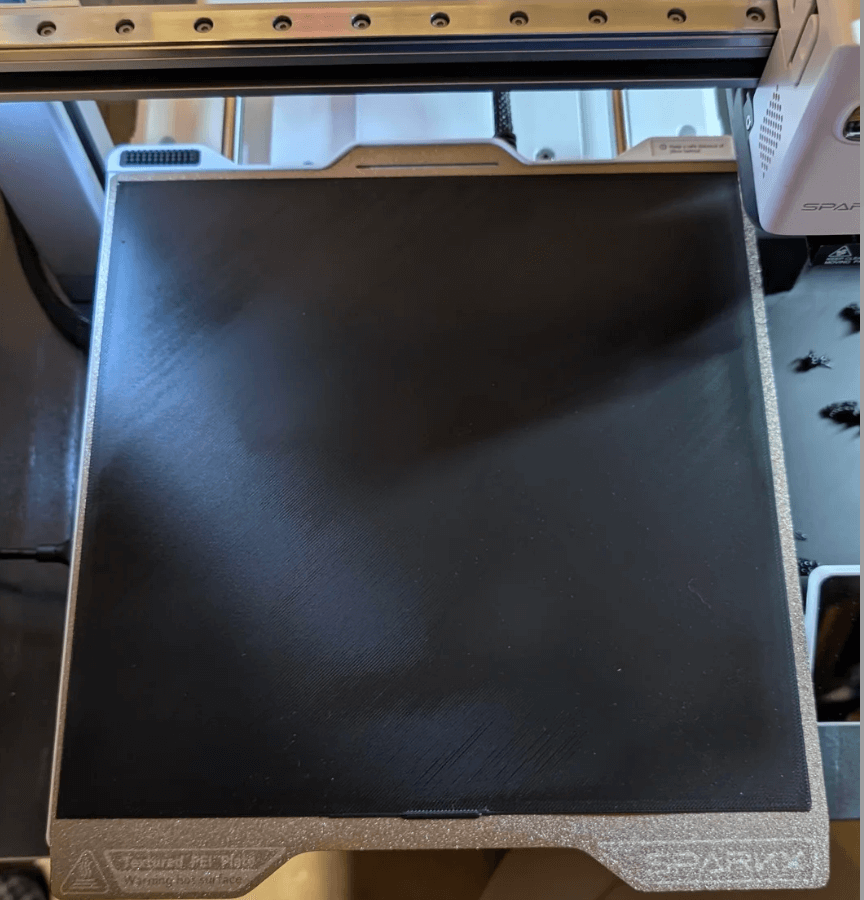
And here are the two common “not good” looks:
If the lines look round and barely stick…
That usually means the nozzle is too far from the plate.
You’ll often see gaps, or the lines can be wiped off easily.
If the nozzle drags or the lines look smashed…
That usually means the nozzle is too close.
You might hear a light scraping sound, or see rough, torn-looking lines.
If your first layer looks bad, the best beginner move is simple:
Stop early, then run the printer’s calibration again.
SparkX i7 is designed to handle a lot of this automatically (including bed leveling and nozzle height), especially during its calibration steps and at the start of prints. And the manual recommends turning on Print Calibration when you start a print.
Before you retry, do this too (it matters a lot):
- Make sure the print plate is flat and clean, with no bits stuck on it
Now you’re probably thinking: “If it auto-levels… do I still need to mess with Z-offset?”
Let’s answer that the beginner way—straight and simple.
Do I still need to adjust Z-offset after Auto Leveling?
Most of the time: no.
On SparkX i7, the printer is built to handle bed leveling and even nozzle Z-offset through its calibration system and automatic routines.
So if your first layer looks wrong, don’t jump into deep settings first.
Do this in this order:
- Make sure the print plate is flat and clean
- Start the print again with Print Calibration enabled
- Watch the first layer for 30 seconds again
If you still see the same problem after that, then it’s time to use the fast-fix section (because the cause is usually something simple, like loading, debris, or a missed check).
If something goes wrong, what’s the fastest fix? (6 beginner problems)
I’m going to keep this section strictly “manual-safe”: quick checks that are directly supported by the SparkX i7 / CFS Lite guides (so you’re not chasing random tips).
1) “My print won’t start” (or it starts, then just waits)
Do this first:
- Start again from the official path: Home → Print File → select model → Print.
- If you see it, enable “Print Calibration” for the first print.
Why this helps: the guide explicitly recommends Print Calibration at print start.
2) “The first layer looks bad”
Don’t jump into deep settings yet. Do the two things the guides call out:
- Make sure the print plate is placed flat and is free of debris (no scraps on it).
- Reprint with Print Calibration enabled.
That’s the safest “first fix” because it matches the official pre-print checklist + recommendation.

3) “I’m using CFS Lite, but the filament shows a question mark / info looks wrong”
That’s normal when the printer doesn’t have the filament details yet.
- Go to the Filament page
- Tap Edit
- Set Brand / Color / Type / Name, then Confirm
If you use RFID filament, CFS Lite can auto-recognize filament info; for non-RFID, you set it manually.
4) “CFS Lite isn’t feeding smoothly” (or you’re worried you set it up wrong)
Check the two “don’t-skip” setup points:
- PTFE tubes: make sure they are fully inserted in the CFS Lite and in the toolhead hub.
- Toolhead data cable: make sure it’s clipped into the tube hub (don’t skip this to avoid damage).
Then re-insert filament into the CFS Lite feed port—it should auto-load.
5) “My printer keeps bumping close to things / I’m worried it’ll hit something
- Leave enough space around the printer to avoid collision with the heated bed movement.
If the bed can’t move freely, stop and re-position the printer before continuing.
6) “How do I remove the print safely?”
Don’t pry it off right away.
- After printing, allow the print bed to cool down completely before removing the model.
This is straight from the “Start Printing” instructions.
You may also like
What should I do after my first successful print?
Nice — once you get one clean print, you’re basically “in.”
Here’s what to do next, in a simple order that keeps you out of trouble.
1) Let the bed cool, then remove the print (don’t rush)
- Wait until the bed feels cool (or close to room temp).
- Then remove the model slowly.
Why: hot plastic is softer, and rushing can bend the print or stress the plate.
2) Do a 10-second clean check on the plate
- Look for any tiny bits of plastic stuck on the surface.
- If you see crumbs or dust, wipe it off before the next print.
A clean plate = fewer “why won’t it stick?” moments.
3) Print one more small PLA file before changing anything
Before you touch advanced settings or try tricky models:
- Print a second small PLA model (another built-in file is perfect).
This tells you the printer is consistent, not just “lucky once.”
4) If you’re using CFS Lite, label your filament (so you don’t get confused later)
- Make sure each spool is clearly marked (PLA / color).
- If your screen lets you set filament info (type/color), do it now so future prints are easier to manage.
FAQ
1) How long does SparkX i7 first setup take?
Most of the hands-on steps are quick, but the first power-on self-check can take around 10 minutes. Let it finish. It’s normal for the printer to move and pause during this.
2) Do I need to assemble the SparkX i7 out of the box?
Not a full build, but some batches need a few short install steps (like placing the print plate, tightening a few parts, or connecting a cable). The big one is removing shipping locks (especially the X-axis lock bracket).
3) What filament should I use for my first print?
Use PLA. It’s the easiest for a first print and usually sticks better with fewer surprises. Save TPU/ABS for later.
4) What does Auto Leveling do—and what does it NOT do?
Auto leveling checks the bed and helps the printer compensate for small bed differences.
But it doesn’t magically guarantee a perfect first layer every time. You still need a 30-second first-layer check at the start of a print.
5) Do I need to adjust Z-offset after auto leveling?
Usually no, especially for your first few prints.
If the first layer looks wrong, do the simple fixes first:
- make sure the plate is flat + clean
- re-run calibration / use Print Calibration if your print screen offers it Only worry about deeper settings if the same issue keeps happening.
6) Why is my first layer not sticking?
The most common beginner reasons are:
- the plate isn’t clean
- something tiny is stuck on the plate
- you started printing before confirming the first layer looks “slightly pressed down” Start by cleaning the plate and watching the first 30 seconds again.
7) I’m using CFS Lite—why is the filament info wrong or missing?
That can happen with non-RFID filament.
RFID spools can be recognized automatically, but third-party spools may need you to set the filament type and color on the printer screen.
8) When should I contact support?
If you keep seeing repeat errors during self-check, leveling, or starting prints:
- take a clear photo of the bed + toolhead area
- record a short video of the error happening That makes support much faster.


Leave a Reply