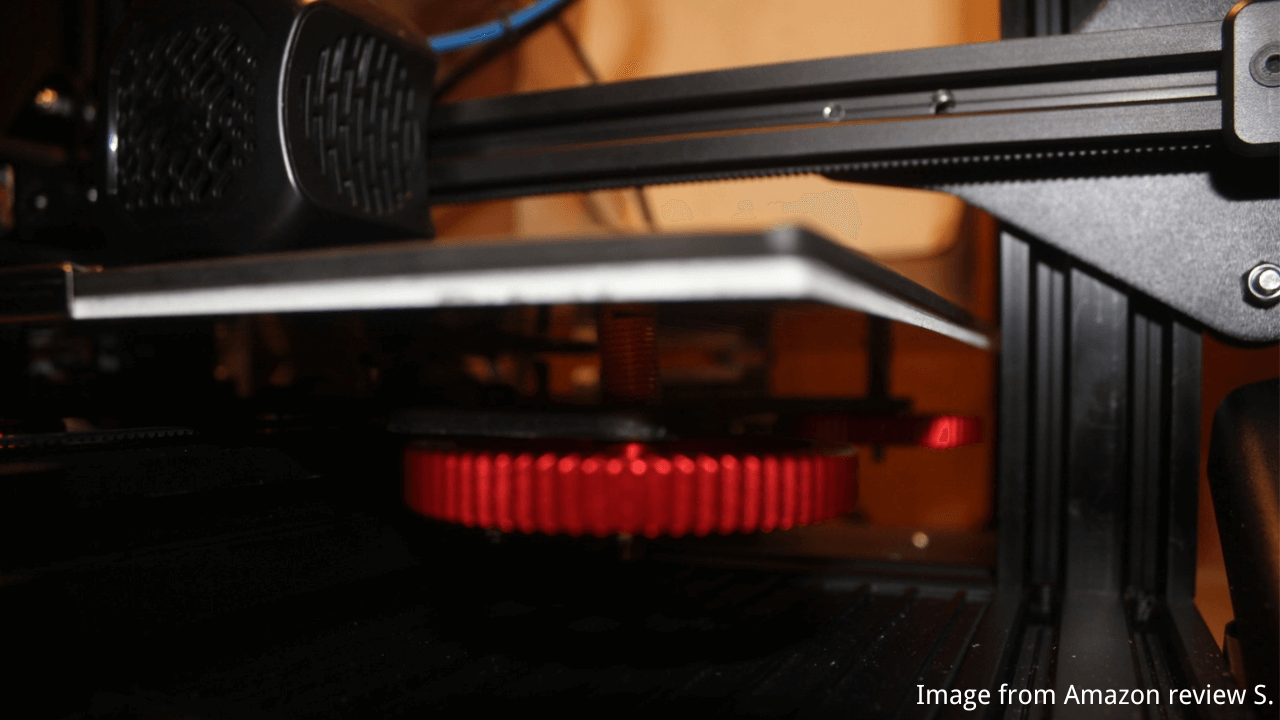
Homing failures on the Ender-5 Max can be a common hurdle for 3D printing enthusiasts.
| Preview | Product | Rating | Price | |
|---|---|---|---|---|

| Creality Ender-5 Max 3D Printer, 400x400x400mm Large Build Volume, 700mm/s High-Speed Printing,… | $889.99 $711.55 | Buy on Amazon |
For instance, imagine setting up a long-awaited print only to find the printer stuck mid-motion or failing to align properly. Whether it’s during the initial startup or when manually triggering the homing function, such issues can disrupt workflows and waste valuable time.
These issues can lead to stalled projects, wasted materials, and frustration. By identifying the root cause and following targeted troubleshooting steps, you can restore your printer’s functionality and ensure smoother operations.
This guide aims to provide practical advice and actionable steps for addressing these homing issues effectively.
Understanding the Problem
Homing failures typically occur when the printer cannot properly identify the origin points of its X, Y, or Z axes. You might notice the following behaviors:
- The printer stops mid-motion or fails to reach the correct home position.
- The homing process triggers unusual noises or errors.
These symptoms indicate underlying hardware or connection problems that need attention.
Root Causes of Homing Failures
Based on common observations, homing issues on the Ender-5 Max can stem from:
Limit Switch Malfunction:
Limit switches are small mechanical or optical devices that signal when an axis has reached its home position by detecting physical contact or proximity.
They act as sensors, sending signals to the printer’s control board to stop the motor’s movement at the correct point, ensuring precise calibration.
A defective switch may fail to send the correct signals.
Motor Wiring Problems:
Loose connections, damaged wires, or poor contact can disrupt motor performance, resulting in incomplete or erratic movement.
Motor or Driver Failure:
Faulty motors or motor drivers can hinder smooth operation and cause homing errors.
Z-Axis Components Issues:
Problems with the leveling plate or strain gauge often affect the Z-axis homing, leading to inaccuracies or complete failure.
Step-by-Step Troubleshooting Guide
1. Test the Limit Switches
- Steps to Follow:
- Power off the printer and manually move the nozzle to the center of the build platform.
- Power on the printer, issue a homing command, and manually press the Y-axis limit switch while the axis is moving.
- Observe whether the motion halts midway. Repeat the same process for the X-axis.
- Analysis:
- If pressing the limit switch stops the axis, it’s functioning correctly. If not, the switch may need cleaning, adjustment, or replacement.
2. Inspect Motor Wiring
- Steps to Follow:
- Examine the wiring of the X, Y, and Z motors for loose connectors, exposed wires, or visible damage.
- Gently wiggle the cables while the printer is powered off to identify unstable connections.
- Solution:
- Secure any loose connectors and replace damaged wires to restore stability.
3. Swap and Test Motors
- Steps to Follow:
- Interchange the X and Y motors by swapping their cables and run the homing test again.
- Note whether the error switches to the other axis.
- Analysis:
- If the error moves to the swapped axis, the problem lies in the motor. Replace the faulty motor.
- If the error remains on the same axis, inspect the motor driver on the mainboard for faults. A driver issue may require mainboard replacement.
4. Address Z-Axis Homing Issues
- Steps to Follow:
- Disconnect and reconnect the leveling plate and strain gauge terminals to ensure secure connections.
- Test the Z-axis homing function again.
- Solution:
- If the problem persists, replace the leveling plate and strain gauge with new components to restore proper functionality.
Practical Tips for Success
Maintain Spare Parts Inventory:
Stock up on essential components like Creality-branded limit switches and high-quality motor cables, such as the Ender-series compatible ones from Capricorn, for quick fixes when issues arise. These parts are widely available and ensure reliable performance.
Schedule Regular Inspections:
Periodically inspect wiring and connectors for wear and tear to prevent unexpected failures.
Update Firmware Regularly:
Firmware updates often include bug fixes and performance improvements that can resolve homing-related errors. To update your firmware, start by visiting the official Creality website or a trusted source to download the latest firmware version compatible with your printer model.
Follow the provided instructions for transferring the firmware to an SD card and updating your printer. For a step-by-step walkthrough, refer to guides available on forums like Reddit or YouTube tutorials tailored to the Ender-5 Max.




Frequently Asked Questions
Q: Why does the printer stop midway during homing?
This often points to a limit switch malfunction or poor motor wiring. Testing and replacing the affected component should resolve the issue.
Q: What if swapping motors doesn’t solve the issue?
If the problem persists with the same axis after swapping, it’s likely a driver or mainboard issue requiring replacement.
Q: Can a dirty nozzle affect homing?
No, homing failures are unrelated to the nozzle condition. However, keeping the build platform clear of obstructions is crucial for smooth movement. Common obstructions include stray filament pieces, debris, or tools left on the platform. To ensure smooth operation, always check for and remove such items before starting a print. Regular cleaning of the platform and inspection of moving parts can help prevent unexpected interruptions.
Safety Notes
- Always power off the printer before performing hardware checks or replacements.
- Handle delicate components like wires and sensors with care to avoid further damage.
Conclusion
Homing issues on the Ender-5 Max can disrupt your 3D printing experience, but with a methodical approach, these problems can be resolved efficiently. By testing the limit switches, inspecting motor wiring, and addressing specific axis issues, you can restore normal functionality and prevent future disruptions.
For ongoing reliability, consider scheduling regular maintenance checks and keeping spare components on hand. With these proactive measures, your Ender-5 Max will remain a dependable tool for your creative projects.