
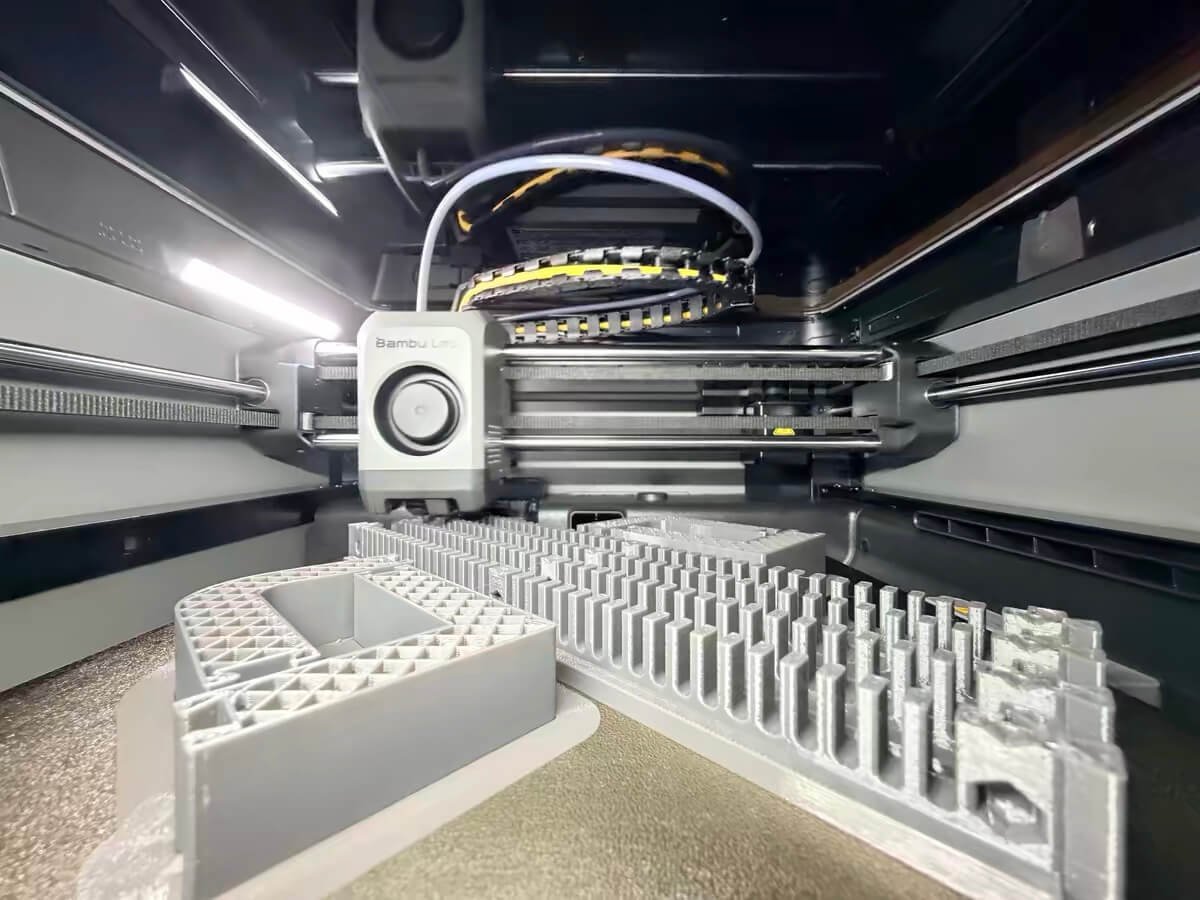
This is a beginner guide for your first setup on Bambu Lab P2S 3D printer. It also includes real “gotchas” people talk about in the Reddit community, like missing the build plate, PTFE tube not pushed in, and extra screws found after unboxing.

Setup Snapshot
- Time: plan about 30 minutes (first time)
- Difficulty: Easy (just go slow)
- Tools: H2.0 hex key (included). Optional: tweezers or a magnetic screwdriver
- Biggest mistakes to avoid:
- Leaving small tapes on
- Starting calibration without the build plate (can lead to scraping)
- PTFE tube not fully seated (can cause AMS feed issues)
- Foam still blocking the bed area (can stop bed movement during calibration)


Choose Your Model (Jump to the right steps later)
- P2S Combo (with AMS) → follow Part A
- P2S (standalone, no AMS) → follow Part B
- If anything feels stuck or weird → jump to Troubleshooting
P2S Combo vs P2S
| Item | P2S Combo (with AMS) | P2S (standalone) |
|---|---|---|
| What you’ll set up | Printer + AMS | Printer only |
| Power cable note | Power cable is noted as in the internal accessory box of the chamber | (Standalone packaging can differ by batch; follow your box labels) |
| Extra connections | PTFE tube + 6-pin cable for AMS | PTFE tube only |
| Most common community issue | PTFE not seated / feed errors | Calibration blocked by leftover foam/tape |
30-Second Prep Checklist (Do this before you unbox)
- Clear a stable table and space around it
- Open the tool box and find the H2.0 hex key
- Optional: grab tweezers or a magnetic screwdriver (helps with small screws)
- Plan to keep all foam, bags, and screws (many people end up needing them later)
- Rule: Don’t force anything. If it won’t move, look for tape/foam/screws first.
One more smart habit :
After you finish unboxing, do a quick look inside the printer base area. Some users report finding a loose/extra screw after setup, so it’s worth checking early.
Part A — P2S Combo (With AMS) Setup
(Do → Check → Why. Simple steps. Go slow.)
Official step order is based on Bambu Lab’s P2S Combo unboxing guide.
A1) Take the printer out safely
Do
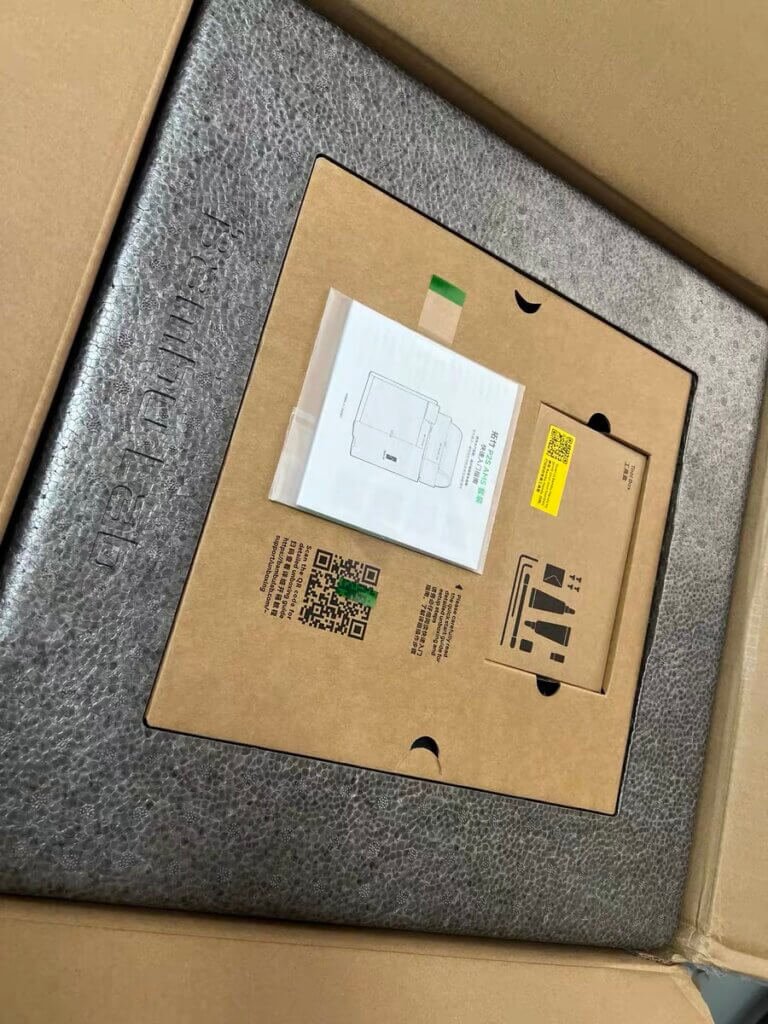
- Open the outer box.
- Take out the tool box and the quick start guide.
- Remove the top foam.
- Lift the printer onto a stable table.
- Remove the moisture bag.
Check
The printer sits flat and does not rock.
Why
A stable start helps everything line up during calibration.
Tip: If something feels stuck, don’t pull harder—look for foam/tape/screws first.
A2) Find the power cable + remove the “hidden” tape
Do
- Find the power cable: for P2S Combo, it’s noted as inside the printer, in the internal accessory box.
- Remove the tape at the bottom of the side panels (under-side area).
Check
You can see the bottom vent area is fully open (no tape blocking it).
Why
That tape can block airflow and cooling.
A3) Remove top glass + front door protection
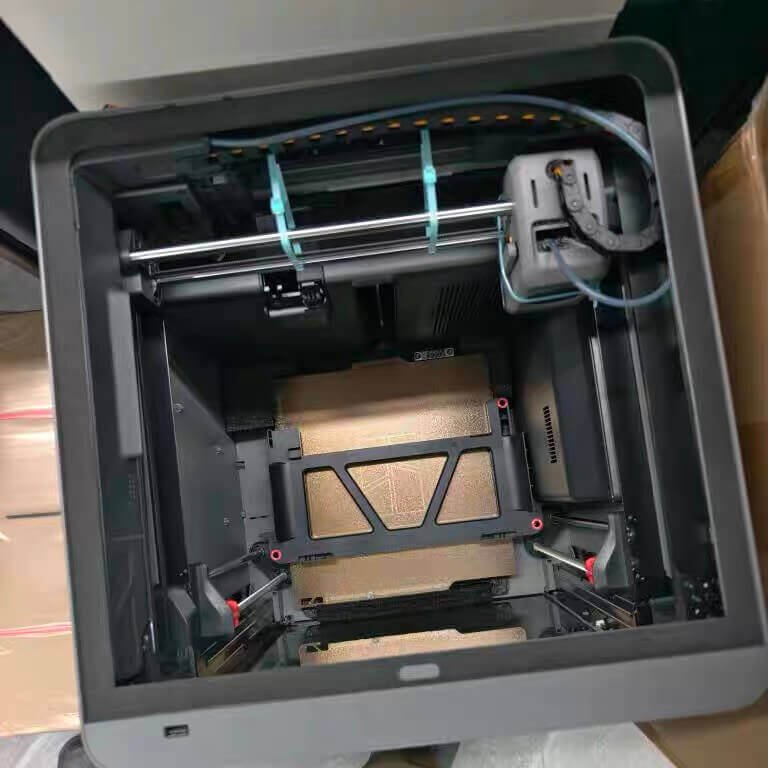
Do
- Remove the top tape.
- Lift off the top glass and remove the protection bag.
- Remove the front door tape and protection bag.
Check
Glass is free, and you can access the inside chamber easily.
Why
You need clear access to remove shipping materials safely.
A4) Take out the accessory box + free the AMS (foam + two screws)
Do
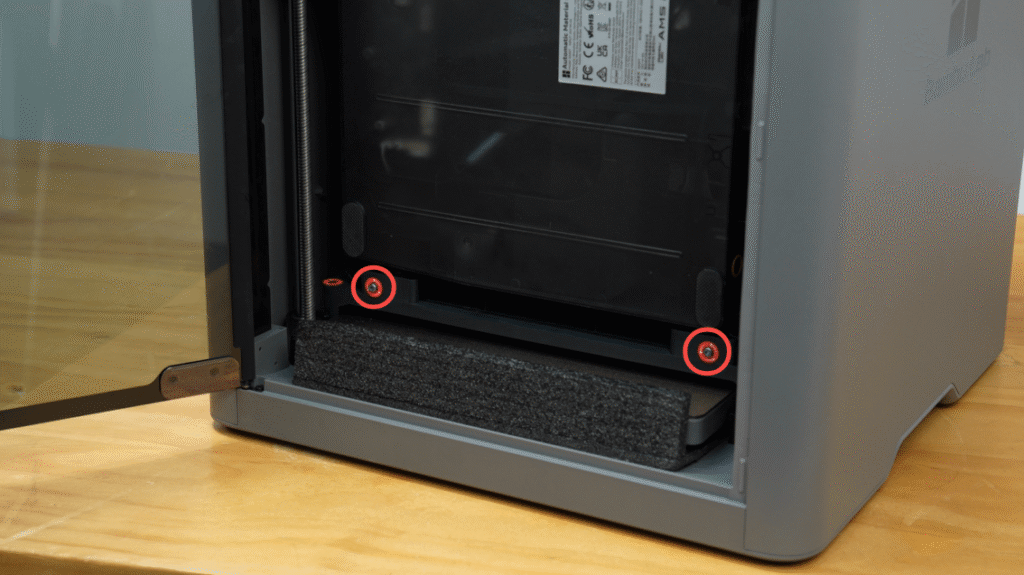
- Take out the accessory box.
- Remove the foam on top of the AMS.
- Use the H2.0 hex key to remove the 2 red-marked screws that secure the AMS in shipping.
- Important: Keep the foam around the heatbed for now. You remove it after calibration.
Check
The AMS can lift up without forcing it.
Why
Those screws and foam are there to stop movement during shipping.
Packaging note (so you don’t panic): Some batches changed foam placement. If you don’t see foam on the left side, that can be normal—focus on removing any foam that blocks motion.
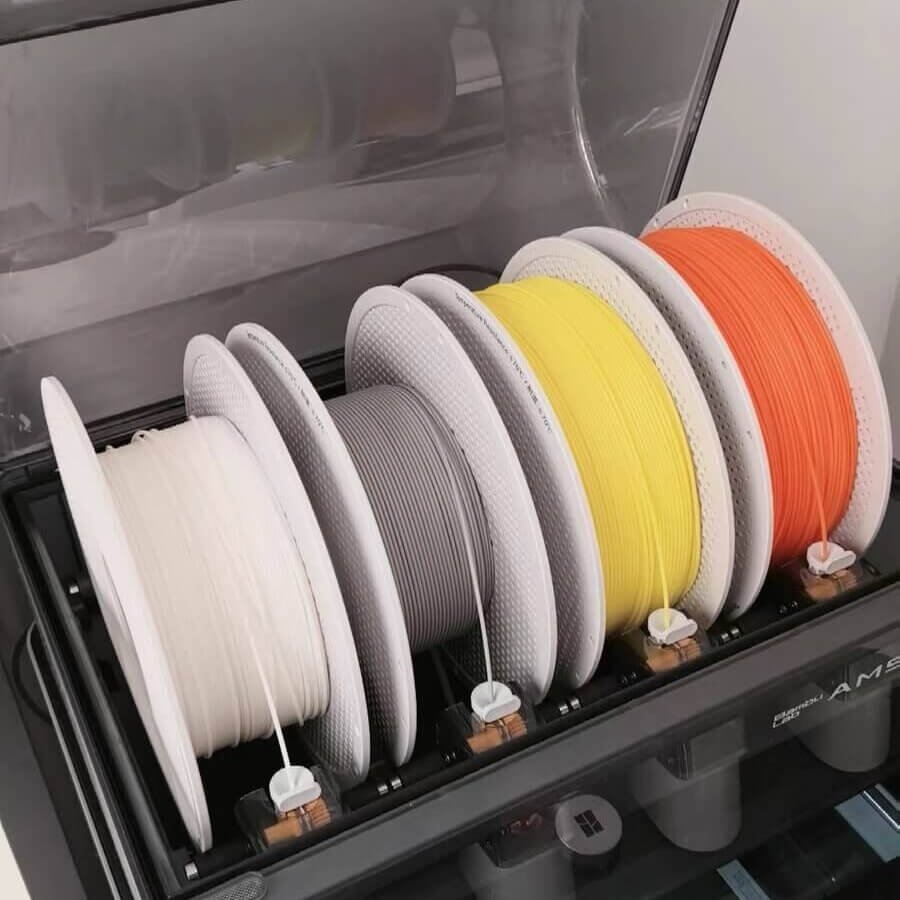
A5) Lift out the AMS + remove chamber foam (right/back)
Do
- Lift the AMS straight up and out.
- Remove foam blocks inside the chamber (usually right side + back on newer packaging).
Check
Inside chamber walls are clear (no foam blocks touching the frame).
Why
Foam left inside can block calibration movement.
A6) Remove the AMS shipping bracket + the heatbed lock screw
(This is the “don’t skip” step.)
Do
- Use H2.0 to remove the AMS shipping bracket (3 screws).
- Use H2.0 to remove the heatbed lock screw (1 screw).
Check
The bed is no longer “locked” and can move freely during calibration (don’t push hard—just a gentle check).
Why
If locks stay on, calibration can fail.
Tip (very real): People often drop a screw under/behind the bed. A small magnet tool or tweezers helps.


A7) Remove the last shipping safety items (red caps, zip ties, desiccant)
Do
- Remove the chamber desiccant pack (if taped inside).
- Pull down and remove the red plastic caps on top of the lead screws.
- Cut and remove any zip ties on rods/toolhead area.
Check
Nothing is blocking the toolhead or rods.
Why
These parts stop motion. Motion must be free for calibration.
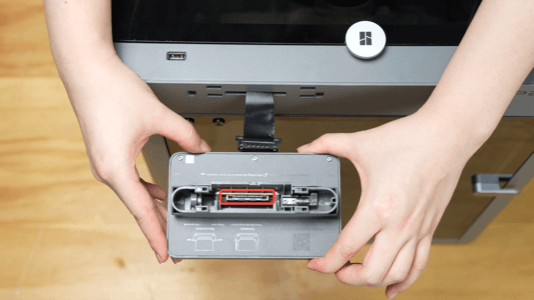
A8) Install the screen (easy, but do it gently)
Do
- Remove tape holding the screen cable.
- Plug the ribbon cable into the screen.
- Tuck the cable back into the slot.
- Insert the screen and slide left to lock.
Check
Screen sits flat and feels locked.
Why
A loose cable can cause a blank screen.
A9) Install AMS on top + connect PTFE tubes + 6-pin cable
Do
- Remove AMS protective film and inner foam.
- Place AMS on top of the printer.
- Connect PTFE tubes:
- Push the tube in until it stops (no half-way).
- Connect the 6-pin cable between AMS and the printer buffer.
Check
- Tubes feel tight and don’t wiggle out easily.
- Cable clicks in firmly.
Why
Loose PTFE tubes are a common cause of “won’t load / pulls back / feeding issues.” Community advice often starts with “check tubes and path first.”
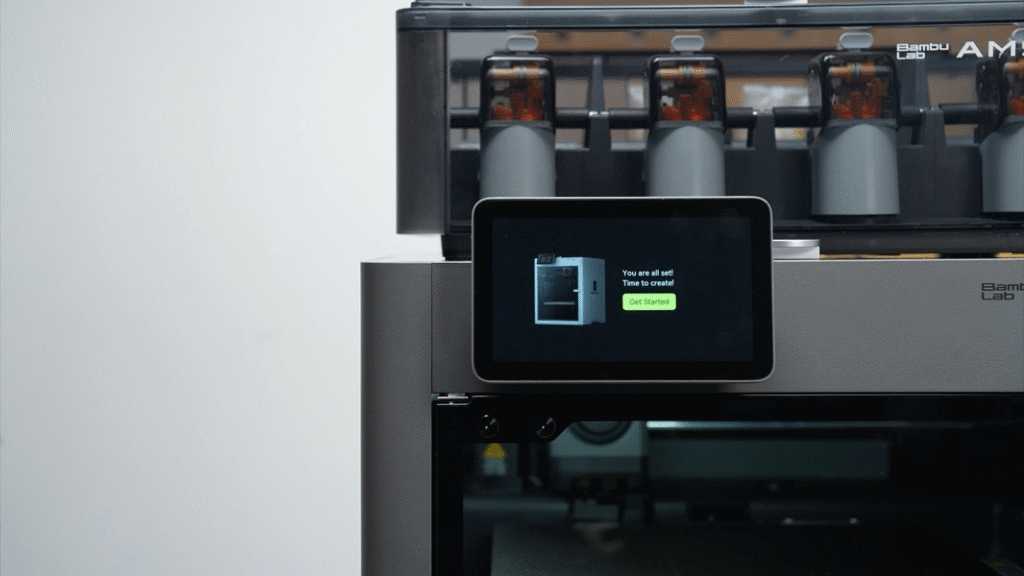
A10) Power on + first calibration (do not skip the plate)
Do
- Plug in power and turn on.
- Follow on-screen first calibration.
- Make sure the build plate is on the bed before calibration starts.
- After calibration finishes, remove the heatbed foam you kept earlier.
Check
Calibration completes without blocked movement.
Why
Calibration needs a clear bed path and the plate in place.
Final 10-Second Check
If one item is not true, stop and fix it before your first print.
- Bottom side-panel tape removed
- Heatbed shipping lock screw removed
- Red plastic caps removed (top of both lead screws)
- No foam blocks inside the chamber
- AMS PTFE tube pushed in all the way
- 6-pin cable fully plugged in (Combo)
- Build plate was on the bed during calibration
- After calibration: heatbed foam removed
Stuck Right Now? (Top 5 Quick Fixes)
1) Symptom: AMS won’t load filament / “Unable to feed…”
Fix: Re-push the PTFE tube until it stops on both ends. Then check the 6-pin cable connection. Many feed errors are simply a tube not fully seated.
2) Symptom: Calibration won’t start / bed can’t move smoothly
Fix: Look for leftover foam or tape inside the chamber. Keep heatbed foam only until calibration is finished, then remove it.
3) Symptom: Screen is blank / not responding
Fix: Power off, re-seat the screen ribbon cable, then lock the screen fully into place.
4) Symptom: Loud noise on first movement
Fix: Check that the red lead-screw caps and any zip ties are fully removed—these can block motion.
5) Symptom: A screw fell inside the printer (common with bed lock screws)
Fix: Don’t shake hard. Use tweezers or a magnetic tool to grab it.




Part B — P2S (Standalone, No AMS) Setup
(Do → Check → Why. Short steps. Beginner-friendly.)
This part is for the P2S single printer (no AMS).
B1) Unbox and remove the big protection parts
Do
- Open the outer box and take out the quick start guide.
- Remove the top foam and paper/cardboard pieces.
- Lift the printer onto a stable table.
- Remove the moisture bag.
Check
The printer sits flat and does not wobble.
Why
A stable base makes the next steps easier and safer.
Community tip: If anything feels “stuck,” don’t pull harder—look for tape, foam, or a shipping screw first. People often miss one small lock and then think the printer is broken.
B2) Remove the “easy to miss” tape and protection bag
Do
- Remove the tape at the bottom of the side panels (under-side area).
- Remove the top tape, lift off the top glass.
- Remove the front protection bag/tape on the front door area.
Check
The vent area is open (no tape blocking it), and you can access the inside chamber easily.
Why
That bottom tape can block airflow. The printer needs good airflow for cooling.
B3) Take out accessories (so you can see what’s inside)
Do
- Remove the top accessory items and any paper/cardboard holders.
- Find the H2.0 hex key (Allen key) in the tool box.
Check
You have the H2.0 tool ready before you touch any bed screws.
Why
Most “first setup problems” come from the shipping screws—having the right tool in hand keeps you from forcing anything.
B4) Remove shipping locks (this is the critical step)
Do
- Use the H2.0 hex key to remove the heatbed shipping lock screws (the bed-lock screws).
- Keep the foam around/under the heatbed for now.
- Remove any desiccant (dry pack) and leftover tape inside the chamber.
- Pull down and remove the red plastic caps on top of both lead screws.
- Cut and remove any zip ties around rods/toolhead.
Check
- The bed is no longer locked in place.
- Nothing inside the chamber is touching or blocking moving parts.
Why
If the bed is still locked, calibration can fail or the bed won’t move. This exact issue shows up a lot in “first setup” threads—people forget the shipping screws and the bed “won’t budge.”
Quick safety tip: A common beginner mistake is dropping a screw into the printer. If you’re worried, use tweezers or a magnetic tool while removing bed screws.
B5) Install the screen (gentle, not forceful)
Do
- Remove the tape holding the screen cable.
- Plug the ribbon cable into the screen.
- Tuck the cable into the slot.
- Insert the screen and slide it to lock.
Check
The screen sits flat and feels locked in.
Why
If the ribbon cable is not seated well, the screen may be blank or glitchy. People often try “re-seat the ribbon cable” as the first fix for screen issues.
B6) Install the spool holder + PTFE tube (no AMS path)
Do
- Slide the spool holder into the base.
- Insert the PTFE tube bracket into the holder slot.
- Connect the short PTFE tube:
- One end into the spool holder fitting
- The other end into the printer inlet
- Push the tube in until it stops.
Check
The tube does not pull out with a light tug.
Why
A half-seated tube can pop out later and cause feeding problems (this is a general PTFE fitting issue many 3D printing users run into).
B7) Power on + first calibration (correct order)
Do
- Plug in power and turn on the printer.
- Follow the on-screen first calibration.
- Make sure the build plate is on the heatbed before calibration begins.
- After calibration finishes, remove the foam under/around the heatbed that you kept earlier.
Check
Calibration completes without anything blocking movement.
Why
Leaving foam in place too long can block motion; removing it too early can also be risky depending on how the printer is packed. The safe pattern people repeat: unlock bed → calibrate → then remove the bed foam.
30-Second Final Check (Works for Combo + Standalone)
If one item is not true, stop and fix it before your first print.
- Bottom side-panel tape removed (airflow)
- All shipping screws/locks removed (bed lock, plus AMS bracket for Combo)
- Red lead-screw caps removed (top of both lead screws)
- No foam blocks inside the chamber (nothing touching rods/bed path)
- PTFE tubes pushed in all the way (Combo: AMS→buffer; Standalone: spool holder→inlet)
- 6-pin cable fully plugged in (Combo only)
- Build plate was on the bed during calibration
- After calibration: remove the foam under the bed
Troubleshooting (10 quick fixes)
- Calibration fails early → Re-check bed shipping screws/locks. The bed may still be held down.
- Bed won’t move / sounds like it tries → Look for leftover foam blocks around/under the bed path.
- AMS won’t load filament → Push PTFE tube in until it stops; cut tube end square if needed.
- Filament feeds then slips back → PTFE tube may be half-seated or popping out. Re-seat both ends.
- “Unable to feed into extruder” → Check PTFE path first; if still stuck, inspect for a broken filament piece or worn tube.
- Screen is blank / shows nothing → Power off, re-seat ribbon cable; don’t force the connector (pins/cable can be damaged).
- Screen unresponsive after startup → Re-seat the ribbon cable connection (users report this fixing freezes on similar Bambu models).
- You removed bed foam “too early” → Usually fine; many users remove it once the bed moves up. Continue calibration and monitor.
- A screw fell inside the chamber → Don’t shake hard. Use tweezers/magnet and retrieve it calmly.
- Packaging looks different from photos → That can be normal. Follow the goal: remove locks/foam/tape/caps so motion is free.
FAQ
Where is the power cable for P2S Combo?
Often inside the printer’s accessory box area. Check the internal box before you worry.
When should I remove the foam under the bed?
After calibration (many people remove it once the bed moves up).
Why do I need to push PTFE tubes “all the way in”?
If the tube is not fully seated (or cut uneven), filament can catch and feed fails.
My calibration fails—what is the first thing to check?
Shipping locks/screws and leftover foam. These are the most common “brand new won’t calibrate” causes.
You may also like
Is the Bambu Lab A1 Mini Worth It for Beginners in 2026? (Honest Review)
Bambu Lab A2: Dual Nozzle Printer Incoming? What a 2025 Patent Reveals
Bambu Lab P2S First Layer Not Sticking — Causes & Real Fixes (2026)
Anker vs. Bambu Lab: Why the King of E-Commerce Lost the 3D Printing War
Bambu Lab P2S First Layer Not Sticking? Fix Adhesion Fast
Bambu Lab P2S Unboxing & Setup Guide (P2S vs P2S Combo with AMS)
Filament Runout on Bambu Lab: AMS Auto Refill, Resume Prints & Best Practices
Best 3D Printers for Small Business & Etsy Sellers (Prosumer Picks 2025)



Leave a Reply