Table of Contents
Introduction
Struggling with a compressed first layer on your Creality Hi 3D printer? You’re not alone, and you’ve come to the right place.
| Preview | Product | Rating | Price | |
|---|---|---|---|---|

| Creality Hi Combo (A) 3D Printer Multi Color 3D Printer with CFS 95% Pre-Assemble 500mm/s High Speed… | Buy on Amazon |
Don’t worry! This guide will help you solve the problem step by step, offering practical tips and easy-to-follow solutions. Let’s get your prints back on track!
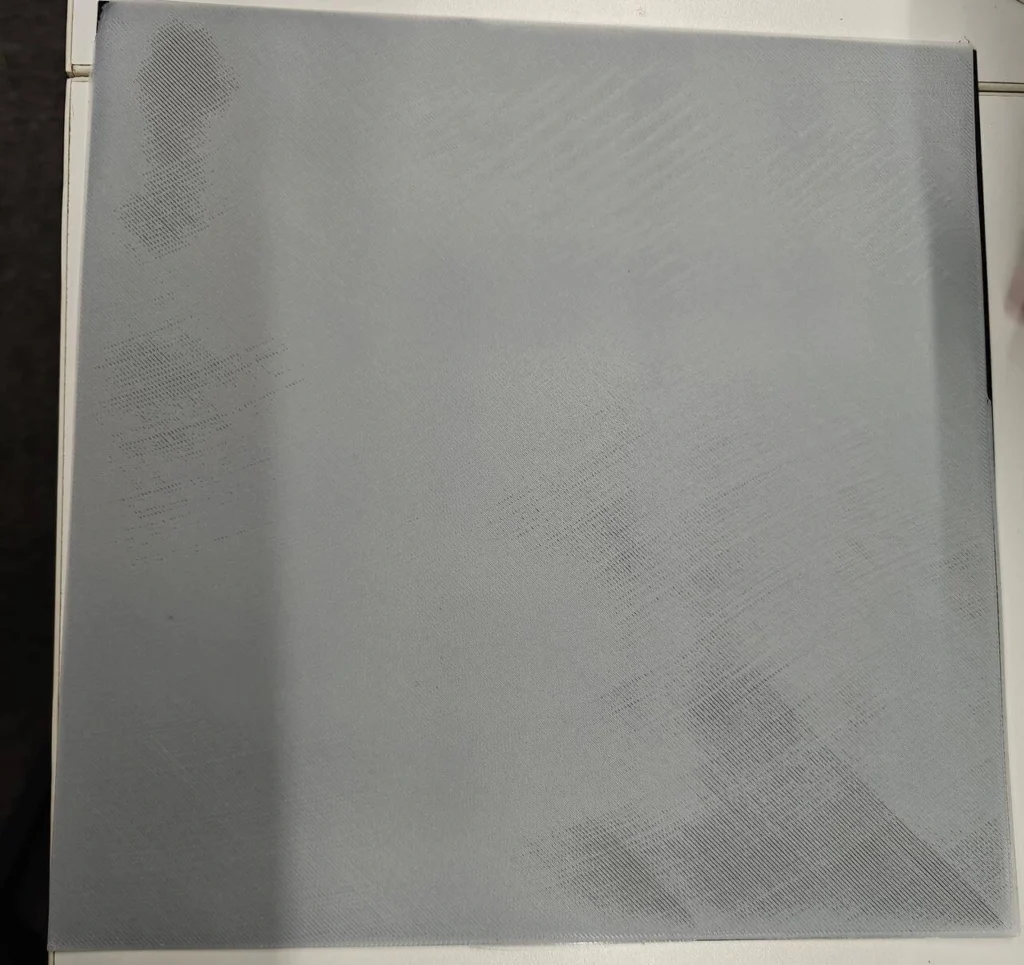
Why Does Creality Hi First Layer Compression Happen?
Before diving into solutions, it’s crucial to understand the root causes. A compressed first layer often stems from:
- Platform Imperfections: Dust, filament residues, or uneven surfaces disrupt adhesion.
- Hot Bed Deformation: Warping or bulging of the hot bed creates uneven pressure.
- Loose Components: Screws, nozzles, or other parts may loosen over time.
- Calibration Errors: Vibration or instability during auto-leveling causes inaccurate settings.
Each of these factors plays a role in how well your first layer adheres, but the good news is they can all be resolved with a bit of attention and care.
Step-by-Step Troubleshooting Guide
Let’s go through the solutions step by step, with additional tips to make the process easier and more beginner-friendly.
1. Start with a Clean Slate
A clean and level platform is the foundation of successful printing.
- Clear Residues: Use a scraper or a microfiber cloth to remove any leftover filament or dust on the platform. Even a tiny speck can ruin your first layer!
- Re-Level the Bed: Whether your printer supports auto-leveling or manual adjustments, make sure the nozzle is the right distance from the bed. A standard tip is to use a piece of paper or a business card—it should slide between the nozzle and platform with just slight resistance.
| Preview | Product | Rating | Price | |
|---|---|---|---|---|

| Rerdeim 5Pcs Putty Knife, Set, 1″ 2″ 3″ 4″ 5″ Scraper, Spackle Knife, Paint Scraper, Scraper Tool,… | Buy on Amazon |

Did You Know?
A dirty platform can cause adhesion issues even if everything else is perfectly calibrated. Regular cleaning is a quick win!
2. Inspect the Hot Bed and Platform Plat
Subtle issues with the hot bed can lead to first-layer problems.
- Check for Deformation: Look for bulging, warping, or scratches on the platform. A flat, even surface is essential.
- Use a Deformation Map: Many Creality printers allow you to access a deformation map:
- Connect your printer to Wi-Fi.
- Enter its IP address in a browser.
- View the map to identify any uneven areas that need attention.
- Clean Beneath the Soft Magnet: Dust or debris under the soft magnet can create uneven contact. Remove the magnet and clean both surfaces thoroughly.

Pro Tip: If your hot bed shows significant warping, replacing it is often the most reliable solution.
=
3. Tighten Loose Components
Loose parts can cause unexpected problems.
- Check Screws: Focus on the four screws securing the hotend. Loose screws can cause wobbling, so tighten them gently but firmly.
- Secure the Nozzle: Preheat the nozzle to around 200°C (PLA temperature) and use a socket wrench to tighten it securely.
4. Re-Run the Auto-Leveling Process
Auto-leveling ensures your printer adjusts for any minor inconsistencies.
- Stabilize Your Printer:Place the printer on a vibration-free, stable surface. This step is critical for accurate leveling.


- Run the Self-Check:Go to Settings > Self-Check in your printer’s menu to ensure everything is functioning properly.
- Start Auto-Leveling:Select Auto-Leveling > Start Detection. Allow the printer to finish its calibration process without interruption.
Extra Tip: Even after auto-leveling, it’s worth manually checking the nozzle height for peace of mind.
Bonus Tips for Smooth Printing
- Clean Regularly: Make it a habit to inspect the platform and nozzle before each print.
- Experiment with Adhesion Aids: Glue sticks, painter’s tape, or specialized adhesives can help improve bed adhesion.
- Update Firmware: Ensure your printer is running the latest firmware for optimal performance.
Conclusion
Fixing a compressed first layer isn’t as intimidating as it seems. By cleaning the platform, inspecting components, and carefully re-leveling, you’ll regain control over your 3D prints. Remember, patience and regular maintenance go a long way in ensuring consistent results.
Check out more 3D printers tips here >