If your Creality K2 Plus or K2 Prosuddenly stops extruding filament halfway through a print, you’re not alone. Filament jams — also called clogs or extruder blockages are among the most common issues faced by 3D printing enthusiasts.
In this guide, we’ll walk you through the exact steps to diagnose and fix a jammed filament on the K2 Series printers, combining:
Official troubleshooting methods from Creality’s service team, and
Proven community fixes shared by real users on Reddit and other maker forums.
By the end, you’ll not only know how to clear a clog safely, but also how to prevent it from coming back.
(Applicable models: K2, K2 Plus, K2 Pro)
Quick Tip: Before you start disassembling, heat the nozzle to extrusion temperature — usually 220 °C for PLA or 240 °C for PETG. Cold pulling or force-removal while it’s cool may damage your hotend.
Table of Contents
Understanding Filament Jams — Causes and Early Symptoms
A filament jam occurs when melted material can’t move freely through the hotend.
The result: no extrusion, clicking noises, or an error like “Filament Jam Detected” on your K2 screen.
Here are the most common causes and how to recognize them early:
Real K2 owners have reported several less-obvious root causes:
False jam errors: Some users on Reddit found that their printer displayed a “filament jam” message even when the filament path was clear. The culprit was a misaligned or dusty buffer sensor, not the extruder itself.
PTFE tube resistance: Tight or sharply bent PTFE tubing between the buffer and extruder can make filament feeding inconsistent — a hidden source of friction-induced clogs.
Material sensitivity:PETG and flexible filaments (TPU) are more prone to heat creep, where heat travels upward into the cold zone and softens filament prematurely.
These insights emphasize that fixing a jam isn’t only about clearing the nozzle — it’s about understanding the entire material path from spool to nozzle.
Before You Begin
Make sure your printer is:
Powered on and idle (no active print job)
Nozzle pre-heated to the right temperature
Filament unloaded or cut before the extruder
A clear work area with tools ready
Up next, we’ll go through the tools you’ll need and the step-by-step troubleshooting process to clear every possible blockage — from the gear to the buffer.
Tools You’ll Need
Before jumping into the repair, gather a few simple tools. Having these ready will make the process smoother and prevent damage to small components.
Tool
Purpose / Use
Needle or thin cleaning rod
To clear any melted filament stuck inside the heat break or nozzle
Hex wrench set (Allen keys)
To remove the three screws securing the extruder shell
Heat source (nozzle heater / heat gun)
To soften jammed filament and loosen debris
Cutting pliers / flush cutter
To cut filament or remove deformed ends
Stiff plastic card (e.g., old credit card)
For prying open the buffer cover safely
Soft brush or toothbrush
To clean fine filament dust from gears
Heat-resistant gloves
For safety when handling hot components
Pro Tip: Keep a small piece of Capricorn PTFE tube and a spare nozzle nearby. In many cases, you will discovery that simply replacing a damaged PTFE segment instantly fixed chronic jams.
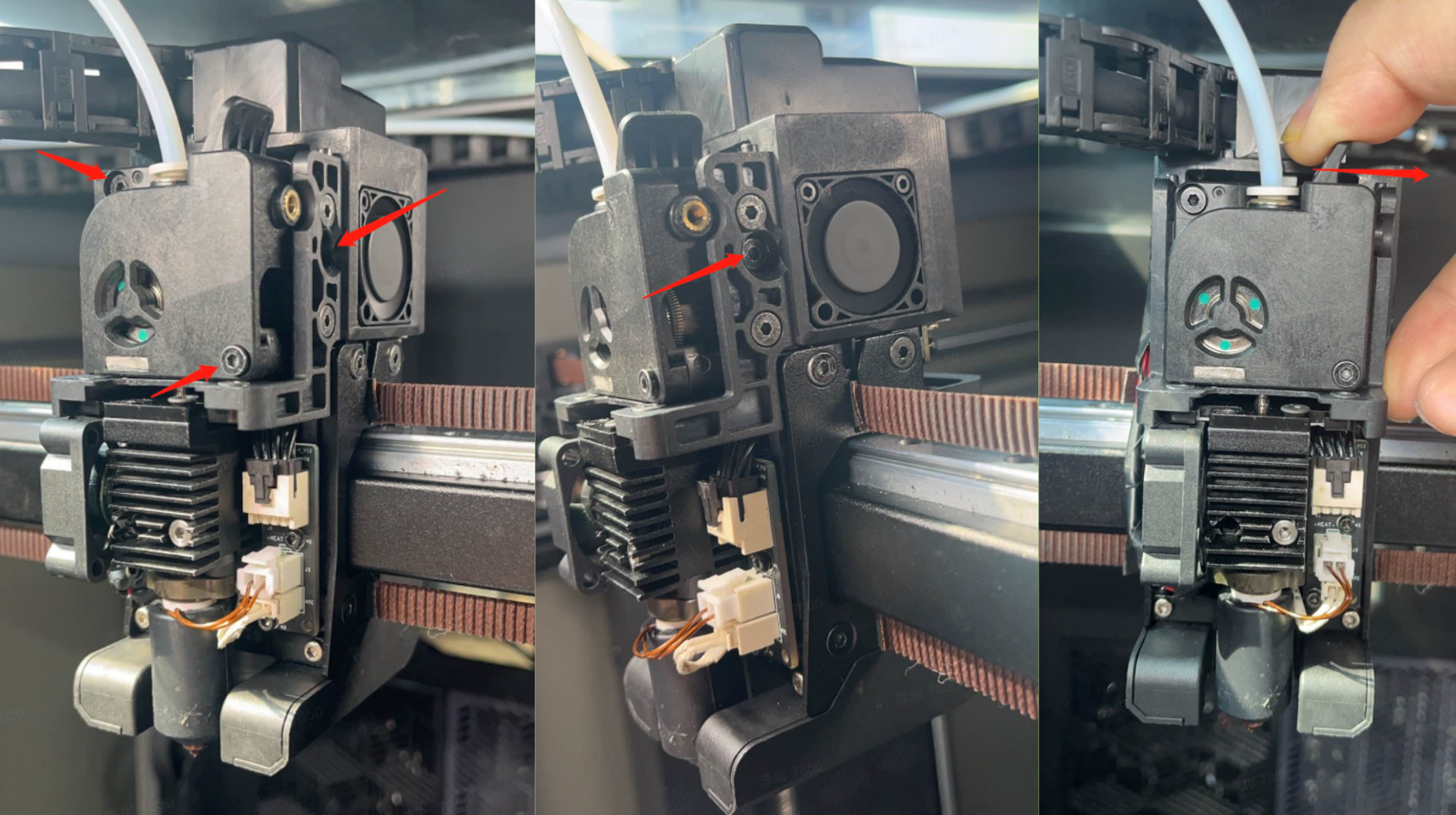
This is the first step in exposing the drive gears and the hotend area, where most blockages start.
Power off your printer and let it cool for a few minutes if it has been printing.
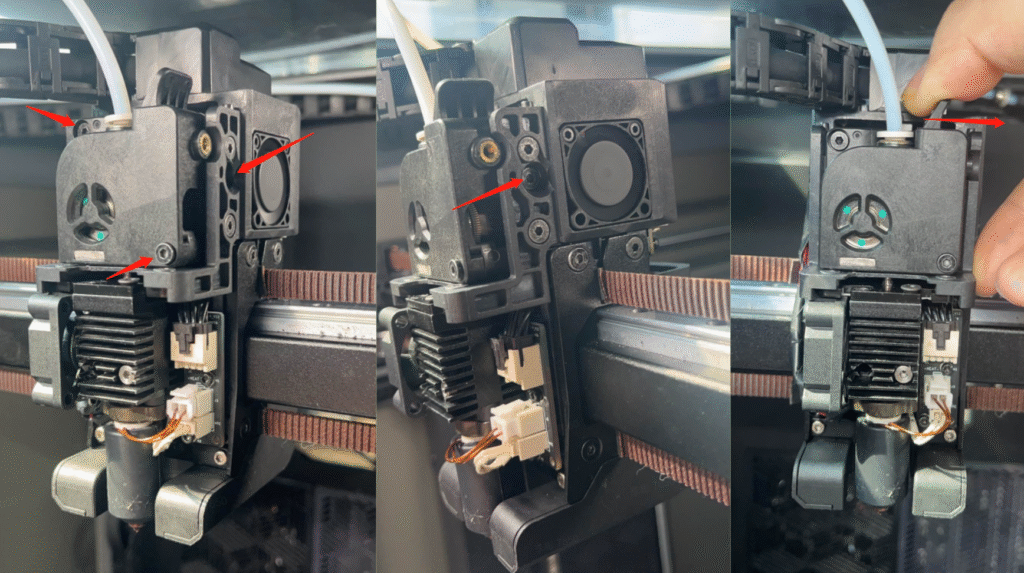
Using the hex wrench, remove the three screws located on the front of the extruder.
Press down the extruder compression block gently — this separates the drive gear and releases tension from the filament path.
Carefully pull off the extruder shell.
⚠️ Watch for the spring! It may pop out when the compression block is released.
Set the shell, spring, and screws aside in a clean tray — these small parts are easy to lose.
image source: creality wiki
At this point, you should be able to clearly see the drive gear, idler wheel, and filament inlet. If there’s any obvious filament residue or burnt plastic around these parts, note it — we’ll clean it in later steps.
Community Insight: Several Reddit users mention that the K2 Plus spring assembly can shift slightly out of alignment after multiple jams.
When reassembling later, make sure the gear pressure rod sits flush inside its notch — this prevents uneven pressure on the filament.
Step 2: Clear the Clogged Heat Break
The heat break is the slim metal section that separates the hot nozzle from the cold zone of your extruder.
If molten filament solidifies here, it blocks the flow and causes the K2 Plus filament jam error.
We’ll look at two proven methods depending on what you see inside the heat break.
Method A — When You Can See the Filament Head
This method is quick and effective if a bit of filament is still visible inside the heat break.
Preheat the nozzle to the regular extrusion temperature (≈ 220 °C for PLA, 240 °C for PETG).
Using cutting pliers, gently grip and pull out the softened filament head.
If it stretches slightly, that’s fine — it means the blockage is loosening.
Once removed, inspect the filament tip: if it looks bubbled or charred, clean the nozzle with a needle or cleaning rod.
Reinstall the extruder components you removed earlier.
💡 Tip: If you’ve been printing with PETG or TPU, consider lowering the hotend temperature by 5–10 °C next time. These materials are prone to heat creep — heat rising too high in the heat break and softening filament before the nozzle.
Method B — When You Can’t See the Filament Head
If no filament tip is visible, it may have snapped deeper in the heat break.
This method uses controlled heating and a needle to dislodge the plug.
Heat the nozzle again to the appropriate extrusion temperature.
Warm the needle tip with a lighter or the nozzle’s heat.
Carefully insert the needle into the heat break until you feel resistance.
Hold it there for ≈ 30 seconds to allow the heat to transfer and soften the clogged plastic.
Let the needle cool slightly, then pull it out slowly — the cooled filament plug should come out with it.
Wipe away residue and perform a quick manual extrusion test to confirm a clear path.
Community Tested Alternative — The “Cold Pull” Method
A popular Reddit solution for stubborn clogs, especially with PLA and nylon filament.
Load a short piece of nylon or cleaning filament into the nozzle at ≈ 230 °C.
Push gently until it starts extruding a little material.
Reduce temperature to ≈ 90 °C and wait 20 seconds — the filament inside will harden around debris.
With steady force, pull it out in one motion. You’ll see a tiny “mold” of the nozzle tip with burnt bits attached — that’s the dirt coming out.
Repeat once or twice if needed.
Once the heat break is fully cleared and you can see daylight through the nozzle or filament flows freely,
Step 3: Clean Filament Debris from the Extruder Gear
After clearing the hotend, the next step is to make sure the drive gear — the small toothed wheel that grips and pushes filament — is completely clean.
Even tiny bits of plastic dust can reduce grip and cause grinding, under-extrusion, or recurring K2 Plus filament jam errors.
How to Clean the Gear
Open the extruder front cover fully so you can see both drive gears.
Inspect closely: Do you see white filament dust, tiny shavings, or residue?
Are the gear teeth worn down or shiny smooth?
Use a soft brush or old toothbrush to gently remove any visible debris.
If you notice melted bits stuck between teeth, warm the area slightly with a heat gun (≤ 120 °C) and clean again.
Wipe the area with a dry cloth — avoid using oil or solvents; they may reduce grip.
Pro Tip: You can insert a short piece of filament and manually rotate the gear to check tension.
The filament should move smoothly without skipping or grinding noises.
When to Replace the Gear
If you see deep grooves, missing teeth, or the gear no longer grips filament evenly, it’s time to replace it.
A worn gear can slip unpredictably and misfeed filament even if the nozzle is perfectly clean.
Creality provides replacement front-cover kits for the K2 Plus extruder, or you can upgrade to a hardened steel gear for longer life.
Community Insight:
Some Reddit users noticed repeated grinding noises after every jam and later found microscopic cracks in the gear teeth.
Replacing the front-cover assembly instantly solved the issue — a reminder that not all jams are thermal; some are purely mechanical.
Quick Diagnostic Checklist
Issue
Possible Gear Condition
Fix
Clicking noise but no filament motion
Gear teeth packed with filament dust
Brush clean thoroughly
Filament chewed or flattened
Excessive pressure or worn drive gear
Adjust tension / Replace gear
Irregular extrusion during print
Debris buildup or uneven wear
Disassemble, inspect, replace if needed
Smooth spinning gear but filament not feeding
Idler spring misalignment
Check spring and pressure rod (Step 1 reference)
Once the gear area is spotless and tension feels right, you can re-assemble the cover and move on to the next section —
Step 4: Fix Filament Jammed in the Gear Assembly
Sometimes the filament doesn’t just clog in the nozzle — it gets physically trapped between the drive gears.
This is one of the most frustrating forms of K2 Plus filament jam, because even when you try to “Extract” from the touchscreen, the filament won’t move.
Step-by-Step Fix
Preheat the nozzle to extrusion temperature (e.g. 220 °C for PLA, 240 °C for PETG).
On the touchscreen, tap “Extract” — this releases motor tension and makes manual removal easier.
Hold the extruder clamp open and try to pull out the filament manually.If it still doesn’t move, the jam is likely inside the gear housing.
Use a scraper or small pliers to separate the gear assembly from the front cover. Be gentle — you only need to create a small gap for access.
⚠️ Avoid forcing metal tools between the gears; this could damage the teeth.
Once separated, cut the jammed filament in two places:
Above the swollen or melted section.
Below it, just before the filament enters the heat break.
This removes the expanded segment that’s stuck between gears.
Carefully pull out both ends of the filament using tweezers or pliers.
Reinstall the front cover and ensure the compression spring returns to its correct position.
Tip: After cleaning, load a short test filament and run an extrusion test.
The filament should feed evenly without clicking, skipping, or bending.
Why This Happens
This type of jam often comes from uneven gear pressure or excessive tension.
If the filament expands under heat but the gears continue pressing it tightly, it gets flattened and locked in place.
Root Cause
Prevention
Spring tension too high
Adjust compression block or replace spring
Gear misalignment
Check both drive gears for equal height
Residue buildup after multiple clogs
Clean regularly using a soft brush
Repeated retractions with soft filaments
Reduce retraction distance in slicer settings
Community Insight
Several Reddit users shared that false “gear jams” were actually caused by leftover filament pieces from a previous clog.
Tiny fragments hid inside the gear teeth and blocked new filament from entering.
Others found that loosening the tension screw by a quarter turn made filament loading smoother without slippage.
One user even 3D-printed a spring tension indicator clip to visually track gear pressure — a clever long-term fix you can mention in your own setup.
🧡 Makers101 Tip: If you’re running a multi-material setup or using CFS (Creality Filament System), periodically open the extruder to inspect for small plastic crumbs near the drive gears. These tiny leftovers are often the hidden cause of recurring jams.
Once the gear assembly is clear and tension balanced, the filament should flow smoothly again.
Step 5: Troubleshooting Jammed Filament in the Buffer
The buffer unit in the Creality K2 Series is designed to maintain tension and control filament feeding between the spool, the CFS system, and the extruder.
But if the filament expands or snaps inside it, the buffer can jam — triggering error codes like FB2864 or FB2846 and halting your print.
How to Safely Disassemble the Buffer
Turn off the printer and unplug the buffer cable if connected to the CFS system.
Remove the fixing screws on the sides of the buffer.
Take a stiff plastic card (like an old ID card) and gently insert it into the gap in the middle of the buffer cover.
Pry open the cover slowly — the buffer is held by small buckles, so excessive force could crack the housing.
Once opened, you’ll see:
The spring,
The filament connectors, and
The jammed filament or melted segment.
⚠️ Important: Be careful not to lose the spring or the connector clips; they can pop out during disassembly.
Clear the Jammed Filament
Using cutting pliers, clip off the swollen or expanded filament segment.
Gently pull out the remaining piece from the opposite end.
Use a small brush or compressed air to clear any debris inside the buffer track.
Reinsert the spring and connectors back into their original slots.
Close and snap the cover shut, then re-secure the screws.
Community Insights (From Reddit Users)
False jam errors: Many K2 Plus users on Reddit discovered that their “Filament Jam Detected” alerts were false positives. The actual cause was dust or residue on the optical sensor window inside the buffer. Cleaning the small sensor lens with a cotton swab often cleared the error immediately.
Signal failure (FB2864 / FB2846): These codes usually point to a communication fault between the buffer sensor and mainboard. Try reseating the cable or checking the small sensor PCB for loose contacts.
Material swelling: Users who left filament heated inside the buffer for long periods noticed expansion or “soft melt.” Avoid leaving the printer preheated for too long before printing — it can cause jams before the filament even reaches the hotend.
Quick Diagnostic Table
Error Code / Symptom
Likely Cause
Recommended Fix
FB2864 – Signal failure
Loose or dirty sensor cable
Reseat cable, clean optical window
FB2846 – Sensor mismatch
Misaligned sensor or false trigger
Calibrate or replace small PCB sensor
Filament won’t move in buffer
Expanded or broken filament piece
Disassemble buffer, remove debris
“Filament jam” alert even after cleaning
Optical lens fogged or dusty
Wipe gently with dry cotton swab
🧡 Makers101 Tip:
When reassembling, double-check the spring orientation inside the buffer — the tighter end should face the filament outlet.
Incorrect orientation can cause uneven tension and repeated feeding issues.
Once the buffer is cleared and reassembled, reconnect it to your printer and test filament loading again.
If the filament feeds smoothly through the buffer and extruder, your jam issue is officially resolved.
Step 6: Restoring and Testing the Extruder
Now that you’ve cleaned the hotend, gears, and buffer, it’s time to reassemble and test the extruder.
This step ensures everything is aligned correctly and that the K2 Plus filament jam is truly fixed — not just temporarily cleared.
Reassembly Steps
Reinstall the spring and gear pressure rod. If these parts came out during cleaning, insert the spring first, followed by the pressure rod. Make sure the rod moves freely without scraping the housing.
Reinsert the driven gear back into the extruder rear cover. Doing this before attaching the front cover makes alignment much easier.
Check the bottom piece of the front cover — a tiny rectangular part that often falls out during disassembly. If missing, the extruder might not fully close, causing filament slippage.
Secure all screws firmly but not overly tight; overtightening can distort the housing and misalign the gears.
Visually inspect the filament path: it should form a straight, smooth line from the buffer inlet through to the nozzle.
Test Filament Loading
Power on your printer.
From the touchscreen, go to Control → Filament → Load.
Insert new filament and watch its movement through the buffer and into the extruder.
Once it reaches the hotend, the filament should extrude evenly — no grinding, skipping, or pulsing.
If extrusion looks weak or intermittent, gently press on the filament during loading to confirm it’s not slipping at the gears.
Community Tips
Perform a short extrusion test (20–30 mm) after every reassembly. Reddit users found this prevents new jams caused by residual dust or misaligned tension.
Check retraction settings in your slicer. Excessive retraction (over 6 mm) can draw softened filament up into the cold zone, causing heat creep again.
Lubricate the PTFE tube ends with a small drop of dry silicone lubricant if you experience drag — this helps prevent friction buildup, especially when using flexible filaments.
If It Still Doesn’t Extrude Properly
If, after all these steps, the filament still fails to extrude or the jam reoccurs:
Review Creality’s General Troubleshooting for K2 Filament Loading and Unloading (link internally).
Try loading filament manually with the extruder open to isolate whether the issue is in the motor drive or the hotend flow.
If the nozzle heats up but nothing extrudes, perform another cold pull or replace the nozzle.
For persistent hardware issues (e.g., repeated buffer error or no sensor signal), reach out via Creality’s Device Fault Feedback portal.
🧡 Makers101 Tip:
After a major jam fix, run a short calibration print (like a 20×20 mm cube).
If extrusion is consistent and the surface finish looks smooth, your K2 is back to normal.
Up next, we’ll go beyond fixing and focus on prevention — how to keep your K2 Plus or K2 Pro running smoothly without future filament jams.
Step 7: How to Prevent Future Filament Jams
Fixing a filament jam is satisfying — but preventing one is even better.
With just a few simple habits, you can keep your Creality K2 Series printer running smoothly for hundreds of print hours without another K2 Plus filament jam.
1. Keep Your Filament Clean and Dry
Moisture is one of the main culprits behind nozzle blockages and inconsistent extrusion.
When filament absorbs water, it creates steam bubbles inside the nozzle — which then solidify into clogs.
Store filament spools in sealed containers with desiccant packs.
Use a filament dryer box if you print frequently in humid environments.
If you hear popping or hissing during printing, dry the filament before use.
Community Note: Several Reddit users found that drying PLA and PETG at 55–60 °C for 4 hours dramatically reduced clog frequency and improved print consistency.
2. Clean the Nozzle and Heat Break Regularly
Even a tiny bit of residue can accumulate into a full clog over time.
Make it a habit to clean your hotend every few weeks:
Perform a cold pull with cleaning filament or nylon (see Step 2).
Wipe the nozzle exterior with a cotton swab while it’s warm — this removes oozed plastic that can burn.
Every 100 print hours, remove the nozzle completely and clean it with a fine brass brush.
3. Avoid Excessive Retraction and Heat Creep
Retraction settings that are too aggressive can cause melted filament to move back into the cooler zone of the hotend — leading to “heat creep” blockages.
Keep retraction distance under 6 mm on the K2 Series.
Use retraction speed ≤ 40 mm/s for flexible or soft materials.
Make sure the part cooling fan is working efficiently.
💡 Makers101 Tip: You can apply a thin layer of thermal paste between the heat break and heatsink.
It improves heat transfer and lowers the risk of heat creep in longer prints.
4. Check Gear Alignment and Spring Tension
If the drive gear is pressing too hard, it can deform the filament; too loose, and it won’t grip properly.
Either way, extrusion becomes inconsistent — a common precursor to filament jams.
Open the extruder occasionally to remove filament dust.
Ensure both drive gears sit at equal height and spin freely.
Adjust spring tension until the filament feels snug but can still move by hand.
5. Watch for Buffer and Sensor Issues
As seen in Step 5, buffer sensors can sometimes trigger false jam errors when dusty or misaligned.
Clean the optical sensor window inside the buffer with a soft swab every few weeks.
Avoid leaving filament under tension for long periods — it can stretch and expand slightly.
If you frequently see FB2864 or FB2846 codes, check the sensor cable and connector pins.
Regular buffer maintenance is one of the easiest ways to prevent recurring filament errors on the K2 Series.
6. Use High-Quality Filament
Low-quality filaments often have inconsistent diameters or contain micro-impurities that melt unevenly, clogging the heat break.
Stick to reliable brands, and test new spools with a quick extrusion preview before running a long print.
Material
Recommended Brand Type
Drying Temperature
PLA
Creality / eSUN / Polymaker
50–55 °C
PETG
Overture / Sunlu
60 °C
TPU
Priline / SainSmart
45 °C
7. Schedule Preventive Maintenance
Every 50–100 hours of print time:
Run a filament load/unload test.
Check extruder screws and gear condition.
Wipe down PTFE tube ends.
Make sure the buffer spring moves freely.
Keeping a small maintenance log (print hours, filament type, and issues) helps you identify patterns — before jams become serious problems.
Once you develop these maintenance habits, filament jams will become extremely rare — and your prints more consistent, cleaner, and faster.
Next, we’ll wrap up with final thoughts, related resources, and community takeaways to help you go even deeper into K2 troubleshooting.
Step 8: Final Thoughts & Related Resources
Fixing a filament jam on the Creality K2 Series isn’t just about clearing a blockage — it’s about understanding how your printer moves, melts, and manages material.
Once you know where jams typically start (heat break, gears, buffer, or sensors), every fix becomes faster and easier.
After following the steps in this guide, you should now be able to:
Identify the exact cause of a K2 Plus filament jam
Safely clear clogged heat breaks and gears
Maintain your buffer and sensors to prevent false alarms
Keep your printer running smoothly through simple, routine care
🧡 Makers101 Reminder: Regular maintenance isn’t a chore — it’s how great prints happen.
A few minutes of cleaning can save hours of re-printing later.
Hi, I’m Nik — the curious pair of hands behind Makers101.
I started this blog because I remember how confusing it felt when I first got into 3D printers, engravers, and scanners. I didn’t have a tech background — just a genuine interest in how things work and a lot of beginner questions no one seemed to explain clearly.
Makers101 is my way of making the maker world more approachable. Here you’ll find simple guides, honest reviews, and hands-on projects — all written the way I wish someone had explained to me when I was just starting out.
f you’re new to making, you’re not alone. Let’s learn together — one tool, one project at a time.