
Heads up — some of the links below are affiliate links. If you buy through them, I earn a small commission (at no extra cost to you), which helps cover the gear I test. Thanks!
Based on firmware 01.01.01.00 and AMS 2 Pro Combo.
I didn’t just read the manual. I dug through the official Wiki, cross-referenced multiple in-depth reviews (including 250+ hours of real print time logged by CNC Kitchen and a reviewer who logged 600+ hours on the X2D), and collected every “day one failure” thread I could find on the Bambu community forum. This guide is what I wish existed when setting up the X2D for the first time.
If you’ve used a P1S or X1C before, some of this will feel familiar — but don’t skim. The X2D is different enough from the X1C and P-series that a few assumptions will cost you. This guide covers the gaps. Want the full spec sheet before you dive in? Here’s the complete X2D specs and pricing.
Already have the machine in front of you? Jump straight to the checklist below — or read on for the full walkthrough.
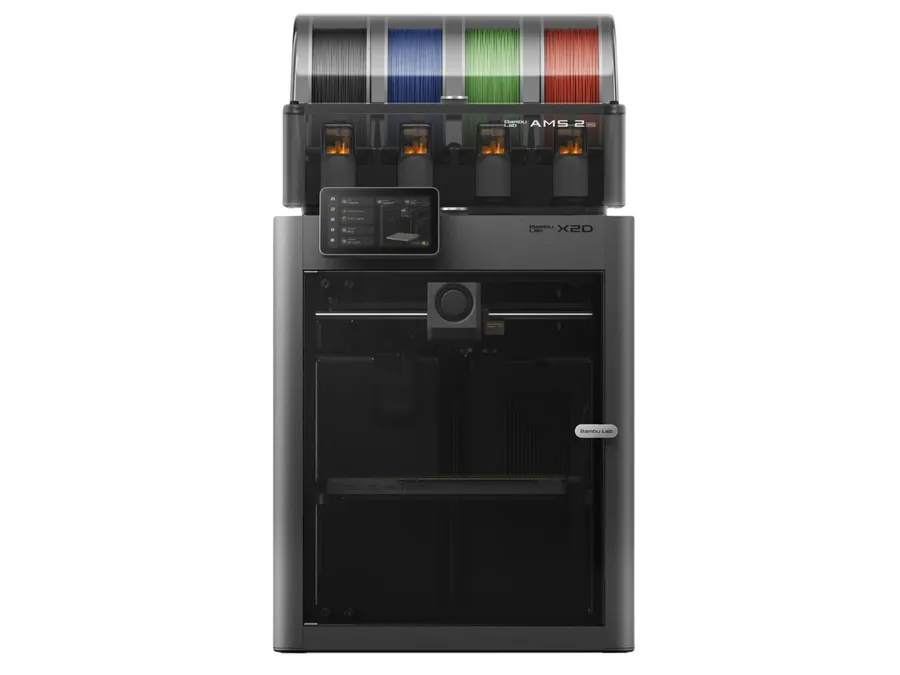
- Bambu Lab’s X2D is poised to redefine premium multi-material 3D printing with a true dual-nozzle architecture built for speed, precision, and reduced waste
- Rather than relying on tool swapping, the X2D is expected to use two fully integrated nozzles to deliver cleaner prints across the full 256 × 256 x 260 mm build area
- Combined with expanded AMS readiness, camera-driven plate and filament verification, simplified sensor hardware, and a striking glass-and-light premium enclosure, the X2D is a perfect fit for hobbyists and professionals alike! Dual-nozzle system with dedicated support material nozzle for clean, peelable supports
- Multi-material and multi-color printing capabilities for enhanced creativity
- 300°C nozzle temperature with 65°C active chamber heating for advanced materials
- Full filament path AI detection with built-in monitoring and backup systems
Quick setup checklist — X2D Combo
- Remove 3 red transport screws (heatbed base)
- Take out internal AMS, remove bracket
- Install auxiliary extruder — PTFE tube 22mm deep, tighten to click
- Connect grey PTFE → main inlet, white PTFE → auxiliary extruder
- Power on, bind Bambu Handy app (update app first)
- Run Full Calibration (~25 min) — do not remove heatbed foam until it finishes
- Load filament, start first print with Bambu PLA


Table of Contents
What’s in the box
Before anything else, verify you have everything:
- Touchscreen display
- Auxiliary Extruder (new to the X2D — more on this in a moment)
- External exhaust fan + 6-pin cable
- 2× spool holders + 2× PTFE tubes
- Toolbox + Quick Start Guide
Combo version: The AMS 2 Pro is not in a separate box. It ships inside the printer cavity, secured with screws and a bracket. If you open the outer box and don’t immediately see the AMS — that’s normal. You’ll pull it out during setup.
One thing Bambu doesn’t print in large enough font anywhere on the packaging: there is no filament included. If this is your first Bambu printer, go grab a roll of Bambu PLA before you continue. The built-in test models are tuned specifically for PLA, and you want to nail the first print before experimenting with anything else.
Don’t have one yet? → Buy the X2D Combo on Bambu Lab


Why the dual hotend changes everything — before you start
This section exists because the upgrade from a single-hotend machine isn’t obvious until you see the numbers.
On a P2S, swapping between two colors requires purging the old filament out of the nozzle — that takes 1 to 2 minutes per swap and wastes material every single time. On the X2D, switching between hotends is mechanical: the toolhead physically moves to the alternate nozzle, no purging required. Average swap time: 14 seconds.
On a model that requires a color change on every layer — say, a two-color figure — that difference compounds fast. The same model takes 4 hours and wastes 62g of filament on a P2S. On the X2D: 1 hour 37 minutes, 8g wasted.
Same model, same quality, less than half the time. (Curious where that waste goes and how to manage it? We’ve covered managing filament waste with the AMS separately.)
That’s the upside. If you’re still deciding whether the upgrade makes sense, we’ve broken down how the X2D stacks up against the P2S in detail. Here’s what to know before you start:
- The right (auxiliary) hotend uses a Bowden feed system — the extruder motor sits on the back panel, not on the toolhead. This keeps the toolhead light and fast, but limits the auxiliary hotend to 200 mm/s and 1,000 mm/s² acceleration. Use the left hotend for your main model body; reserve the right hotend for support interfaces and secondary materials. (Note: the nozzle assemblies themselves are interchangeable between left and right positions — it’s the feed system that differs, not the hotend hardware.)
- The right hotend cannot reliably print flexible filaments like TPU. Soft materials don’t travel well through a Bowden path. TPU goes in the left hotend only.
- In dual-hotend mode, usable build width drops from 256mm to 235.5mm. For most prints this is irrelevant, but if you’re designing a large flat part, plan around the narrower dimension.
Now you know what you’re working with. Let’s set it up.
6 things to check during unboxing — most day-one failures start here
Before unboxing the X2D, there are 6 things you must check — skipping any of them is the most common cause of calibration errors and failed first prints. Same story across machines, and most flops trace back to a handful of beginner mistakes you can sidestep.
The Bambu community forum has a thread literally titled “First print — COMPLETE FAILURE” with dozens of replies. Almost every case traces back to one of these.
1. The three red transport screws. They’re under the heatbed, recessed in a tight channel. Leave them in, and you’ll get error code 0300-XXXX during calibration. Use a magnetic screwdriver — the screws will drop into the chassis if you’re not careful pulling them out.
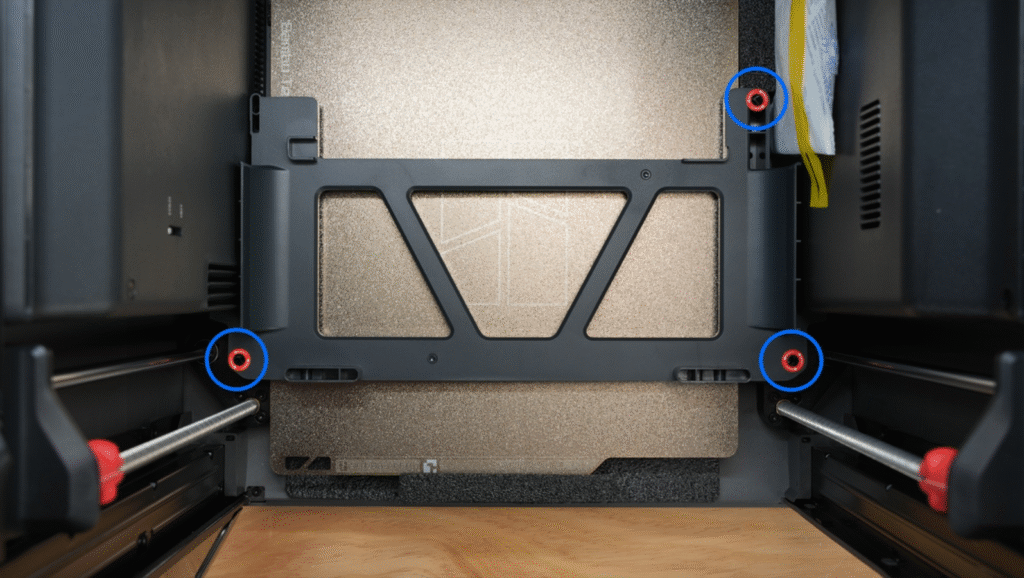
2. The foam block under the heatbed. Do not remove this yet. It stays in until after the first full calibration. The heatbed descends to its lowest position at the end of calibration — the foam protects it until that moment. Removing it early triggers a different set of errors. You’ll know exactly when to pull it out.
3. The red plastic sleeves on the lead screws. Pull them downward and off. Not upward — they don’t release that way.
4. The hidden zip tie behind the toolhead. There’s a zip tie on the outside of the linear rods — everyone cuts that one. There’s also one behind the toolhead itself, plus foam padding wrapped around the shaft. Pull the toolhead toward the front door first, then reach behind it. If you miss this, the toolhead won’t move freely and calibration will fail.
5. The blue protective sticker on the chamber camera. It’s on the lens. Leave it on and your monitoring feed looks like frosted glass. Easy fix, easy to forget.
6. The voltage switch. On the back panel, next to the power inlet. Confirm it matches your region’s mains voltage before you plug anything in. Just check it.

- 【All-in-One 3D Printing Workstation】 A complete 3D printing hub that integrates a printer table…
- 【Built-in Power Hub – Always Connected】 Features a built-in power strip with 2 AC outlets and…
- 【Reinforced X-Bracket Stability】 Constructed from a heavy-duty steel frame with X-shaped bracket…
- 【Spacious 3-Tier Universal Design】 Measuring 39″L × 24″W × 28″H, the 3-tier design…
- 【Organized Space for Makers & Studios】 Every drawer and compartment is purpose-built for 3D…
Unboxing step by step (Combo version)
Base unit only? Skip to Phase 3.
Phase 1 — Outer packaging
Remove the top foam and toolbox, lift the machine onto a stable surface. Peel the tape off the top glass cover, remove the front door tape, and take off the side window and door handle foam. Phase 1 done — the machine is out and accessible.
Phase 2 — Removing the internal AMS
This is the step most Combo users aren’t prepared for.
The AMS 2 Pro sits inside the printer cavity, held by 2 front-facing screws and an internal bracket with 3 more screws. Remove the 2 front screws first, then lift the AMS straight up and tilt it slightly to clear the cavity walls.
Once it’s out, remove the bracket screws and set everything aside — put all five screws in a small bag. You’ll need them if you ever ship the printer or send it in for service.
Phase 3 — Unlocking the internals
Using an H2.0 hex key, remove the 3 red transport screws from the base of the heatbed (item #1 from above). Pull the red plastic sleeves off the lead screws by pulling downward.
Cut the zip tie on the linear rods, push the toolhead toward the front door, then cut the zip tie behind the toolhead and remove the foam around the shaft.
The heatbed foam stays. Leave it.
Phase 4 — Installing the hardware
Screen: Connect the ribbon cable, fold any excess back into the slot, slide the screen into its mount, and push left to lock.
Auxiliary Extruder: Slide back the rear panel cover to access the port, plug in the 6-pin cable, then push the PTFE tube into the fitting to a depth of 22mm — push until it bottoms out. Tighten the nut with a wrench until you hear a clean click. That click is the torque indicator. No click means it’s not seated properly, and you’ll see feeding errors later.
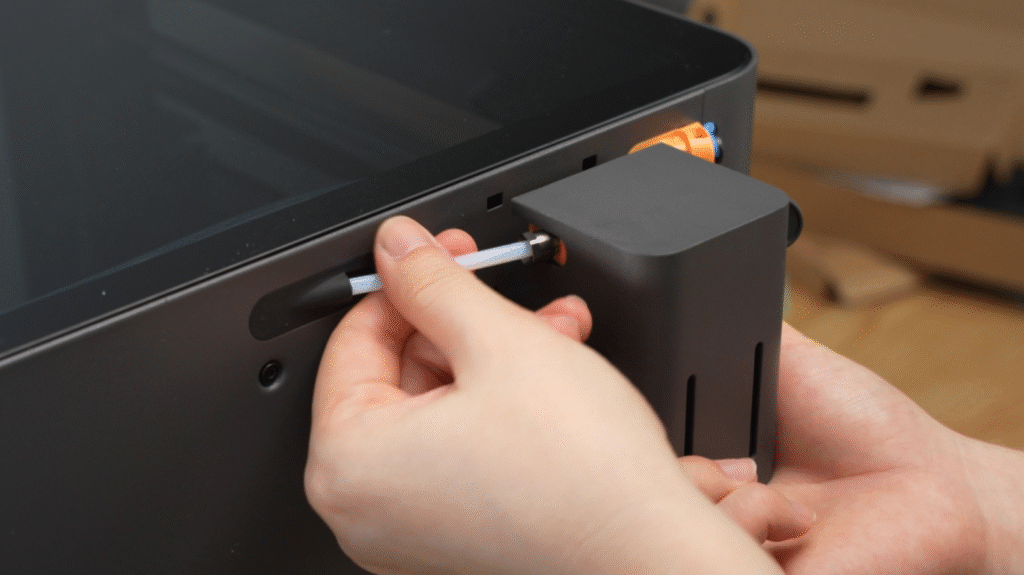
Exhaust fan: Insert into the slot, push left to lock. Connect the 6-pin cable between the fan and the buffer port.
AMS (Combo): Place the AMS 2 Pro on top of the machine or on its side bracket. Connect the Bus cable to the rear panel port. Then connect the two PTFE tubes — grey tube to the main printer inlet, white tube to the auxiliary extruder. Colors matter. Swapping them is one of the most common reasons multi-material prints fail on day one.
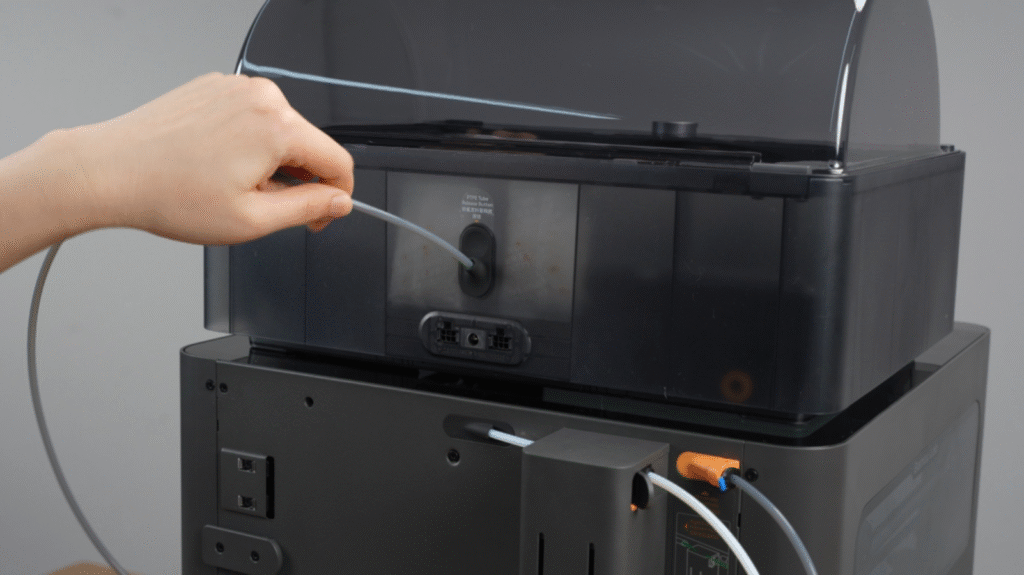
At this point the machine should look fully assembled. If anything feels loose or a cable seems too short, stop and recheck — forced connections here cause problems that are hard to diagnose later.
Powering on and running the first calibration
Before plugging in: confirm the voltage switch on the rear is set correctly.
Power on and follow the screen prompts to connect Wi-Fi. When you reach the app binding step, open Bambu Handy — but first make sure the app is updated to the latest version.
Binding failures are almost always caused by an outdated app, not a network issue. Also confirm the region setting in the app (Global vs CN) matches what you selected on the printer. A mismatch means the printer simply won’t appear in the app.
Start Full Calibration. This takes about 25 minutes. During it, you’ll hear:
- Rapid banging as the toolhead tests its axis travel limits — normal
- A sustained buzzing as the machine scans X/Y resonance frequencies — also normal, and louder than you’d expect
Don’t touch the printer, don’t move the toolhead, don’t cut power. The dual nozzle alignment is measuring height differences in the micron range. Let it finish.
When calibration ends and the heatbed descends to its lowest position — now remove the foam block from underneath.
AMS setup and loading filament
Calibration done, foam out. Now let’s get filament loaded before your first print.
The AMS 2 Pro has one exit port, which means only one hotend can be fed by the AMS at a time. In practice, assign the AMS to the left (main) hotend and run the right hotend from an external spool.
The buffer inlet determines which hotend the AMS feeds:
- Upper inlet → left hotend (main, direct drive)
- Lower inlet → right hotend (auxiliary, Bowden)
Connect to the upper inlet for standard use.
Loading into the AMS: Push the filament into the slot opening about 2cm. The AMS detects it and pulls it in automatically. Watch the LED: solid white = loaded successfully.
Blinking red = didn’t detect the filament or the feed stalled. Check the filament tip for burrs and re-insert.
Loading the external spool: Go to the screen menu, select the hotend, tap Load. The nozzle heats to around 250°C. Feed the filament in manually until you see fresh material extruding cleanly from the tip.
One known issue worth flagging: the AMS 2 Pro’s slot 1 occasionally fails to grip the filament on first insertion and grinds the tip slightly. A gentle forward push while it’s feeding usually resolves it.
This appeared on multiple pre-release review units — if it happens, don’t assume something is broken.
Starting your first print
Go to Print Files on the home screen and select one of the built-in models. Before tapping Print, you’ll see calibration options. Here’s what each one actually does:
Bed Leveling — Even right after Full Calibration, run this on every print. Full Calibration maps the whole bed; this one runs a localized mesh for the specific footprint your model will occupy. Always on.
Flow Dynamics Calibration — The printer draws test lines along the edge of the build plate and uses them to calculate pressure advance for your filament. Takes about 90 seconds and noticeably improves corner quality. Worth running for any new filament.
AMS Auto Mapping — If you’ve rearranged filament slots since your last print, enable this. The printer re-maps slot assignments to your model’s color requirements automatically.
Before hitting confirm, run through this quickly:
- Foam block removed from under the heatbed
- Wiper (small rubber pad near the front corner) clean — no dried filament from calibration
- PLA: crack the top lid or front door for airflow
- ABS / ASA / PA: front door and top lid fully closed
Then print.
For printing via Bambu Studio or Bambu Handy instead of the touchscreen, see Bambu’s official first print guide.


Why is my X2D first print failing? Common problems and fixes
| Symptom | Most likely cause | Fix |
|---|---|---|
Error 0300-XXXX during calibration | Transport screws still in | Remove all 3 red screws under heatbed |
| AMS won’t feed | Burr on filament tip | Trim tip cleanly, re-insert |
| First layer not sticking | Wrong build plate type selected | Match screen setting to physical plate — full first layer troubleshooting guide |
| Multi-material print fails early | Wrong PTFE tube routing or slots not re-mapped | Check grey/white tube connections, run AMS Auto Mapping |
| AMS slot 1 grinding filament | Known feed grip issue | Gentle push while feeding resolves it |
| Camera feed blurry | Blue lens sticker still on | Peel it off |
Still stuck? The Bambu community forum is the fastest place to find case-specific help.
Bambu Lab X2D setup: frequently asked questions
How long does the initial calibration take?
About 25 minutes. The machine tests both hotends, runs vibration compensation, and maps the heatbed. Don’t interrupt it.
Do I remove the foam before or after calibration?
After. The heatbed needs to descend to its lowest point at the end of calibration — the foam protects it up until that moment.
Can the X2D print TPU on both hotends?
No. Flexible filaments should only go through the left (main, direct drive) hotend. The Bowden path on the right hotend doesn’t handle flexible materials reliably.
What do the AMS 2 Pro LED colors mean on the X2D?
Solid white means the filament loaded successfully. Blinking red means the AMS either didn’t detect the filament or the feed motor stalled — check the filament tip for burrs, re-insert, and give it a gentle push as it starts feeding.
Is the Bambu Lab X2D worth it for beginners?
The X2D is better suited to makers who’ve used a 3D printer before — ideally another Bambu machine or an enclosed printer. The setup process involves installing the auxiliary extruder, routing PTFE tubes, and running a 25-minute calibration. It’s not complicated, but it’s more involved than a plug-and-play beginner printer. If it’s your first printer, the P2S or A1 Mini are easier starting points.
What is the difference between the X2D base model and the Combo?
The base X2D ($649) ships without the AMS 2 Pro multi-material system — you get the printer and a single external spool holder. The Combo ($899) includes the AMS 2 Pro, which enables automated feeding from up to 4 filament slots and dual-hotend multi-color printing. If you plan to print with two materials or multiple colors, the Combo is the version to buy.
Does the X2D work with the original AMS?
Yes — the first-generation AMS is plug-and-play compatible with the X2D for multi-color printing, but it doesn’t support the drying function available on the AMS 2 Pro. AMS Lite is not compatible with the X2D due to differences in the feeding mechanism and buffer structure.
The X2D is a capable machine at a price point that makes dual-extrusion genuinely accessible — but only if setup goes cleanly. Get through these steps correctly and your first print should look good. After that, the interesting work begins.
For now — good luck, and check that voltage switch.