
Heads up — some of the links below are affiliate links. If you buy through them, I earn a small commission (at no extra cost to you), which helps cover the gear I test. Thanks!
- Plan for about 30 minutes of assembly, then 25 to 40 minutes of forced calibration before your first print.
- Two steps beginners skip and regret: pull out the transit brackets and the Z-axis limiters before you power on.
- Use the included oil on the rails. Never grease.
- Flash the latest firmware before any long print. The earliest units had two long-job bugs, both since patched in software.
- The bed maxes out at 80°C, so day one means PLA, PETG, or TPU.
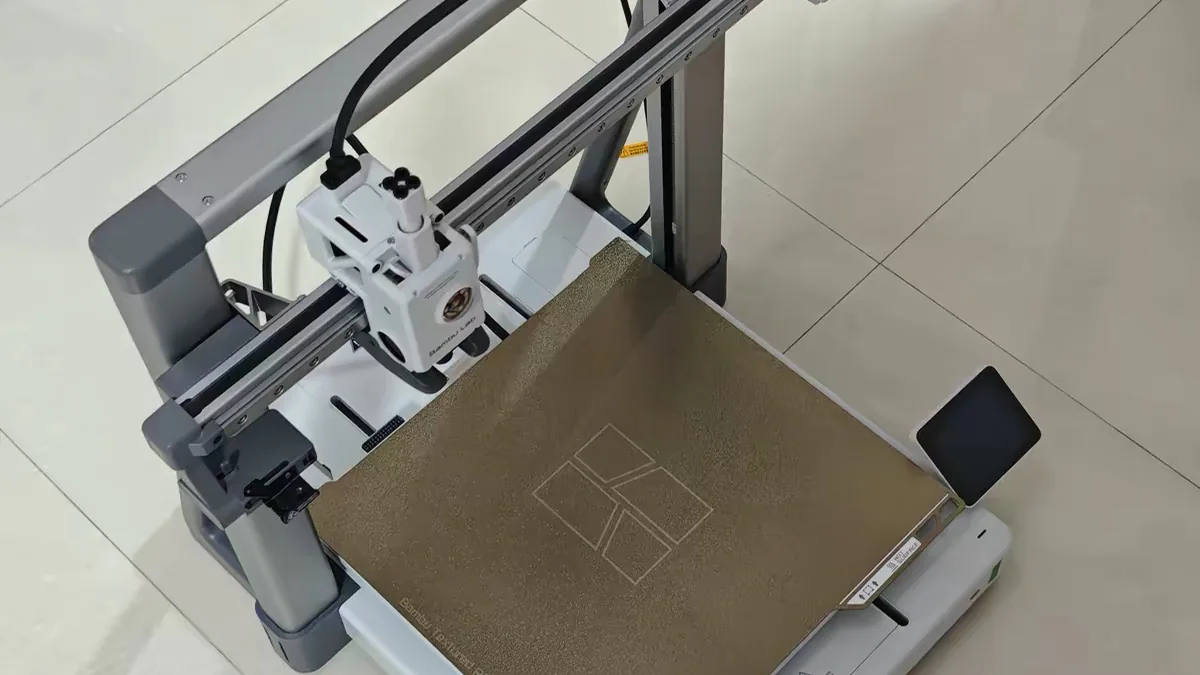
Here’s the short version. This Bambu Lab A2L first setup guide walks you from a sealed box to a finished Benchy in about an hour of hands-on time. The machine is genuinely beginner-friendly. The few things that trip people up aren’t in the quick-start leaflet, and that’s exactly what this guide fixes. Not sure the A2L is the right pick over the A1 yet? We broke that down here.
From Big Box to First Print
That box is heavy and the gantry looks intimidating. The accessory tray is a small pile of screws and bags. If this is your first printer, a knot in your stomach is normal.
Here’s the good news. The A2L is one of the easier large printers to assemble, and most of the work is just screws and clicks. But the official leaflet and most unboxing videos skip the steps that quietly cause day-one failures: the transit brackets, the Z limiters, the firmware, and the shake. I set one up myself for our full Bambu Lab A2L review, so the warnings below come from real assembly, not a spec sheet.
We’ll go from box to first print in order. Skim the 2-minute version if you’re impatient, then come back for the detail.
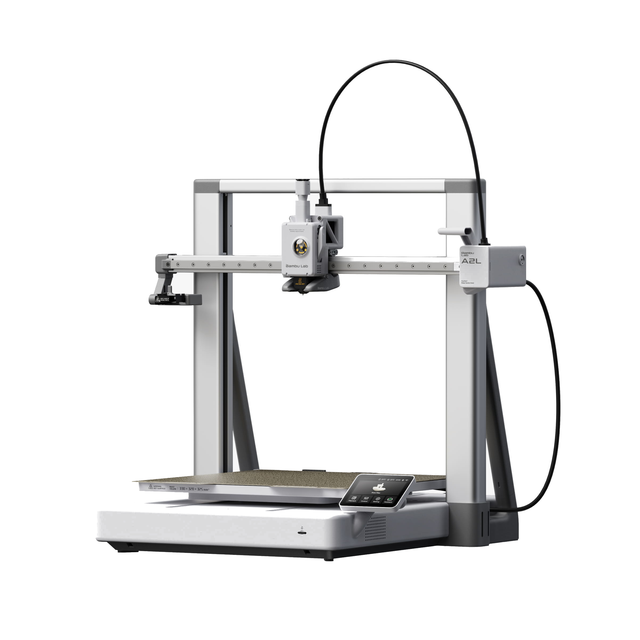
- Large 330 x 320 x 325 mm build volume, about 2x the A1
- PMSM servo extruder with adaptive vibration compensation
- Optional cutting and drawing module for vinyl and papercraft
- Up to 19 colors with AMS, quiet 49 dB operation
What’s in the Box
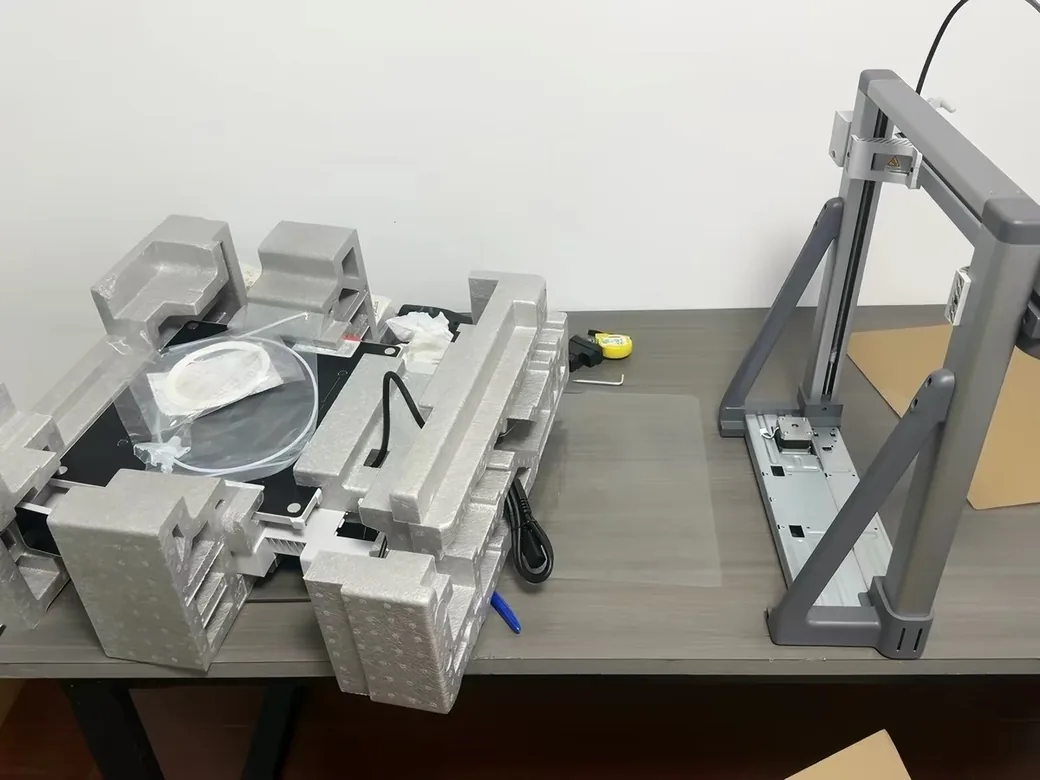
Open the box and you get a printer in two main pieces plus a tray of parts. Nothing here is fragile if you lift it correctly.
| Item | Notes |
|---|---|
| Base + gantry (2 pieces) | The bulk of the printer |
| 0.4mm stainless nozzle | Pre-installed, ready to print |
| Textured PEI plate | The flexible steel build surface |
| Purge wiper assembly | Clips on during setup |
| Spool holder | For an external roll |
| Accessory box | Screws, hex keys, oil, wipe cloths |
| Power cable | Short. More on that later |
| 20g Bambu PLA sample | Enough for one first print |
If you bought a Combo, you also get the AMS Lite multi-color unit. One first-hand heads-up: clear a deep shelf before it arrives. Mine took more room than I expected, with a 544 × 529 × 505 mm footprint that grows taller once the AMS Lite sits on top. The single most-missed item is one that doesn’t come in the box at all: a longer power cable. Keep that in mind for the shopping list near the end.
Bambu Lab A2L at a Glance (The Specs That Matter for Setup)
Before you build anything, five numbers shape how you set the machine up and what it can print. Here they are in one place.
| Spec | A2L | Why it matters |
|---|---|---|
| Build volume | 330 × 320 × 325 mm | About 105% larger than the A1 |
| Nozzle | 0.4mm stainless, 300°C max | Pre-installed; swap to hardened for CF |
| Max bed temp | 80°C | Lower than A1’s 100°C. Limits materials |
| Max speed | 500 mm/s | Servo-driven extruder |
| Connectivity | 2.4GHz Wi-Fi only | No 5GHz, no Ethernet |
The bed temperature is the spec that surprises people. At that ceiling, the A2L is built for PLA, PETG, and TPU, not high-temp engineering plastics. Bambu set it there on purpose: a large open bed holding 100°C would draw too much from a home circuit. One nice detail under the hood is the 1.5mm-pitch belt, tighter than the A1’s 2mm, which helps keep tall walls clean.
The 2-Minute Quick Start
In a hurry? This is the whole job in six moves. Each one is detailed below.
1. Take out the two transit brackets and the Z limiters. 2. Bolt on the heat bed (four screws). 3. Oil the Y-axis rails. 4. Clip on the AMS Lite and route the tubes (Combo only). 5. Power on, confirm voltage, connect 2.4GHz Wi-Fi. 6. Let calibration run, then update the firmware.
That gets you to a printable machine. Now the detail that keeps it from going wrong.
Step-by-Step Assembly
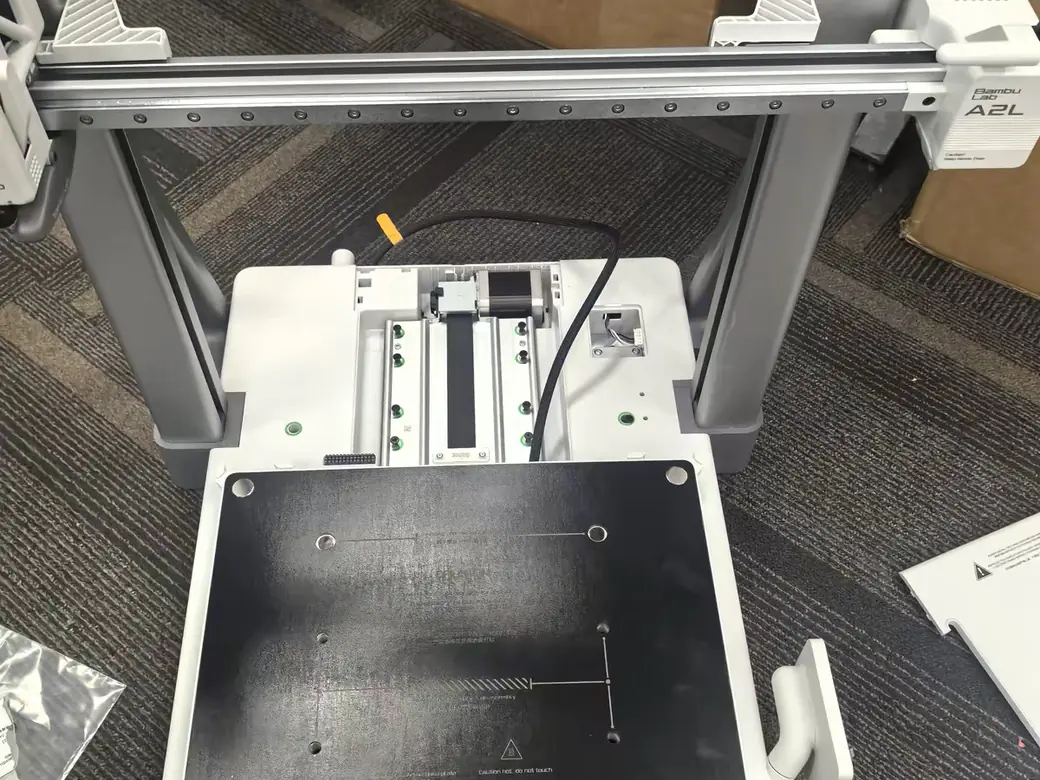
When I built mine, the whole thing took about 30 minutes, and it needs no tools beyond what’s in the box. Work on a clear table, not the floor.
Lift it out the right way
Grab the gantry by the gray brackets on the frame, never by the zip ties. Set both pieces upright before you cut anything loose. Then snip the ties and free the cables.
Attach the heat bed
The bed clicks onto the rear brackets, then four screws lock it down. Make sure the heat-bed cable isn’t twisted as you seat it. A twisted cable is the kind of thing you only notice after everything else is tight.
Remove the transit brackets first
Before you power on, find the two brackets bolting the X and Y axes in place for shipping. Each has two screws. Take all four out. Skip this and the motors fight against locked metal, which can damage the machine. The app will remind you later, but do it now while your screwdriver is already out.
Lubricate the rails with oil, not grease
Add a single drop of the included green oil to each Y-axis rail, then slide the bed back and forth to spread it. Use the oil, not grease. They aren’t interchangeable here, and the wrong one attracts grit and gums up motion. If you want the why behind that, here’s the difference between oil and grease in printers.
Take out the Z-axis limiters
After the frame is together, remove the Z-axis limiters. These hold the gantry steady in transit. Leave them in and the Z axis can’t travel its full height, which fails the very first calibration.
Install the purge wiper
Clip on the purge wiper and snug its screw into the plastic mount. Don’t overtighten. The screw bites into plastic, and this part is fiddlier than it was on the A1. Hand-tight is enough.
Snap the rear cover on
Slide the heat bed forward, line the cover grooves up, and press until you hear a click. Take your time here. Force it misaligned and you can snap the plastic clips. It’s an easy tab to break in a hurry, and a few extra seconds of alignment saves it.
Setting Up the AMS Lite (Skip If You Bought the Standalone)
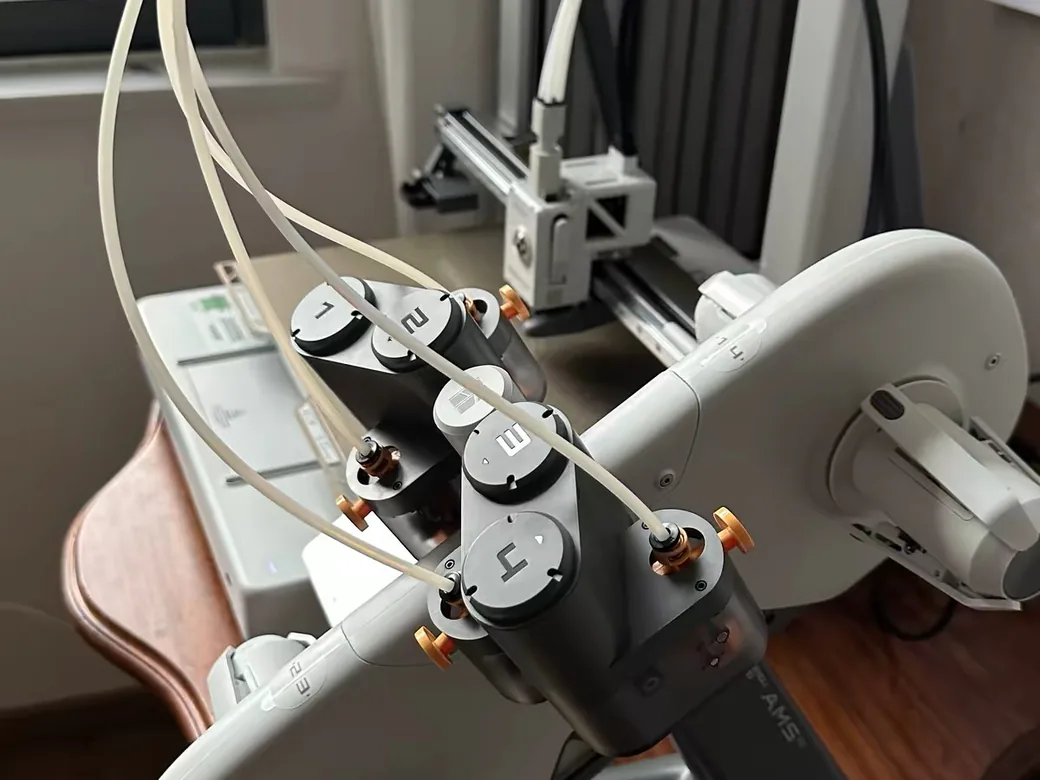
This step is only for Combo owners. If you have the standalone A2L, jump ahead to power-on.
Connect the color-coded cables: green to green, yellow to yellow. The connectors are fragile, so seat them gently and never force a twist. Then attach the AMS stand with its four screws.
Route the PTFE tubes next. The longest tube goes to the farthest slot, shorter ones to the nearer slots, and each must push in until it clicks so it doesn’t pop loose mid-print. Keep the black cable tucked behind the tubes so nothing bunches.
One thing the manual doesn’t warn you about: the big bed throws off real vibration, and during fast prints that shake can walk the AMS Lite right off the table. A cheap silicone pad under it solves the problem for good. Once it’s connected, the AMS Lite reads the RFID tag on official Bambu spools and sets filament type and color automatically, which saves you a menu every load. I’ve run an AMS Lite for a year on my A1 Mini, and that auto-detect is the part you’ll miss most if you go standalone.
Power On, Wi-Fi, and the Bambu Handy App
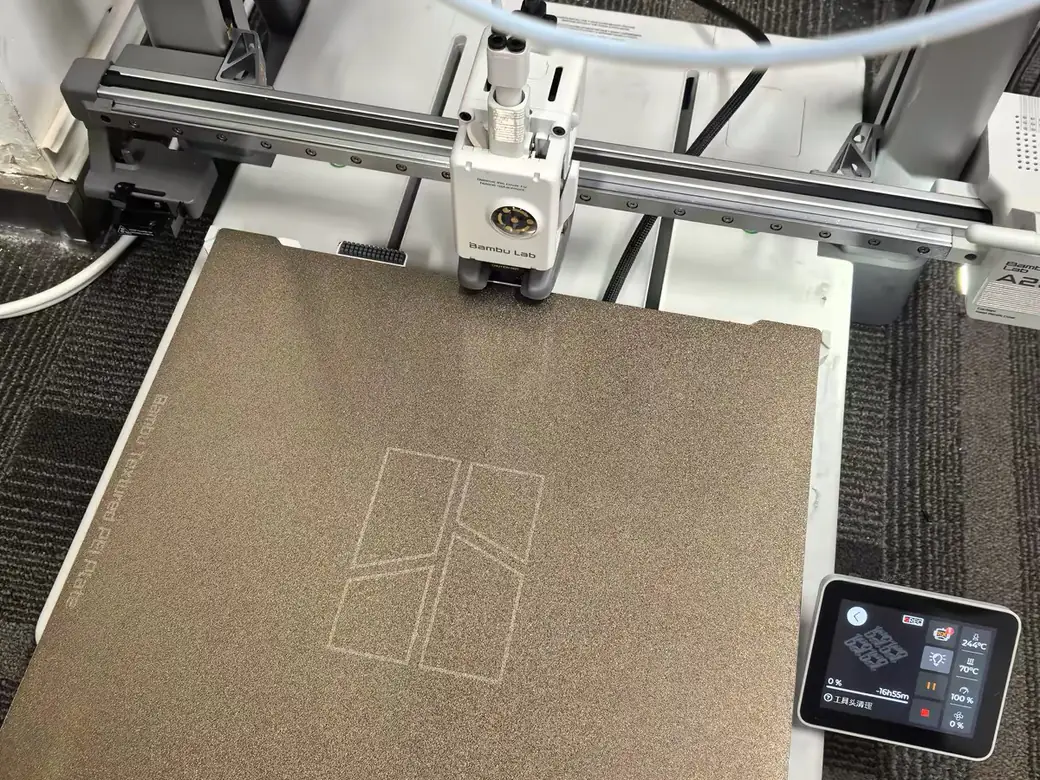
Before you plug in, check the voltage label next to the power socket on the machine. The A2L ships in high-voltage and low-voltage versions by region, and matching the label to your outlet is a 5-second check worth doing.
Power on and the 3.5-inch screen walks you through language, then Wi-Fi. One catch trips up a lot of new owners: the A2L only joins 2.4GHz networks. If your phone is on a 5GHz band and the printer can’t see your network, that’s why. Switch to the 2.4GHz SSID and it appears.
Finish by binding the printer in the Bambu Handy app with the on-screen QR code. That gives you remote monitoring and control from your phone.
Calibration and the One Update You Shouldn’t Skip
On first boot the A2L runs a forced calibration that takes 25 to 40 minutes. Let it finish without interrupting. It’s loud, and that’s normal.
Calibration handles three things: active motor noise cancellation, adaptive vibration compensation, and automatic bed leveling. The machine maps the bed and tool head, so the racket you hear is it learning its own quirks.
Then do the step most guides forget. Update the firmware before your first serious print. Early A2L machines carried two flaws that broke long jobs: a random pause, and a failure of the AMS Lite to resume after a filament runout. Both are gone in current software, and large prints that failed twice ran clean once owners updated. Two minutes now saves a ruined overnight print later.
Loading Filament and Your First Print
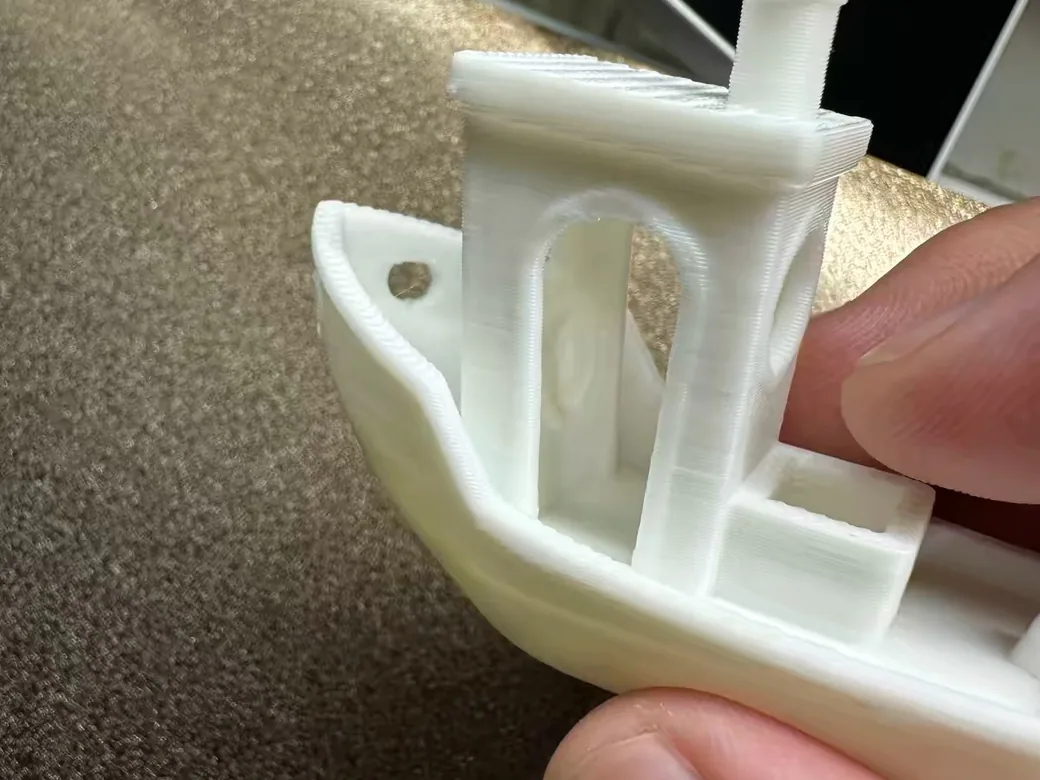
Use the included 20g PLA sample for your first print. It’s pre-matched to the machine and takes the guesswork out of day one.
If the sample starts under-extruding or the lines look weak, what to do when a nozzle clogs is the quickest follow-up.
Loading depends on your setup. With the AMS Lite, install the spool in the winding direction shown, press the release button, and feed filament into the inlet until the unit pulls it in. RFID does the rest. With an external spool, you set the filament type and color on the screen by hand, then feed into the PTFE tube until it stops and tap Load. Either way, snip a clean, flush tip first so it feeds smoothly. Not sure what to buy after the sample runs out? Start with which filament to use as a beginner.
For the print itself, the A2L has built-in models like the Heatbed Guard and Plate Guard, but the classic Benchy works too. A Benchy runs about 23 minutes and uses roughly 11 grams. Tap Print and watch the first layer go down.
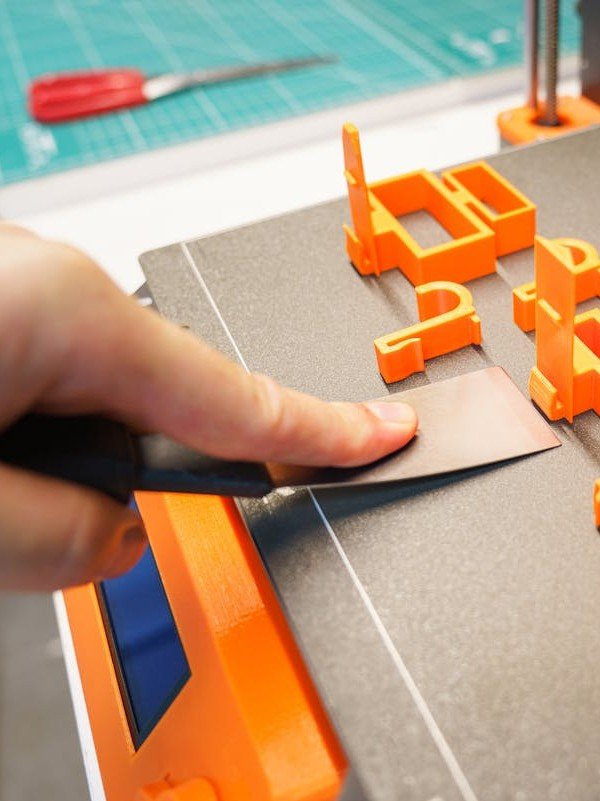
When it finishes, wait for the bed and model to cool to room temperature. Flex the steel plate to pop the model and the purge tower free, then clear the purge line with the scraper. Drop the plate back on the bed for the next print. To unload, the AMS Lite retracts filament on its own, while an external spool needs a manual unload.
7 Common A2L Setup Mistakes (and How to Dodge Them)
If you only remember one, remember the first: powering on with the transit brackets still in is the fastest way to damage a brand-new machine. The rest are easy to avoid once you know they exist.
1. Leaving the transit brackets in. Pull all four screws before power-on. 2. Forgetting the Z-axis limiters. Out they come, or calibration fails. 3. Using grease instead of oil. Wrong lubricant, gummed-up rails. 4. Forcing the rear cover. Align the grooves, then click. Don’t snap the clips. 5. Printing on stock firmware. Big jobs can fail before you update. 6. Not securing the AMS Lite. Vibration walks it off the table without a pad. 7. No backup power cable. The stock one is only about 3.5 feet.
One more for tall, skinny prints. Because the bed moves, very tall parts can show faint surface ripples. The fix is to turn on “Slow Down at Height” in the slicer and rethink the orientation. You can also dial in your print settings for the model you’re running.
What You’ll Need Beyond the Box
The A2L prints out of the box, but a few cheap extras smooth out the rough edges I flagged above. None of these are urgent on hour one, but you’ll want them soon.
- A longer power cable. The stock cord is about 3.5 feet, which rarely reaches a real desk.
- Anti-vibration silicone pads. To keep the AMS Lite and the printer planted.
- Spare Bambu filament. The 20g sample runs out fast.


Planning to use the A2L as a craft tool for stickers or pen drawings? Add the cutting module to your cart at checkout. Owners report it’s far easier to bundle up front than to source later.
The A2L’s whole reason to exist is size, so it pairs naturally with bigger projects. If that’s your goal, see where it lands among the best large-format 3D printers.
Frequently Asked Questions
How long does it take to set up the Bambu Lab A2L? Roughly an hour of attention. Assembly is about 30 minutes, and the forced first calibration adds another 25 to 40. The firmware update is a couple of minutes on top.
Do I need the AMS Lite to start printing? No. The standalone A2L prints fine from an external spool holder. The AMS Lite adds automatic filament recognition and multi-color, but it’s optional for a first print.
What filament can the A2L use, and why only those? PLA, PETG, and TPU cover day one. The bed tops out at 80°C, which is too low for high-temp plastics like ABS or nylon that want a hotter, enclosed chamber. For carbon-filled materials, swap to a hardened nozzle.
Why is my A2L shaking so much? The large moving bed transfers vibration to the table, especially at speed. It’s most noticeable on the AMS Lite, which can slide. Put the printer on a solid surface and add silicone pads under both the printer and the AMS.
Should I update the firmware before my first print? Yes. Early A2L software could stall a print at random or leave the AMS Lite stuck after a runout. Updating clears both, so do it right after calibration.
Why won’t the A2L connect to my Wi-Fi? The A2L only supports 2.4GHz Wi-Fi, not 5GHz, and it has no Ethernet port. If the printer can’t find your network, connect it to your router’s 2.4GHz band.
Can the A2L cut vinyl or draw? Yes, with the separate cutting and pen module. It isn’t included with the printer, so bundle the cutting module at checkout if you want sticker cutting or pen plotting.
Is the included power cord long enough? For most desks, no. It runs about 3.5 feet. A longer cable is the first accessory most owners buy.