This ugee Funbox 3D printer review is based on a week of daily use with my 6-year-old daughter. Six prints, zero failures. She ran nearly all of them herself. The real barrier isn’t her age. It’s one step: loading filament needs an adult, and that held true for the older kids in the other published tests too. It also earned a spot when I rounded up the best 3D printers for a six-year-old.
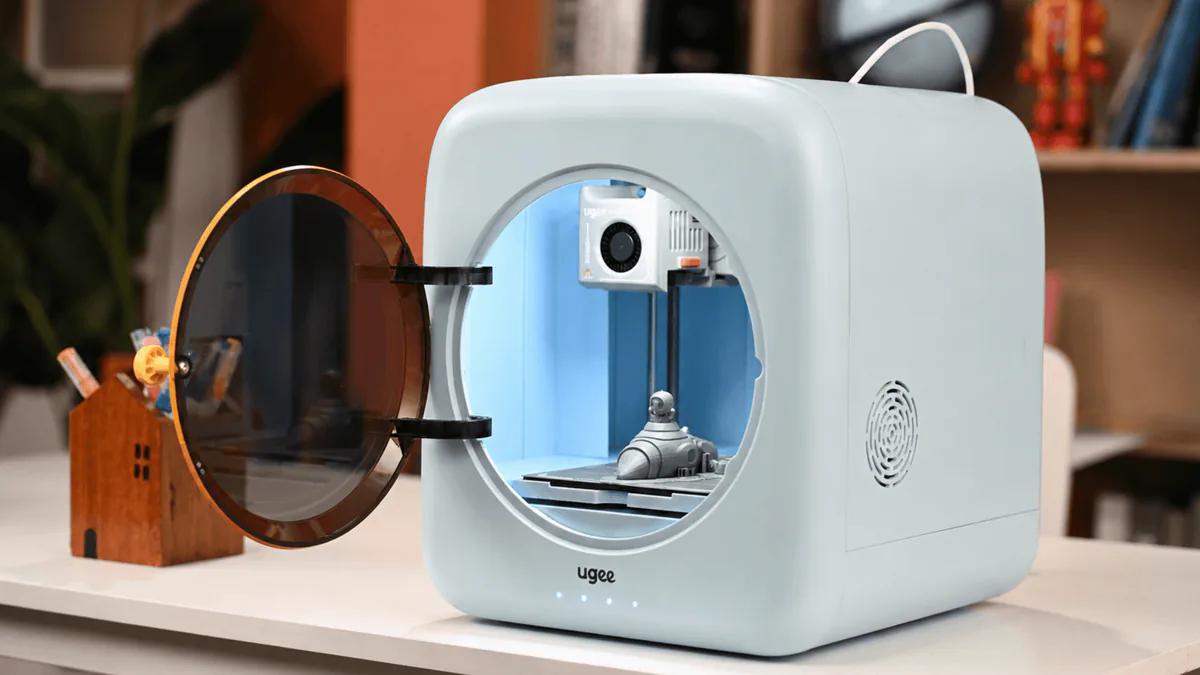
> Disclosure: ugee sent this unit for review. No payment, no copy approval, no editorial control on their side. The cover image is ugee’s own product shot. Every other photo here is mine, taken during testing. Everything below is what I measured.
Table of Contents
- Who Is ugee, and What Is the Funbox?
- At a Glance: Scores and Specs
- Unboxing: It Arrives Looking Like a Gift
- Setup: One Minute of Assembly, Then the App
- Loading Filament: The One Thing a Kid Can’t Do
- Print Settings, the App, and What It Can’t Do
- Real Prints: Six Models, Zero Failures
- The AI Features: Real Tool or Gimmick?
- Safety, Noise, and Living With It in the Living Room
- What a 6-Year-Old Could Actually Do
- What I Would Change
- Who Should Buy It, and Who Should Not
- Verdict
- FAQ
Who Is ugee, and What Is the Funbox?
Most kid-focused 3D printers come from 3D printing companies. This one doesn’t.
ugee belongs to Hanvon Ugee, a Shenzhen company that has spent years making drawing tablets and pen displays. They ship to more than 160 countries and have sold over 20 million units. The Funbox, launched globally on July 15, 2026, is their first 3D printer.
That background explains the whole product. A drawing tablet company’s natural question is “what if the thing your kid draws could become real?” So the headline feature isn’t speed or precision. It’s turning a doodle into a printable model.
The Funbox is a fully enclosed FDM printer aimed at ages 4 to 12. It runs standard 1.75 mm PLA. Pre-order pricing is $269 against a $329 list price, bundled with seven rolls of filament. That promotion ends August 5, with US warehouse shipping from August 15.
If you’re still mapping the category, our guide to 3D printers for kids and students covers how this segment is split.
At a Glance: Scores and Specs
I scored this across 11 dimensions rather than giving one number. Weighting leans toward safety and child independence, because that’s the order parents actually decide in. Build volume gets only 5%, since a small bed is genuinely fine for what kids print.
| Dimension | Weight | Score |
|---|---|---|
| Safety & certifications | 15% | 9.5 |
| Kid independence (age fit) | 15% | 8.5 |
| Setup & first print | 10% | 9.0 |
| App & software experience | 10% | 8.5 |
| Print quality | 10% | 9.0 |
| Reliability (short-term) | 10% | 9.0 |
| Creative tools & learning content | 10% | 8.0 |
| Noise & home suitability | 5% | 9.0 |
| Build volume & versatility | 5% | 7.0 |
| Running cost & filament freedom | 5% | 8.5 |
| Value for money | 5% | 8.5 |
| Weighted overall | 100% | 8.7 |
| Support & durability | — | Not rated |
Support and durability stay unrated on purpose. The product is weeks old. Nobody has long-term data yet, including me.
Two caveats on how to read those numbers. The safety score reflects the design and my own experience of running it in a shared room, not an audit of ugee’s certificates, which I have not verified. And reliability is scored on a single week of use, which tells you about short runs and nothing about year three.
Now the specs, split into what ugee claims and what I actually measured.
| Spec | ugee claims | What I measured |
|---|---|---|
| Build volume | 120 × 120 × 120 mm | Confirmed 120 mm |
| Max print speed | 500 mm/s | App defaults to 300 mm/s |
| Real throughput | not stated | 9.9 to 16.5 g/hour |
| Noise | 46 dB | 47.5 dB avg beside the machine |
| Min layer height | 0.05 mm | not independently verified |
| Max nozzle temp | 260 °C | heats past 220 °C on load |
| Machine size | 270 × 274 × 305 mm | — |
| Weight | 4.04 kg | — |
| Camera | 2 MP | clear enough to monitor remotely |
Unboxing: It Arrives Looking Like a Gift
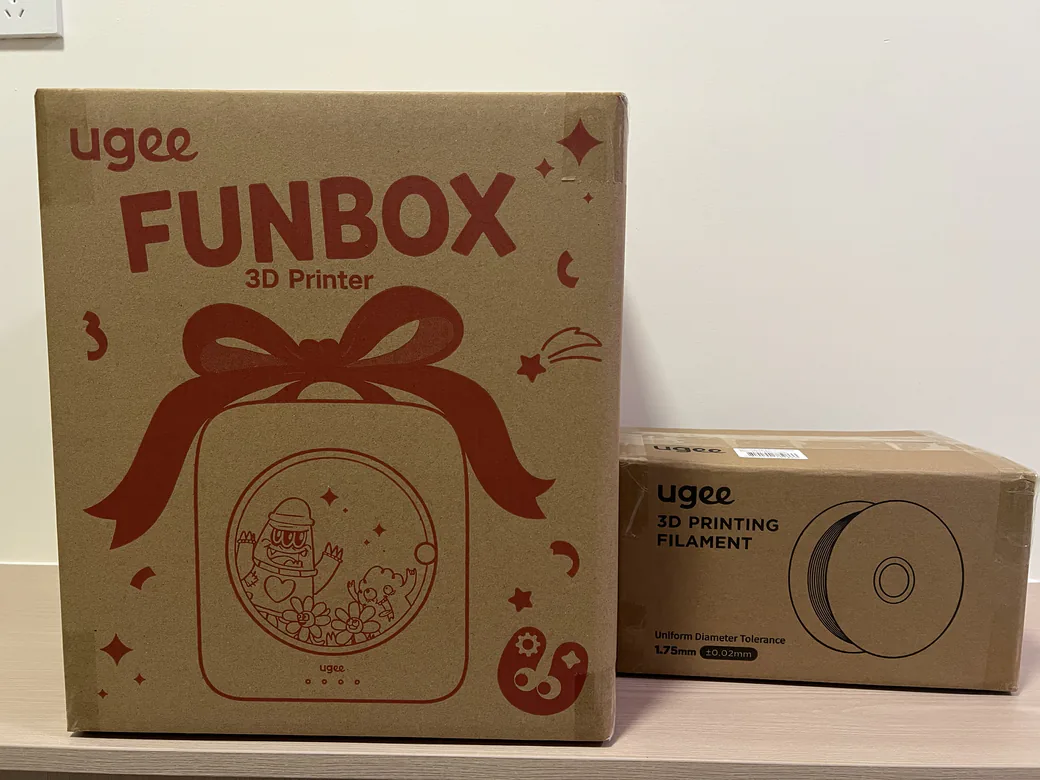
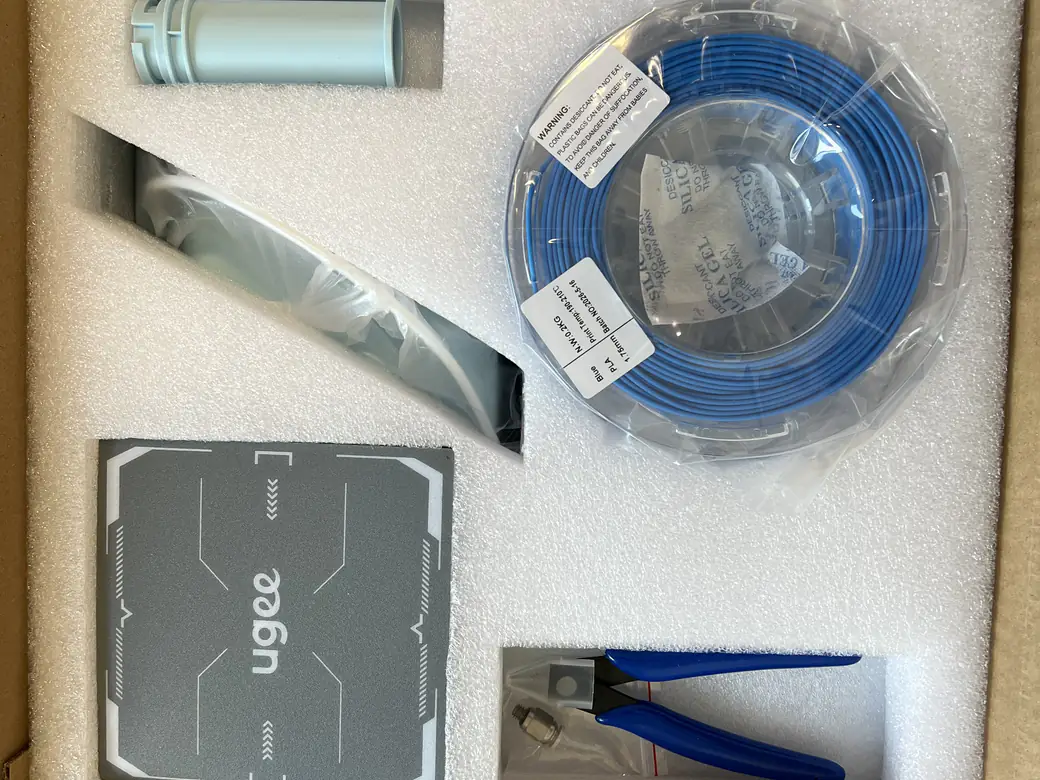
The outer box has a red bow and gift graphics printed on it. That sounds trivial. It’s not.
My daughter saw the box before she saw the printer, and she was already excited. For a product that will mostly be bought as a birthday or Christmas present, the packaging is doing real work.
Inside you get the printer, a filament holder, a power adapter, a magnetic base plate, a 0.2 kg spool of blue PLA, pliers, a cleaning needle, a pneumatic fitting, a calibration card, a quick guide, and a sheet of DIY stickers.
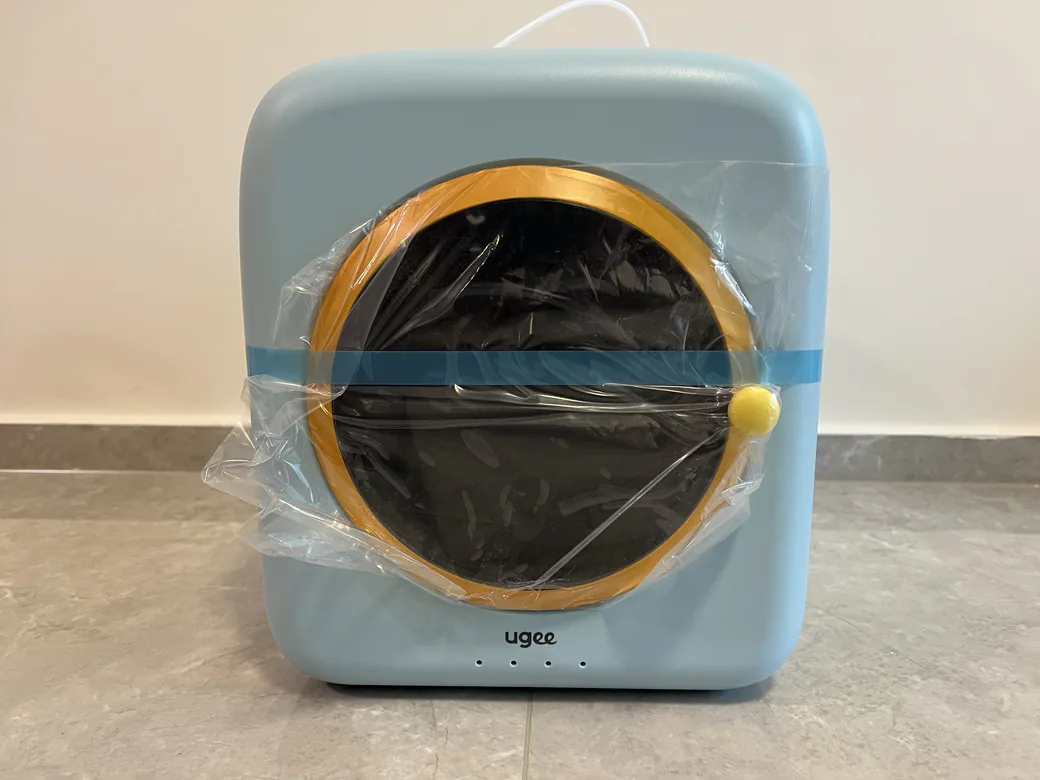
The machine itself is rounded and chunky. Somewhere between a space capsule and a small washing machine. The 3D Taylor, testing with his 13-year-old, landed on the same description, so it’s not just me. The body is plastic, the blue finish reads as friendly rather than technical, and there’s a yellow ring handle on the door. The door has damping and a magnetic catch, which matters more than it sounds when a kid is opening it twenty times a day.
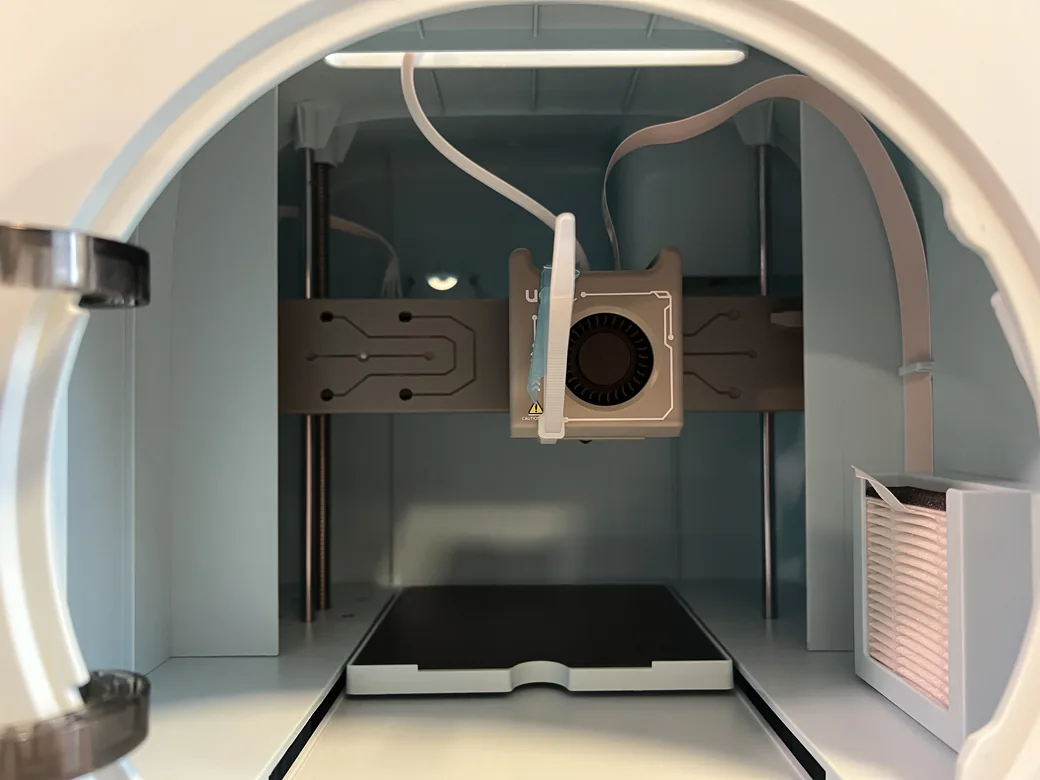
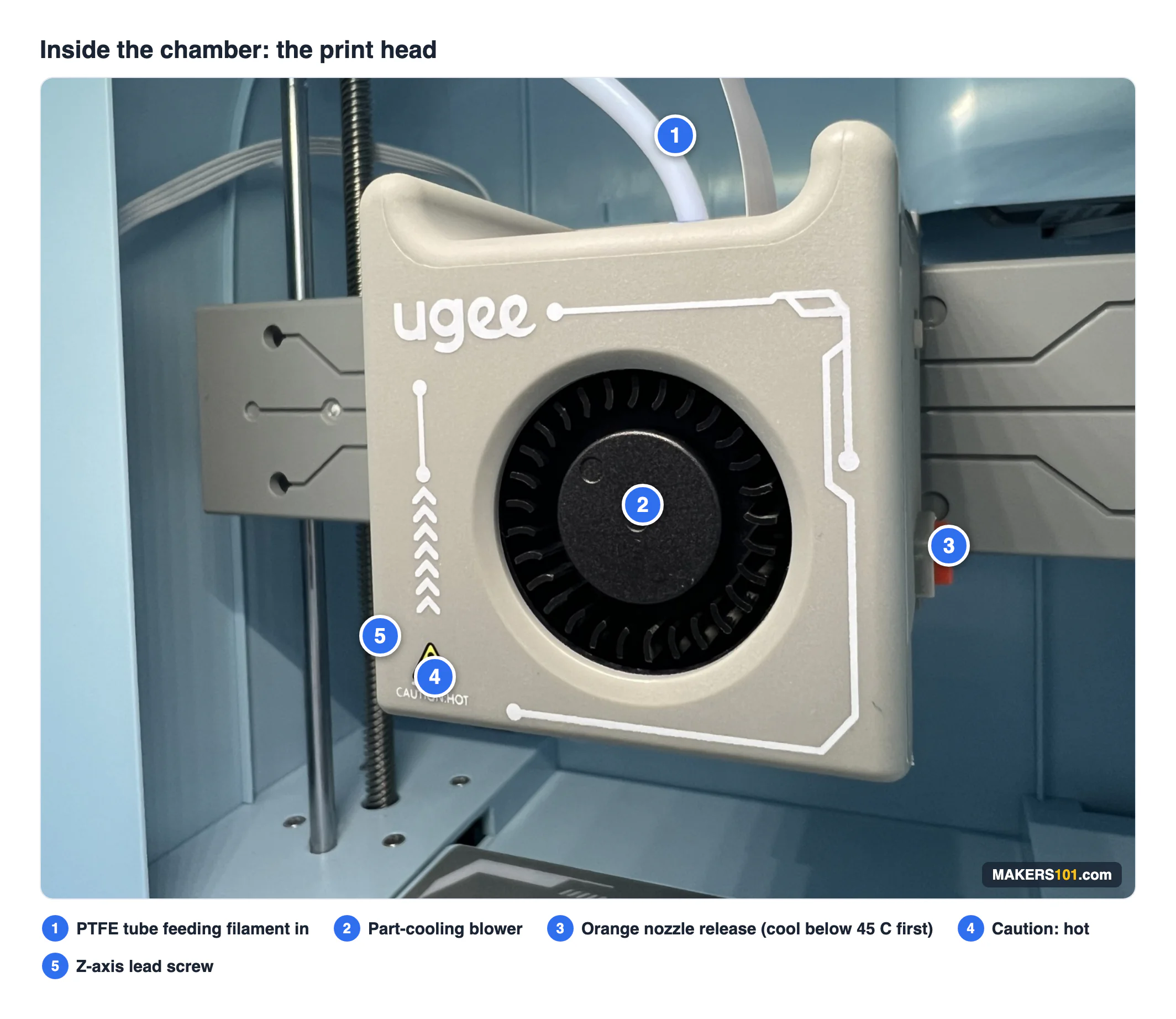
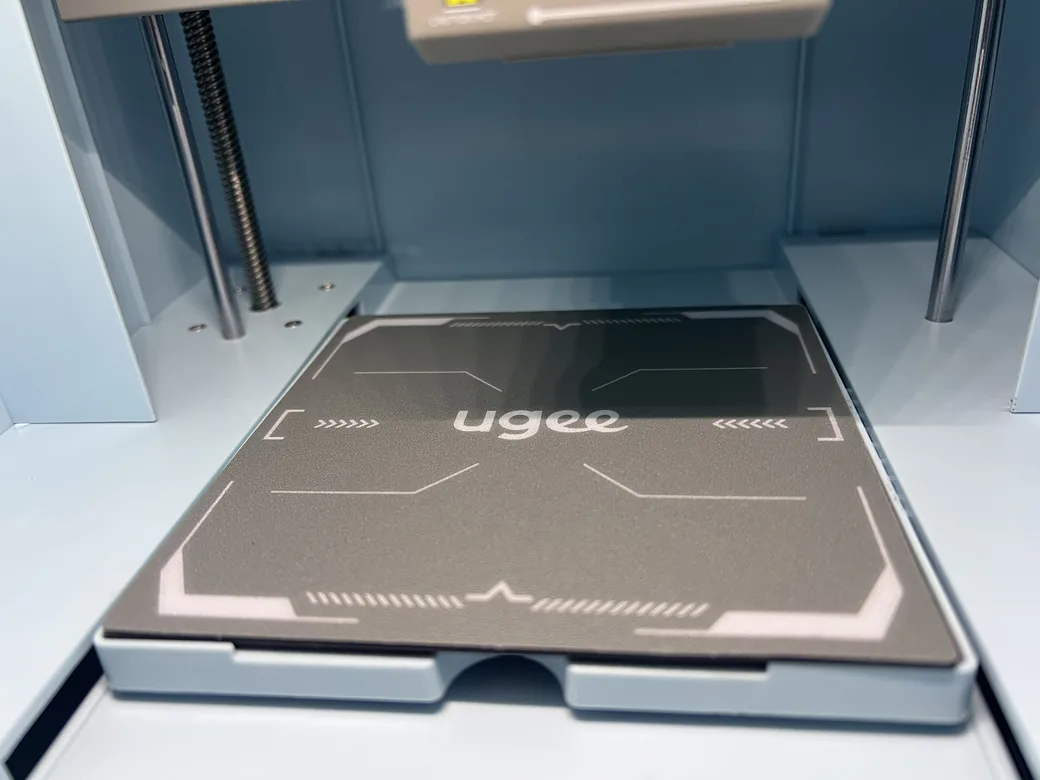
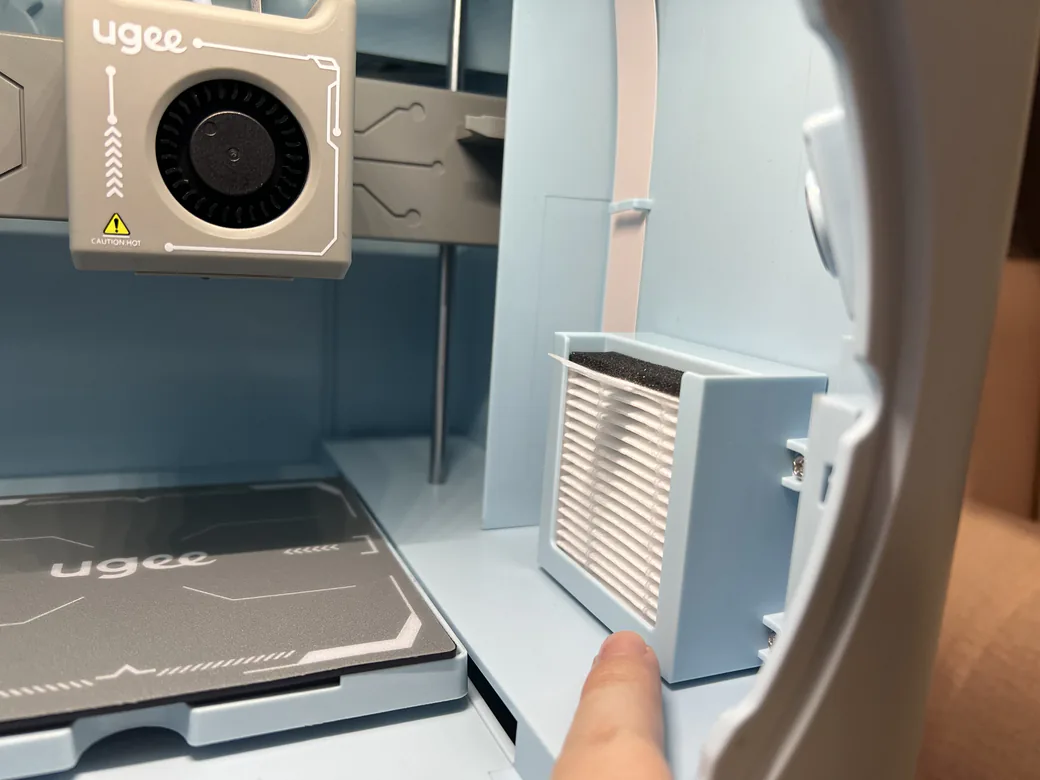
Inside the chamber: a camera up top, and a fan with an activated carbon filter on the right.
Setup: One Minute of Assembly, Then the App
Physical assembly is genuinely about a minute
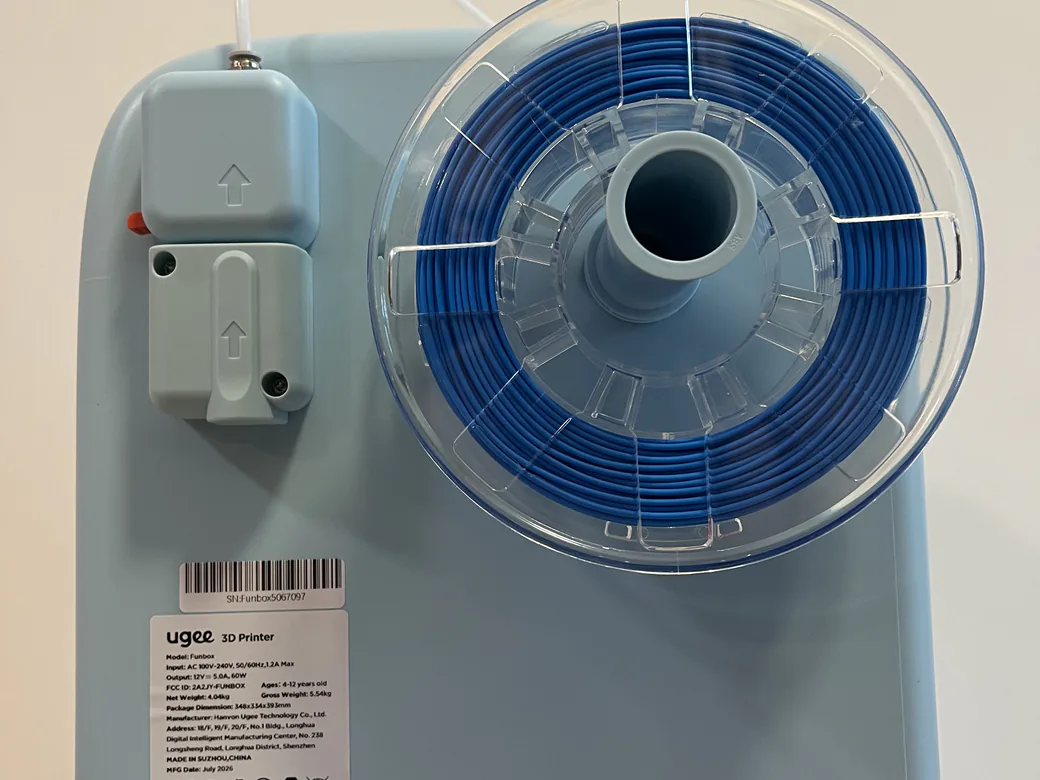
Peel the tape off the door handle. Pull out the foam and the power adapter. Snip the white zip tie on the extruder. Twist the filament holder into the slot on the upper right of the back panel.
That’s the entire assembly. No screws. No bed leveling. No frame squaring. The “100% pre-assembled” claim holds up.
The pairing step nobody warns you about
There’s no screen on this machine. The app is the only way in.
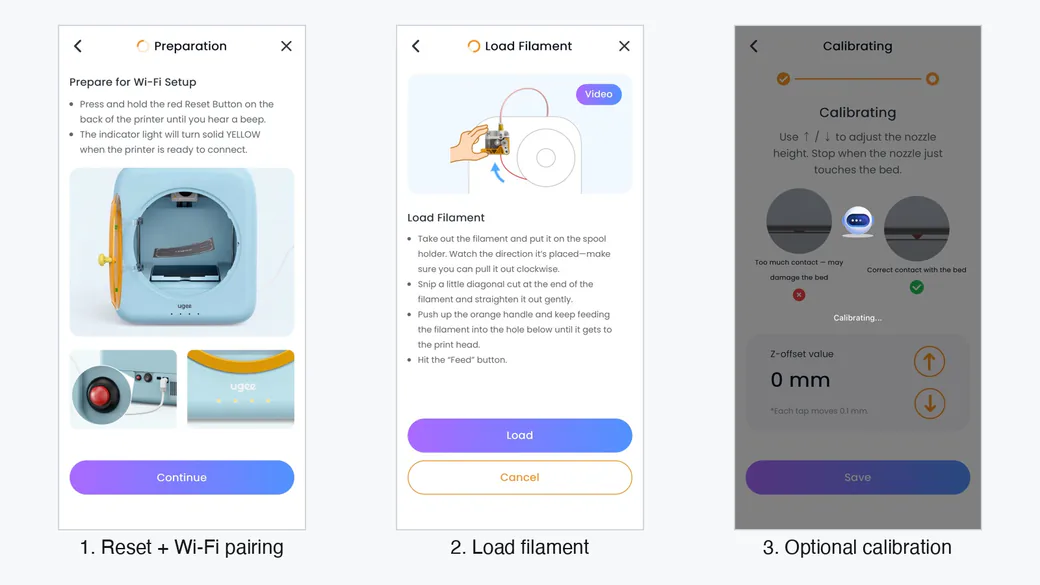
Download ugee UFun, register, then add a printer and pick Funbox. Then comes the part that cost me time: you have to long-press the red reset button on the back until you hear a beep and the indicator light turns yellow. I skipped it the first time and the pairing simply failed with no useful explanation.
After that, enter your Wi-Fi password and you’re connected.
What “six minutes” really means
ugee markets a six-minute path from box to printing. Two other reviewers roughly back that up: 3D Printscape reported under ten minutes, The 3D Taylor had a turtle printed in six.
My timeline was longer. Assembly took a minute. Pairing took a few more, plus the reset detour. Then the nozzle spent three to five minutes heating for the very first time. From opening the box to holding a finished object was closer to 30 minutes.
Six minutes is the setup, not the payoff. Worth knowing before you hand it to an impatient kid.
Loading Filament: The One Thing a Kid Can’t Do
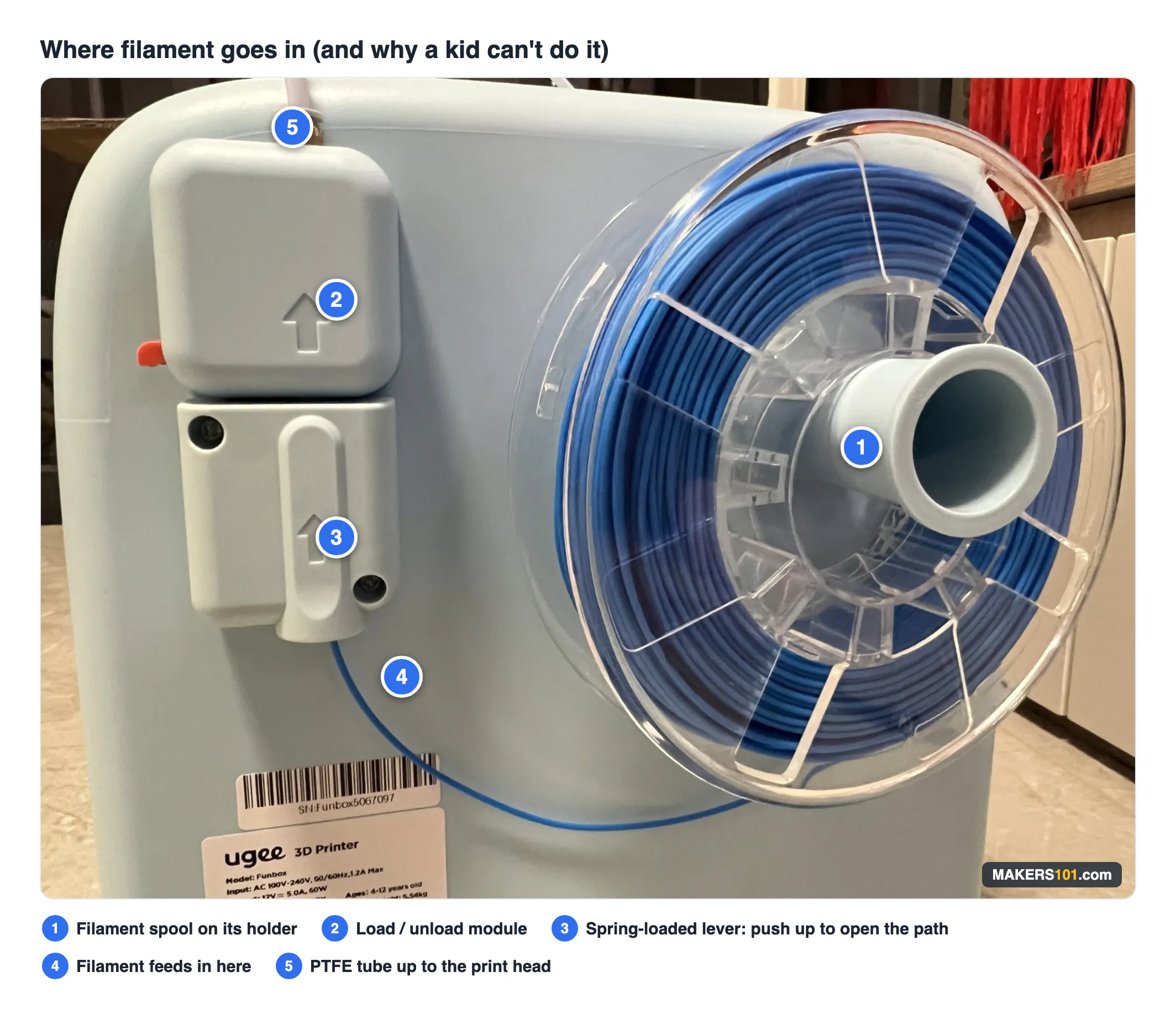
This is the most important finding in this review, so here are the specifics.
You cut the filament end at an angle. Then you push up on the lever at the back of the machine, which compresses a spring-loaded channel, and feed the filament through the PTFE tube until it reaches the extruder. Then you open the app, hit Load, and the nozzle heats past 220 °C and pushes filament through.
The extrusion itself was smooth on the first try. No stutter, no grinding.
But my daughter couldn’t do this part. She doesn’t have the hand strength to hold that spring open while feeding filament with her other hand.
What makes this more than a one-kid anecdote:
| Reviewer | Child’s age | Where they got stuck |
|---|---|---|
| Makers101 (this review) | 6 | Not enough grip strength for the spring channel |
| 3D Printscape | 11 | Did not push filament far enough to engage the extruder |
| The 3D Taylor | 13 | Filament end must be cut perfectly straight to enter the PTFE tube |
Three separate households, three different children, ages 6 to 13. All three hit the same step.
Worth stating plainly: my unit came from ugee, and The 3D Taylor says the same about his. I don’t know how 3D Printscape got theirs.
The reasons differ, and that detail matters. My 6-year-old lacked the grip. The 11-year-old had the strength but stopped short of the extruder. The 13-year-old was defeated by a filament end cut at the wrong angle. So this isn’t one flaw with one cause. It’s a step with several ways to fail, which is exactly the kind of step that trips up a beginner of any age.
Plan on being the one who changes filament, and let your child own everything else.
The manual quietly contradicts the marketing
ugee’s public pitch is that the Funbox takes any mainstream 1.75 mm PLA, so you’re not locked into their filament.
Page 12 of the printed manual says something different:
> “ugee filaments are recommended. Do not frequently change filaments of various brands to avoid nozzle jamming.”
I tested Creality PLA on the longest print of the week, a 72 g spring launcher. It worked with no issues at all.
So the hardware is genuinely open, and you do not need to buy ugee’s spools. But the company hedged in the manual. To be fair, frequent brand-switching is a real jamming risk on any printer, not something unique to this one. Our beginner’s guide to filament covers why that happens.
Print Settings, the App, and What It Can’t Do
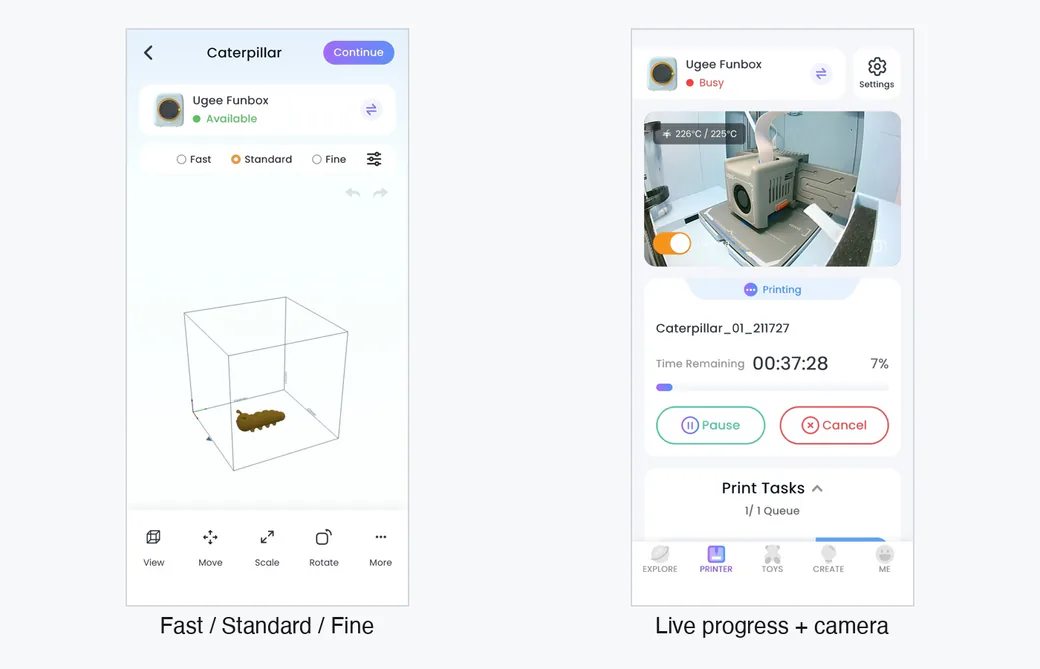
The UFun app gives you three slicing modes. Fast, standard, fine. You pick a model, pick a mode, press print. There’s no slicer to learn, no G-code, no profiles.
The default speed shown for models is 300 mm/s, not the 500 mm/s in the marketing. Those aren’t contradictory (500 is a peak figure), but neither number tells you much. On a 120 mm bed printing small parts, the toolhead spends most of its time accelerating and decelerating. Throughput is the honest metric, and mine landed between 9.9 and 16.5 g/hour.
The 2 MP camera is genuinely useful. Sharp enough to check on a print from another room. The app also queues jobs. Stack several tasks and they print in order, and you can drag to reorder them. Neither published review mentions it.
Two reliability features are worth knowing about, though neither triggered during my testing: power-loss resume, which picks a job back up after the power cuts, and filament jam detection. Both matter more on a machine a child starts unsupervised. Since nothing went wrong in a week of printing, treat them as specified rather than proven.
Beyond the model library, ugee bundles free STEM lessons in the app. My daughter hasn’t worked through them yet, so their depth is untested here, but their presence is part of what the Funbox is selling: a machine that stays interesting after the novelty prints run out.
“Leveling-free” is true, but there’s a hidden calibration screen
My first print succeeded with no calibration at all. The machine arrives calibrated, and the no-leveling claim is accurate.
There’s still a Calibrating screen buried in the app, where you nudge Z-offset in 0.1 mm steps until the nozzle just touches the bed. The box even includes a calibration card. I ran it before my second print and it changed nothing about my results.
So treat it as a manual fine-tune that ugee doesn’t advertise, not a required step. If a print ever starts failing on adhesion, that screen is where you go.
No screen, no offline printing
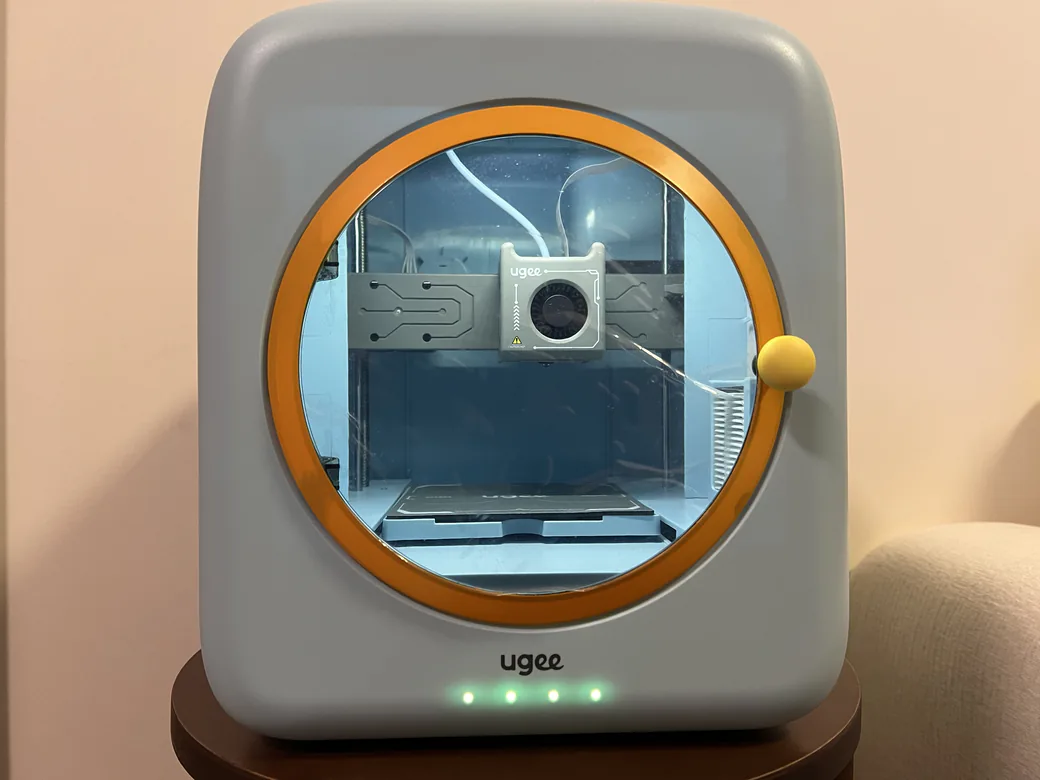
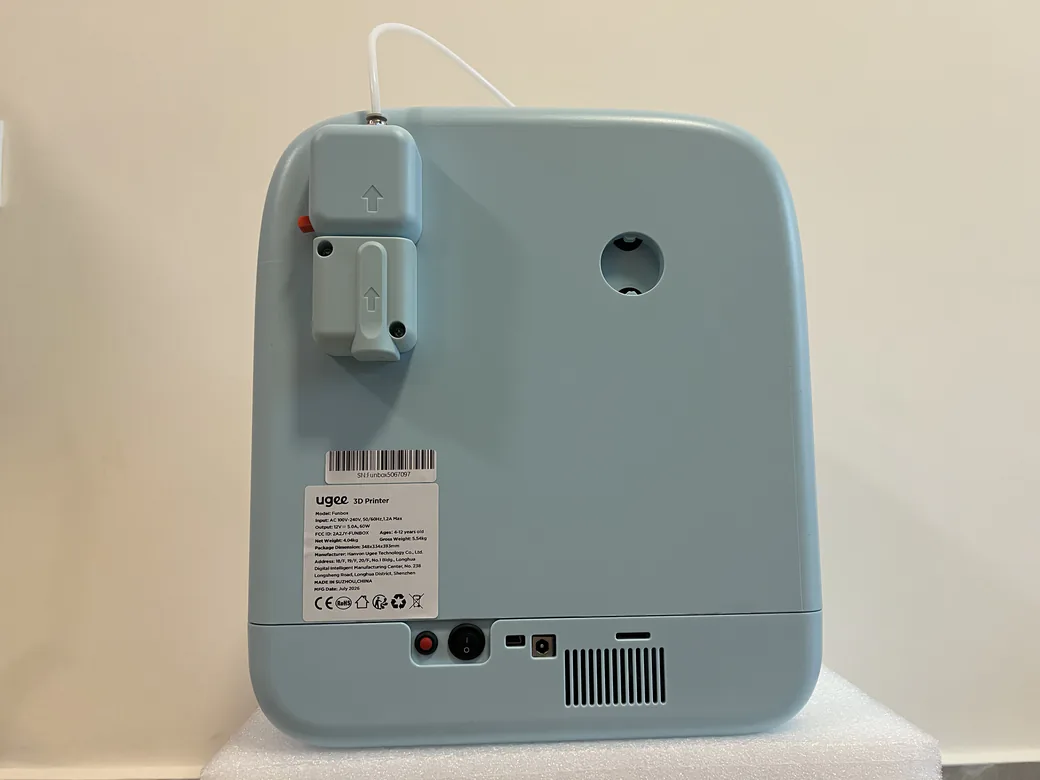
With no display, the indicator light is your only local feedback. The manual’s light key: yellow means waiting for connection, cyan means Wi-Fi connected, cyan in motion means printing, red means error, and a color cycle means the nozzle is heating or cooling.
There’s a USB port and an SD card slot on the machine. Page 4 of the manual is blunt about them:
> “The USB Port and SD Card Slot are for machine debugging only.”
You can’t print offline. You can’t load your own STL through them. Everything routes through the app and ugee’s cloud. That’s the hidden cost of making a printer this simple, and it’s worth thinking about before you buy: no internet means no printing, and long-term you’re dependent on ugee keeping the service running.
One bit of good news on maintenance: the nozzle is user-replaceable. Wait until it drops below 45 °C, press the orange button, and pull it off.
Rafts are on by default
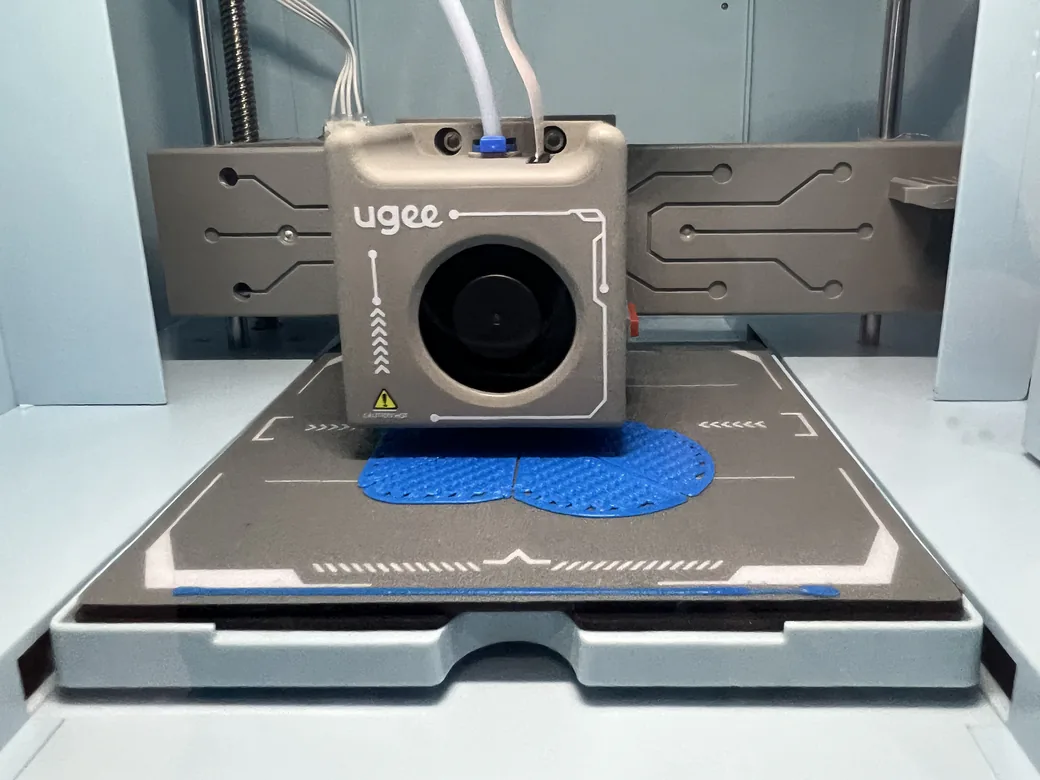
Every early print came out with a raft attached, and removing them was fiddly. Turn rafts off manually and cleanup gets much easier. This should be off by default.
Real Prints: Six Models, Zero Failures
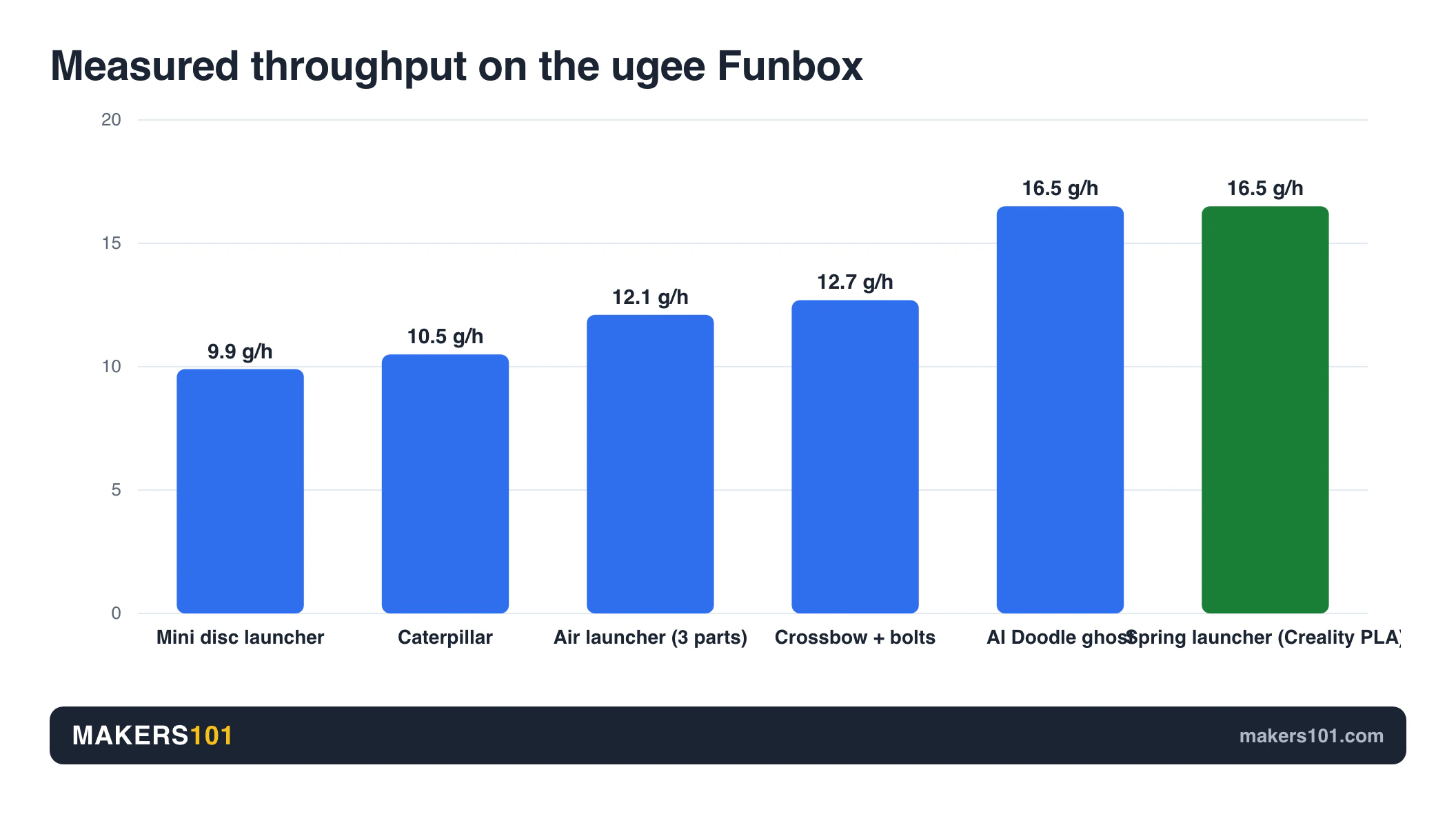
| # | Model | Time | Filament | Result |
|---|---|---|---|---|
| 1 | Caterpillar | 40 min | 7 g | Success |
| 2 | Mini disc launcher | 1 h 13 min | 12 g | Success |
| 3 | Air-powered shell launcher (3 parts) | 8 h+ total | 97 g | Success |
| 4 | Crossbow + 10 bolts | 3 h | 38 g | Success |
| 5 | AI Doodle ghost | 32 min | 8.8 g | Success |
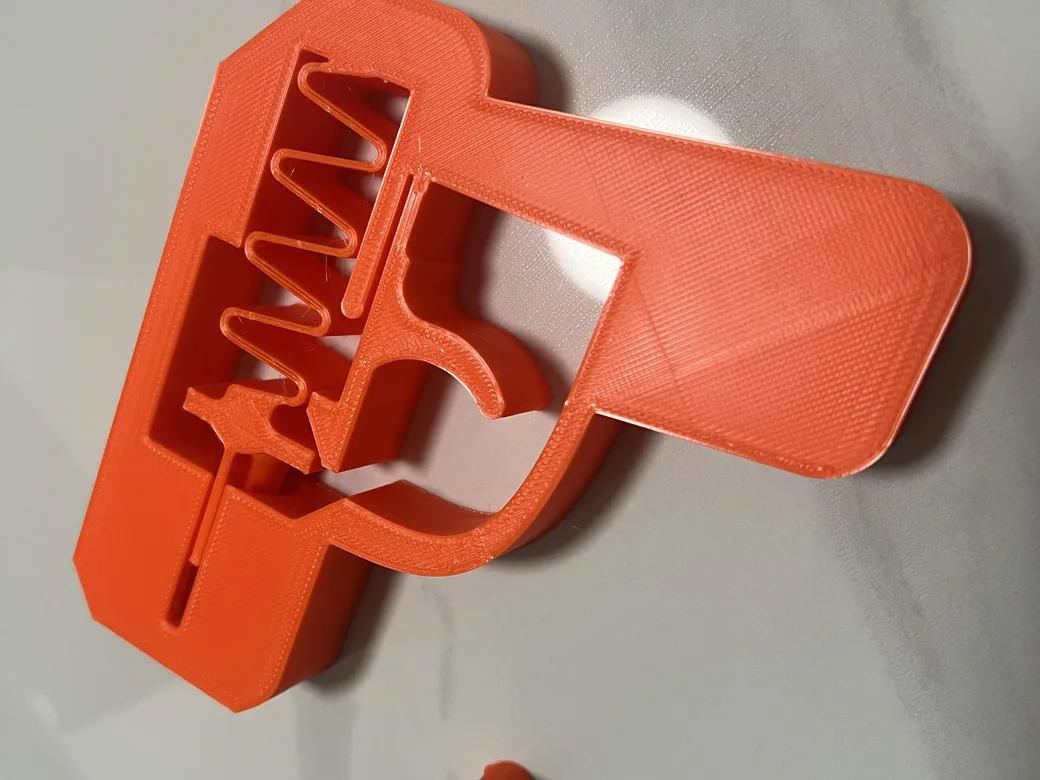
| 6 | Toy spring launcher (Creality PLA, orange) | 4 h 22 min | 72 g | Success |
One clarification on print 3, because it would be easy to overstate. That wasn’t a single eight-hour job. The model was split into three parts printed separately, adding up to eight hours and change. The longest continuous run was the orange spring launcher, 72 g in 4 h 22 min, with Launcher_01 close behind at 4 h 11 min.
Six for six, with two separate four-hour jobs completing without intervention. That’s solid evidence of medium-run stability. It’s not evidence of long-term reliability, and the difference matters. One week and six prints is a small sample. 3D Printscape ran about a week. The 3D Taylor never stated a test window. Nobody has long-term data on this machine yet.
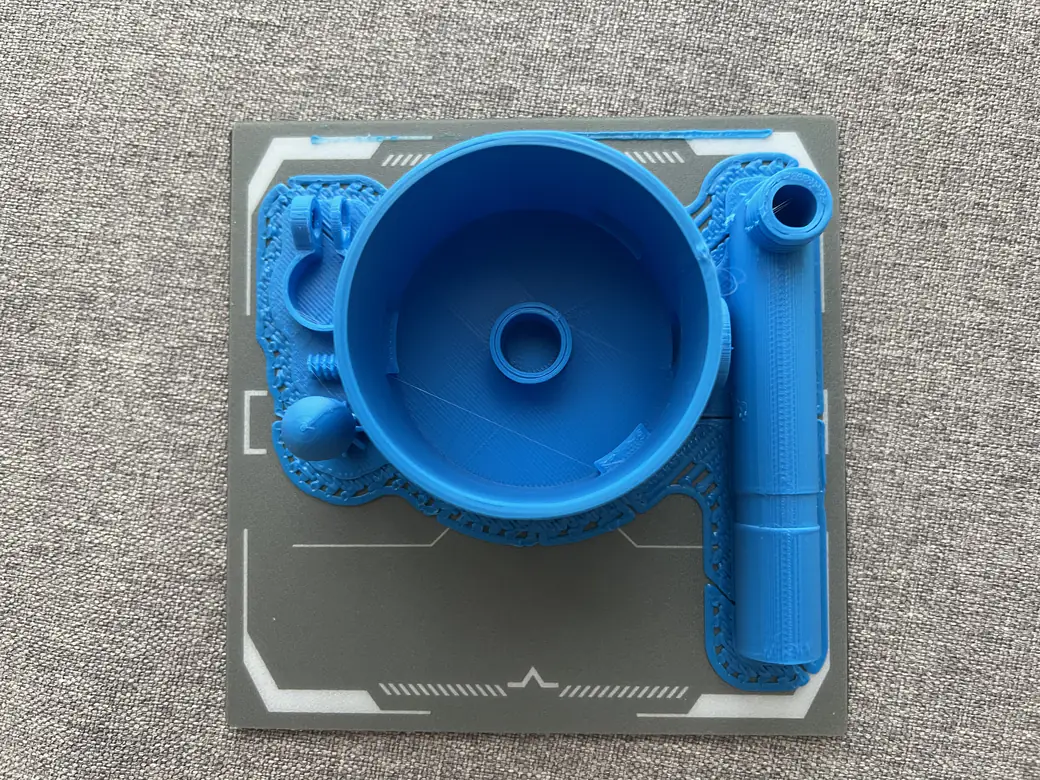
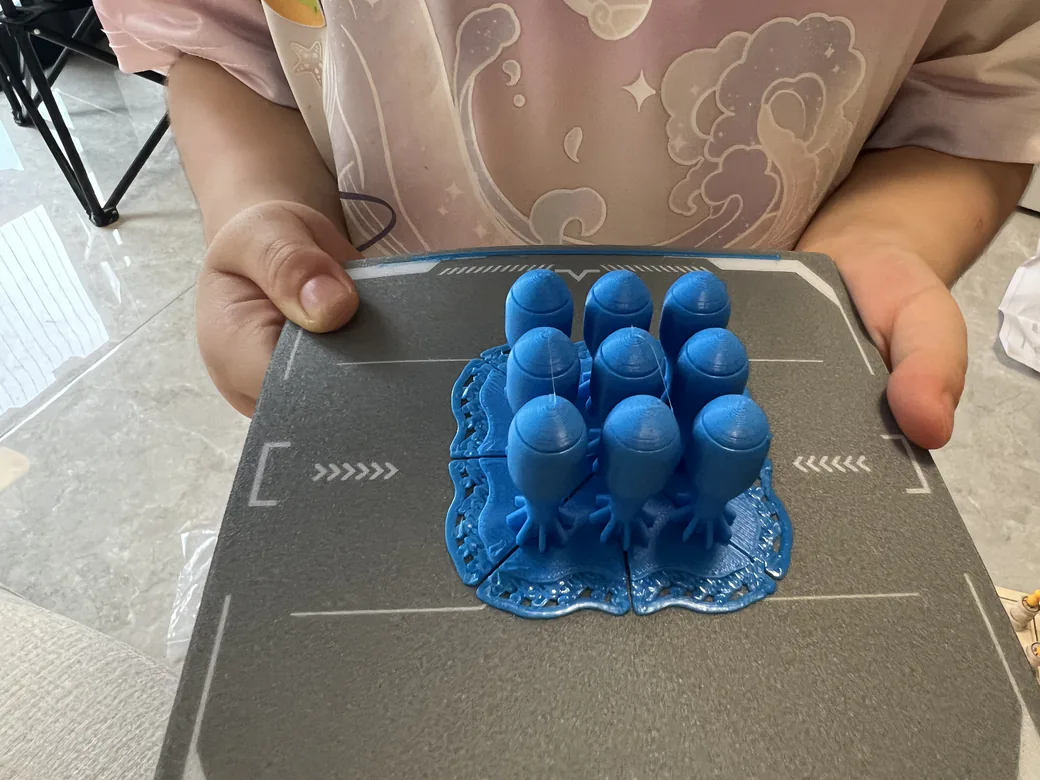
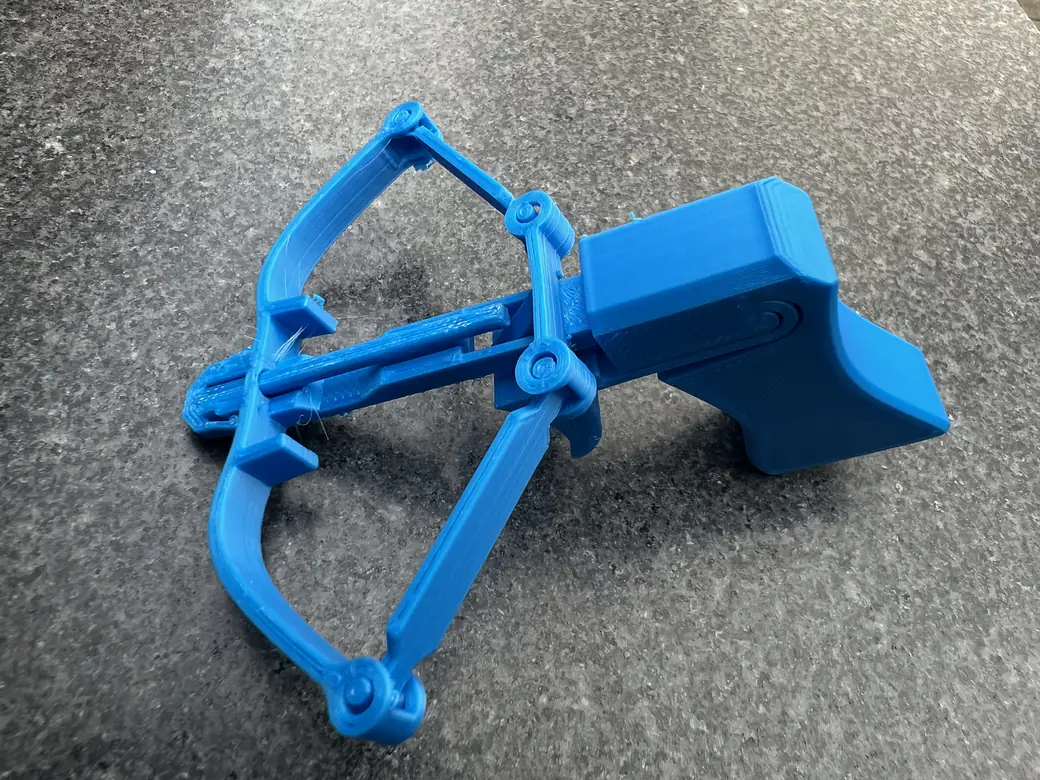
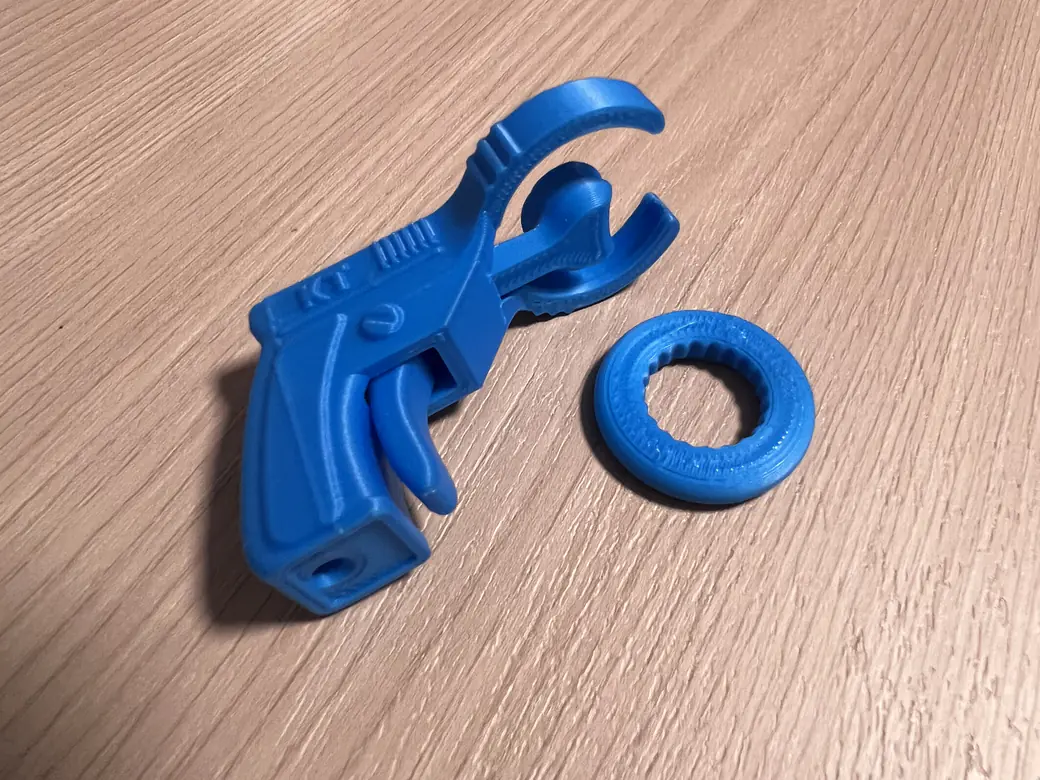
For quality, the parts came out clean and the details were better than I expected from something aimed at children. That’s a judgment based on finished objects, not a standardized test. I didn’t run overhang, bridging, or stringing benchmarks.
The AI Features: Real Tool or Gimmick?
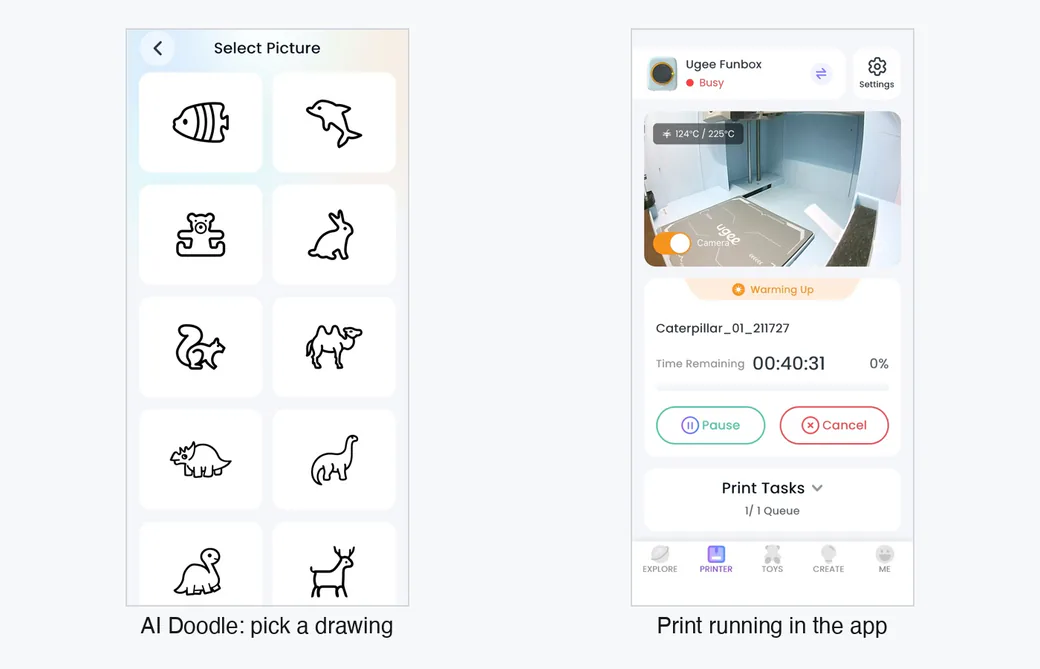
The app’s Create tab has four AI functions: AI Craft, AI Mini Me, AI Doodle and MoniMakie. There’s also a Design Space, still unexplored here.
I tested one of them. AI Doodle: I picked a ghost from a set of outline drawings, and it generated a printable model that came out at 32 minutes and 8.8 g. The result was genuinely good.
The other three are untested. Untested is untested, so treat this section as partial pending an update.
For AI Mini Me, 3D Printscape’s experience is instructive. Their daughter turned a photo into a cartoon figure and printed it successfully. But the default orientation put the raft against the head, leaving the surface rough, and they had to reorient the model manually.
That matches the honest read on AI generation right now. It’s not a gimmick. It genuinely turns a child’s idea into a printable object without any CAD. But it’s also not “think it and print it.” Someone still has to look at the orientation and make a judgment.
Which brings it back to the drawing tablet company. Doodle-to-model is the most natural feature ugee could have built.
Safety, Noise, and Living With It in the Living Room
Ours sat in the living room for a week. No smell.
The safety design is thorough: a fully enclosed rounded body, a 12 V low-voltage DC supply meeting IEC standards, and an H12 HEPA filter paired with activated carbon and an active exhaust fan. ugee lists UL GREENGUARD, ASTM F963-23, EN71, and EN62115 certifications. I haven’t independently verified those certificates.
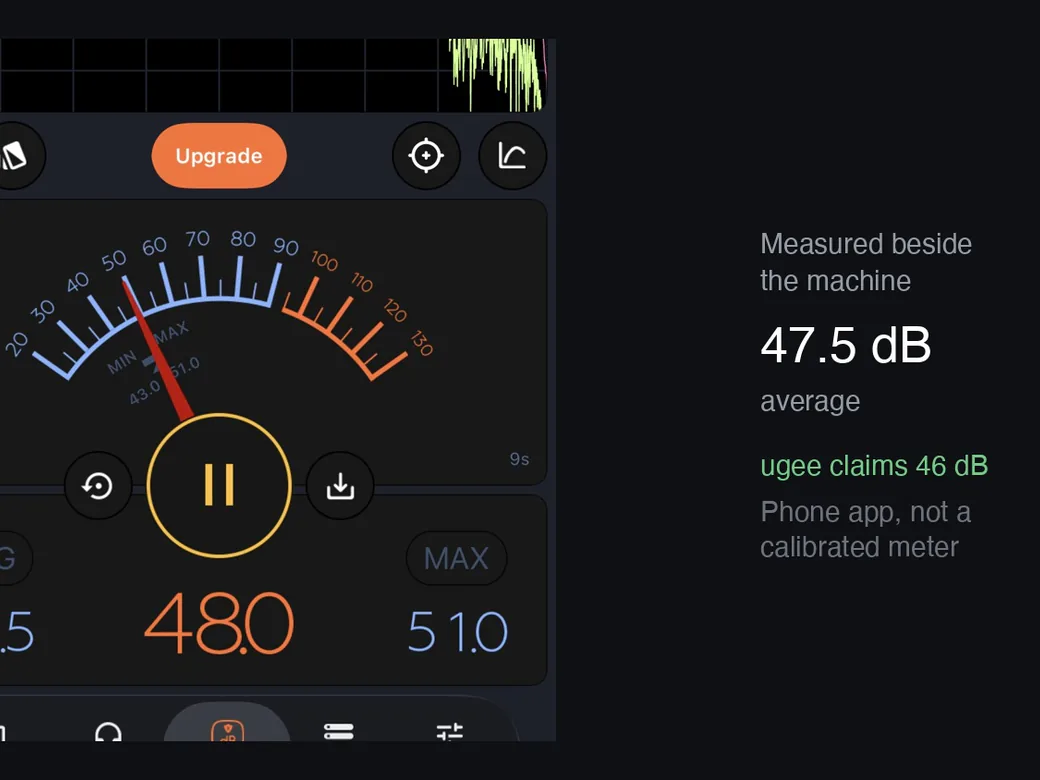
On noise, I measured two positions with a phone app:
| Position | Average | Max | Min | Duration |
|---|---|---|---|---|
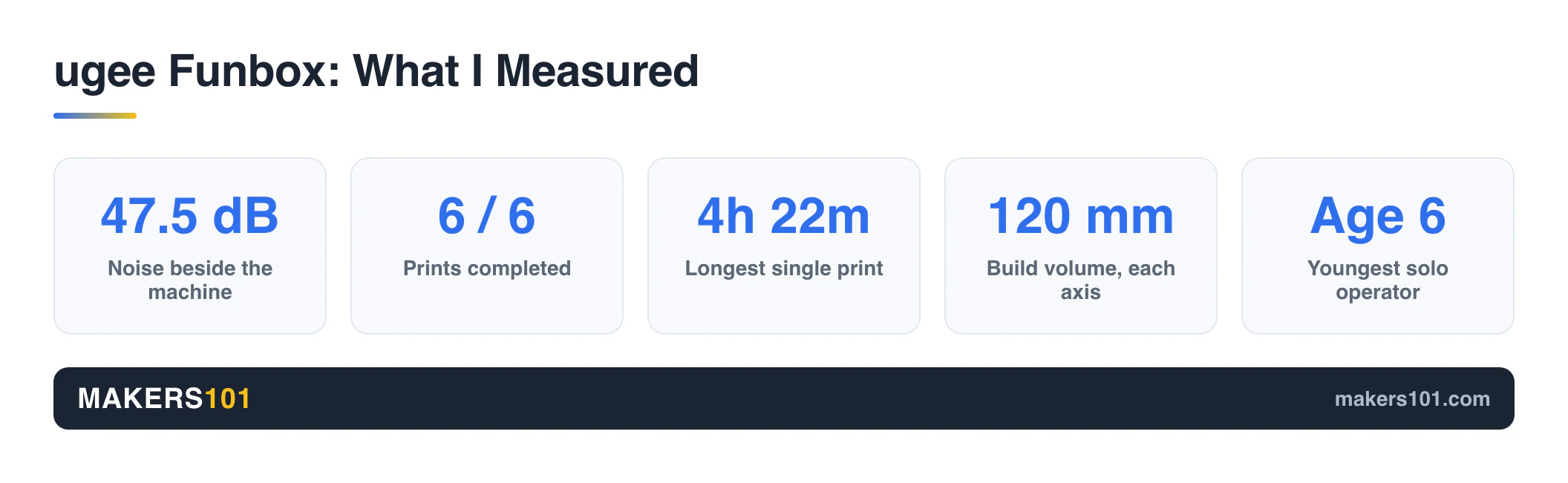
| Beside the machine | 47.5 dB | 51.0 dB | 43.0 dB | 9 s |
| Right at the chamber opening | 56.4 dB | 69.4 dB | 46.5 dB | 31 s |
ugee’s 46 dB claim holds up at normal listening distance. Press your ear to the opening and it’s noticeably louder, which is unsurprising and not really how anyone uses a printer. A phone app isn’t a calibrated sound meter, so treat these as relative figures.
One honest caveat that cuts against the marketing: I couldn’t detect much odor difference between running it with the door open versus closed. The filtration is a good feature, but it’s not a license to skip ventilation. Open a window when printing. That advice applies to every printer, not just this one.
Two things still need an adult. The included pliers are sharp, and the hot end will burn you. Both are worth a conversation before a young kid is running the machine alone.
What a 6-Year-Old Could Actually Do
ugee markets this for ages 4 to 12. The two other published reviews tested with an 11-year-old and a 13-year-old. No published test had covered the younger end of that range.
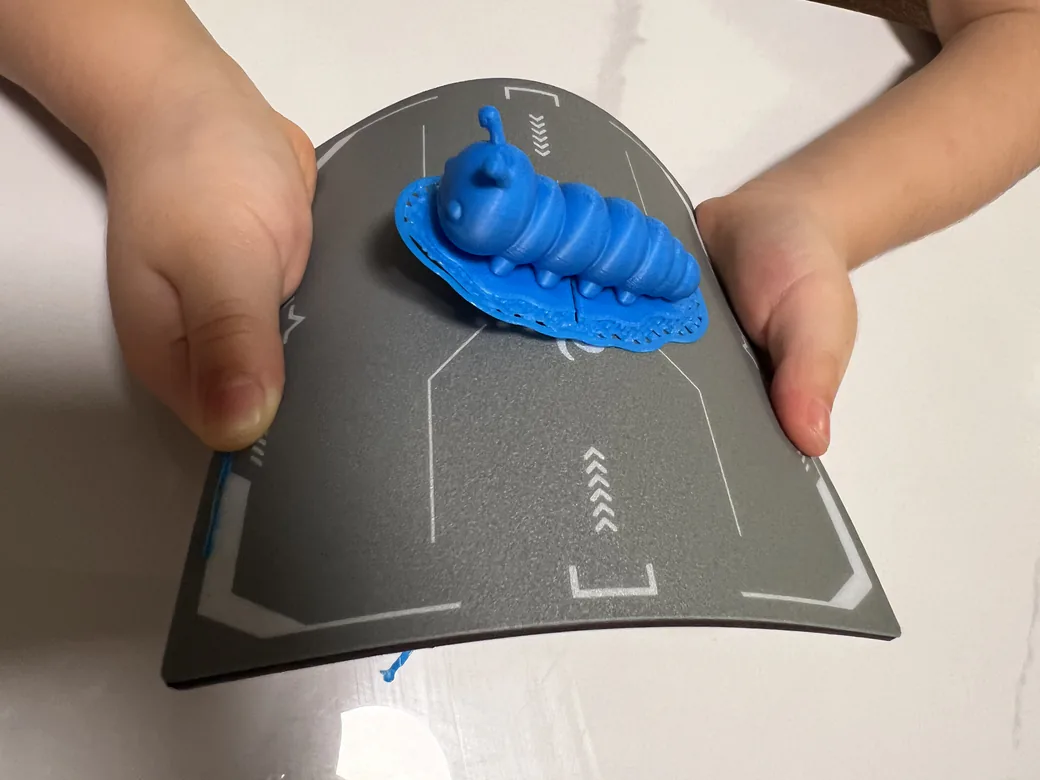
My daughter is 6. She ran all of it herself except the filament. Browsing models, picking one, starting the print, checking the camera, peeling parts off the plate. All of it.
What surprised me was her engagement compared to other printers in the house. She has never shown much interest in our Bambu Lab or Creality machines. Those apps are built for adults who already know what a slicer is. The UFun library is all kid-oriented models, the steps are fewer, and the whole flow assumes the user is a child. That design choice does more for adoption than any spec on the box. If you want the grown-up alternative, our take on the Bambu Lab A1 Mini for beginners is the other side of this decision.
Rough guidance by age, combining my testing with the other two reviews:
| Age | Can handle | Needs an adult for |
|---|---|---|
| 4 to 6 | Choosing models, starting prints, removing parts | Filament loading, hot surfaces, sharp tools |
| 7 to 9 | All of the above, plus basic cleanup | Filament loading |
| 10 to 13 | Nearly everything | Still filament loading |
That last row isn’t a guess. It’s what both the 11-year-old and 13-year-old testers ran into.
One sample of one child isn’t a statistical claim. But it does put a number on an age range the marketing claims and no earlier review had actually tried.
What I Would Change
- The first nozzle heat-up takes three to five minutes. Kids do not wait well.
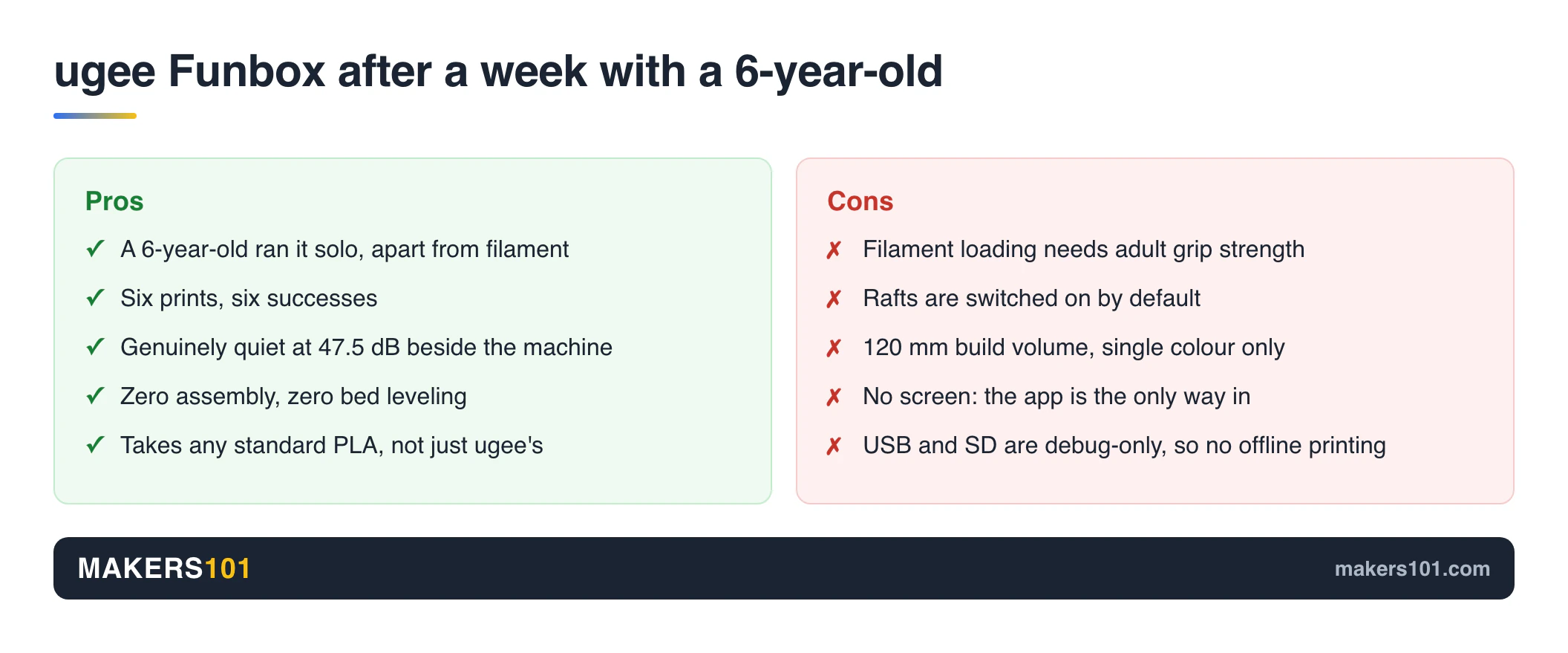
- Filament loading trips up every age group tested so far, mine included. Easing that spring channel is the single biggest fix available.
- Rafts should default to off.
- The build area caps you at small objects, in all three axes.
- Single color only. Swapping spools between prints works fine, which is how the orange launcher happened, but there is no multi-material path.
- No screen means a dead phone or dead Wi-Fi equals no printing.
- USB and SD are debug-only, so there’s no offline path and no easy way to print your own STL files.
- The model library is well curated for kids but nowhere near Thingiverse in size.
- Long-term reliability and after-sales support are still unknown, since the machine only just launched.
Who Should Buy It, and Who Should Not
Buy it if you have a child roughly 4 to 10, you want something that lives in a shared room, you have zero 3D printing experience, or you’re buying a gift and want the unboxing to land. The enclosure and filtration make it genuinely livable in a family space. Cross-shopping the other big kids’ name? Here’s how it stacks up against the Toybox.
Skip it if you want to print for yourself. Get an A1 Mini instead and you’ll be happier. Skip it too if you need larger parts, multi-color work, materials beyond PLA, or offline printing of your own designs.
On running costs, my six prints consumed between 7 g and 97 g each. A standard 1 kg spool of PLA covers somewhere between roughly 10 and 140 prints depending on what your kid picks, and since any brand works, you are buying at normal filament prices rather than a captive rate.
On price: $269 including the filament bundle is fair for what you get. At full list price it gets harder to argue for, given how small the build area is. The August 5 promotional deadline is a real variable in that decision. If you’re weighing this against other entry machines, our beginner 3D printer guide covers the broader field.
Verdict
The ugee Funbox is the first printer in my house that my daughter uses more than I do.
That’s the whole review, really. It’s not the fastest machine, the biggest, or the most flexible. What it does is remove enough friction that a 6-year-old stays interested past the first week. The app is built for her, not adapted for her.
What stands in her way has nothing to do with being six. It’s one spring-loaded channel that needs adult hands, and all three published tests so far have hit it, whether the child was 6 or 13. Fix that, and this becomes a printer a kid can genuinely own.
Weighted score: 8.7 / 10.
FAQ
What age is the ugee Funbox actually for?
ugee markets it for ages 4 to 12. In testing, a 6-year-old managed everything except filament loading. Older testers ran into the same loading barrier, so plan on an adult handling filament changes no matter how old your child is.
Can a child use the ugee Funbox by themselves?
Mostly yes. A 6-year-old can browse the model library, start a print, watch it on the camera, and pull the finished part off the plate. The exception is filament. Feeding it through the spring-loaded channel takes adult grip strength.
How big can you print on the ugee Funbox?
The build volume is 120 × 120 × 120 mm. That’s enough for toys, figures, and small mechanical models, but not for larger projects. Prints are single-color unless you swap filament manually between jobs.
Does the ugee Funbox need special filament?
No. Standard PLA works, and third-party Creality spools ran without a hitch in testing. Note that the printed manual recommends ugee filament and advises against frequently switching brands, to avoid nozzle jams.
Is the ugee Funbox safe to use indoors?
The enclosure, the low-voltage power supply and the two-stage filtration all point that way, and the machine carries several toy-safety and emissions certifications. In my own testing it produced no noticeable smell in a living room. Open a window anyway, as you would for any filament printer.
How loud is the ugee Funbox?
Measured with a phone app, roughly 47.5 dB average standing beside it, matching ugee’s 46 dB claim closely. Right at the chamber opening it rose to about 56 dB average. Quiet enough for a shared living space.
Is the AI model generation any good?
AI Doodle produced a clean, printable model from a simple drawing in 32 minutes. The other three AI tools were not tested. Reviewers using AI Mini Me found the generated models print successfully but often need manual reorientation to avoid rough surfaces.
Can you print your own STL files on the Funbox?
Not through the machine’s ports. ugee restricts both of those slots to debugging, so every job routes through the UFun app and ugee’s cloud. No internet, no printing.
How much is the ugee Funbox and when does it ship?
Pre-order sits at $269, down from the $329 list price, and ugee throws in seven rolls of PLA. That deal closes August 5. Units ship from a US warehouse beginning August 15.