
Heads up — some of the links below are affiliate links. If you buy through them, I earn a small commission (at no extra cost to you), which helps cover the gear I test. Thanks!
If you’re new to 3D printing, encountering issues with your Creality fan might feel overwhelming. Don’t worry—this guide will help you diagnose and fix common fan problems like no spin or strange noises with ease. Let’s get started!
Understanding Common Fan Issues
| Issue | Possible Causes | Suggested Fix |
| Fan Not Spinning | Loose connections, debris blockage, broken blades, loose screws | Check cables, clean debris, inspect fan blades |
| Strange Noises | Dust build-up, old bearings, misaligned blades | Clean fan, replace bearings, align blades |
Step-by-Step Troubleshooting
1. Check for Dust and Debris
Why It’s Important: Dust and debris can block the fan blades, making them unable to spin or causing extra noise.
What You’ll Need:
- Soft brush or microfiber cloth
- Compressed air canister
Steps to Follow:
- Turn off your printer: Ensure it’s unplugged to avoid any risk of injury.
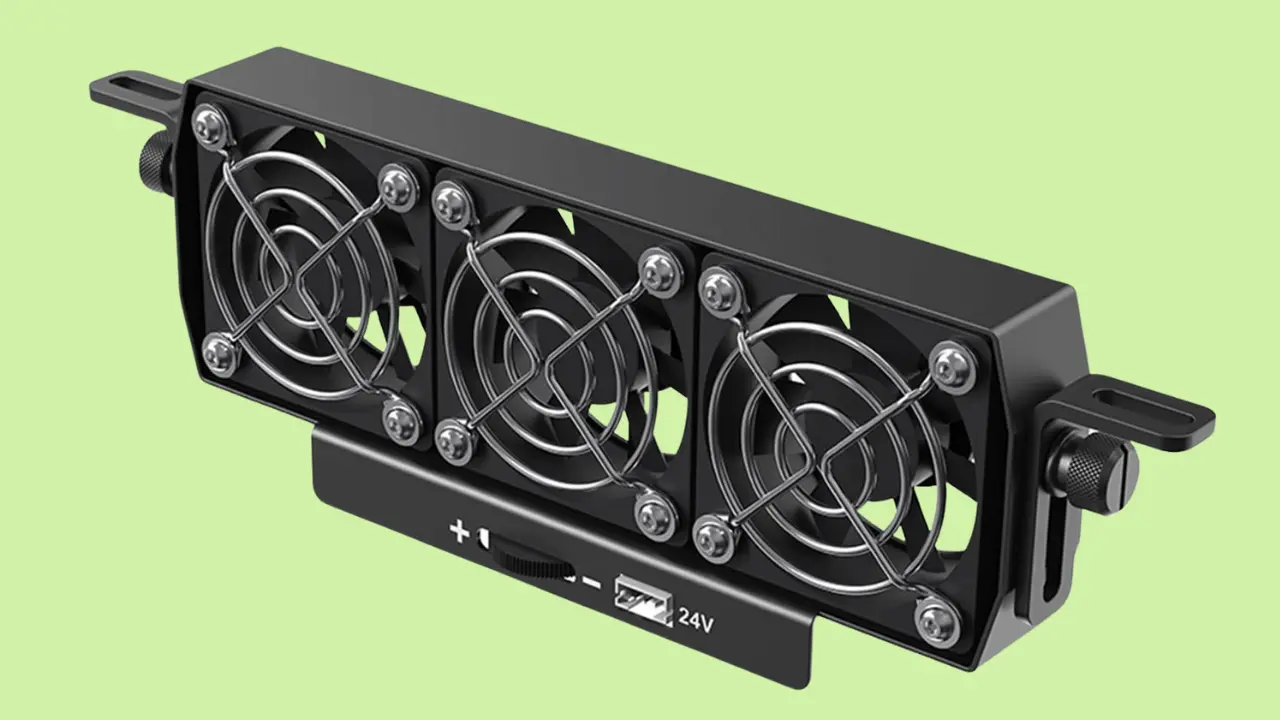
- Inspect the fan: Remove the fan cover using a small screwdriver. Check for dust, hair, or other debris.
- Clean the fan: Use a soft brush or compressed air to gently remove dust from the fan blades and housing. Be careful not to bend or damage the blades.

Pro Tip: Avoid using sharp tools like tweezers, as they can scratch the surface or damage the fan.
Common Mistake: Forgetting to unplug the printer. Always double-check for safety.
2. Tighten Screws and Inspect Wires
Why It’s Important: Loose screws and damaged wires can cause the fan to wobble or stop working altogether.
What You’ll Need:
- Small Phillips screwdriver
- Multimeter (optional, for wire testing)
Steps to Follow:
- Check the screws: Examine all screws holding the fan in place. Tighten them if necessary, but don’t overtighten as this can strip the threads.
- Inspect the wires: Look for visible damage like frayed insulation. Use a multimeter to test for continuity if you suspect internal wire damage.
- Re-seat connections: Disconnect and reconnect the fan’s cables to ensure a snug fit.
Did You Know? A damaged wire might still appear intact. Use a continuity test to confirm.
Common Mistake: Overlooking slight wire damage near the connector. Pay close attention to this area.
3. Swap Adapter Board Ports
Why It’s Important: This test helps identify whether the issue is with the fan or the port.
What You’ll Need:
- Your printer’s adapter board (typically located near the hotend).
Steps to Follow:
- Locate the adapter board: Open the printer’s housing to access the board.
- Switch the ports: Unplug the fan from its current port and plug it into a different port on the same board.
- Test the fan: Power on the printer and observe whether the fan starts spinning.
Results to Watch For:
- If the fan works in the new port, the issue lies with the original port.
- If the fan still doesn’t work, the fan itself is likely faulty.

Helpful Tip: Mark the faulty port or fan for reference if you need to contact support.
Common Mistake: Forgetting to label the ports after testing. This can lead to confusion later.
4. Inspect the Fan Blades
Why It’s Important: Cracked or misaligned blades can disrupt airflow and cause noise.
What You’ll Need:
- Flashlight for detailed inspection
Steps to Follow:
- Manually spin the fan: Turn the fan gently with your hand to check for resistance or wobbling.
- Inspect for cracks: Use a flashlight to spot any cracks, chips, or bends in the blades.
- Replace if necessary: If damage is found, replace the fan with a genuine Creality replacement.
Pro Tip: Always handle fan blades carefully to avoid further damage.
Common Mistake: Ignoring minor cracks, which can worsen over time.
Visual Troubleshooting Flow
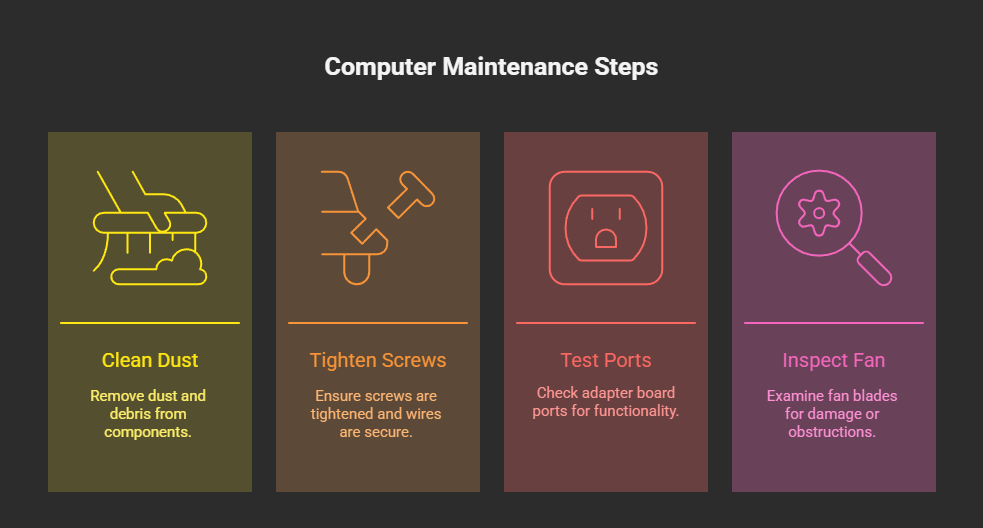
This simple flow ensures you cover all bases without missing critical steps.
Tips to Keep Your Fan Running Smoothly
| Tip | Why It’s Important |
| Clean Regularly | Prevents dust build-up and prolongs fan life. |
| Secure Wires | Avoids wire interference with moving parts. |
| Inspect Often | Catches loose screws or misaligned components early. |
Common Questions from New Users
Q: What if the fan still doesn’t work after trying these steps?
A: It might be an internal issue with the fan motor. Contact Creality support for help.
Q: Can I use a cheaper, third-party fan instead of a Creality fan?
A: While you can, it’s better to stick with Creality’s parts to ensure compatibility and reliability.




Wrapping It Up
Troubleshooting doesn’t have to be intimidating, even for beginners. By following these detailed steps, using recommended tools, and paying attention to common mistakes, you can identify and resolve fan issues effectively.
Taking good care of your fan not only fixes problems but also helps prevent them in the future. If you’re stuck, Creality’s support team is just a message away.