
I earn a commission if you buy through links on this page, at no extra cost to you. As an Amazon Associate, I earn from qualifying purchases.
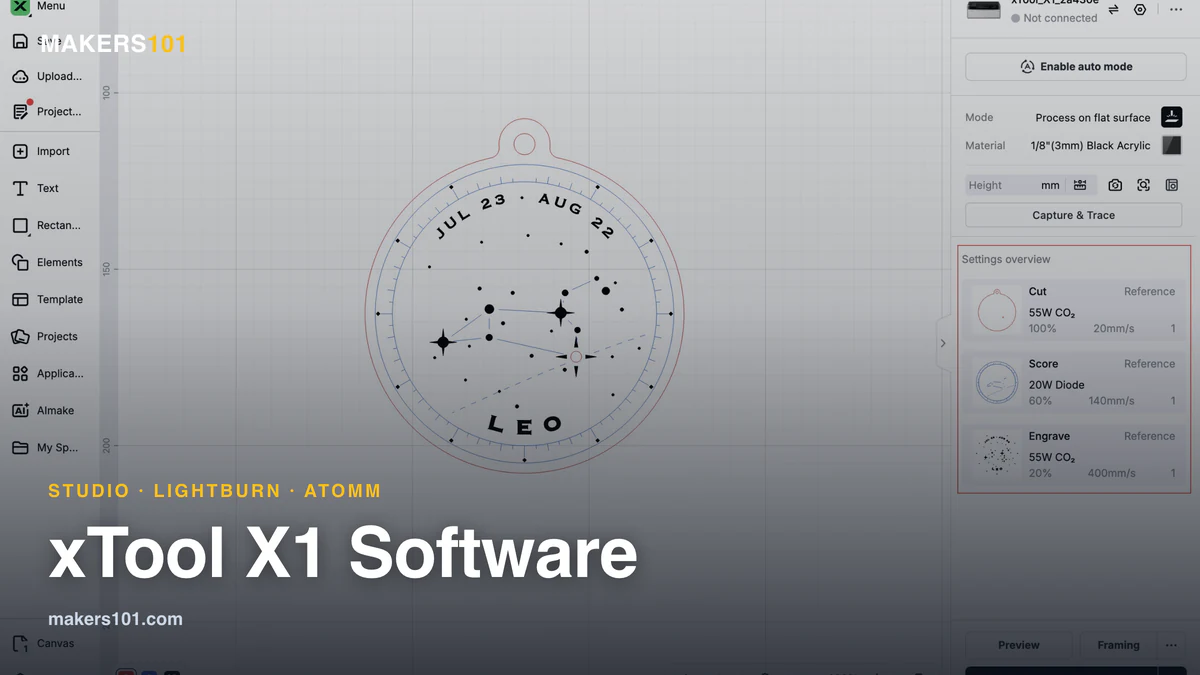
The xTool X1 uses xTool Studio for processing control. LightBurn does not currently support it. Studio is free to use, while some AI design tools and premium resources use Atomm credits. A paid Atomm membership adds services and allowances; it is separate from the software you use to run a job.
For an existing LightBurn user, that means planning a Studio workflow before putting the X1 into production. For a new owner, the first step is installing a Studio release that includes the X1.
Table of Contents
Does the xTool X1 Work With LightBurn?
The X1 currently requires Studio for processing control.
LightBurn is exploring X1 support for a future release, with no announced date. Support added for other xTool models does not include the X1.
If direct LightBurn control is essential to your shop, wait for an announcement that explicitly includes the X1 and the functions you need.
Studio Runs the Job; Atomm Supplies Design Services
Studio handles device connection, artwork preparation and processing settings. Atomm provides design resources and creative tools, including services that use credits. The two overlap on screen: Studio V1.10 integrates Atomm AI and can bring generated designs into its editor. Seeing an AI service inside Studio does not mean every Studio action consumes credits.
| Task or service | Where it belongs | Cost boundary |
|---|---|---|
| Connect to the X1 and prepare processing jobs | xTool Studio | Studio is free to use |
| Import existing SVG or DXF artwork | Studio’s vector import tools | Documented import workflow; separate from generating artwork with AI |
| Browse project resources | Atomm | Free resources and premium content coexist |
| Use credit-based creative tools or premium projects | Atomm, including integrations in Studio | Check the credit requirement shown for the specific tool or item |
| Add recurring credits and more cloud storage | Atomm Pro or Max | Optional paid subscription |
You can bring existing artwork into Studio without generating it through an AI tool. Check the credit cost before using a creative service.
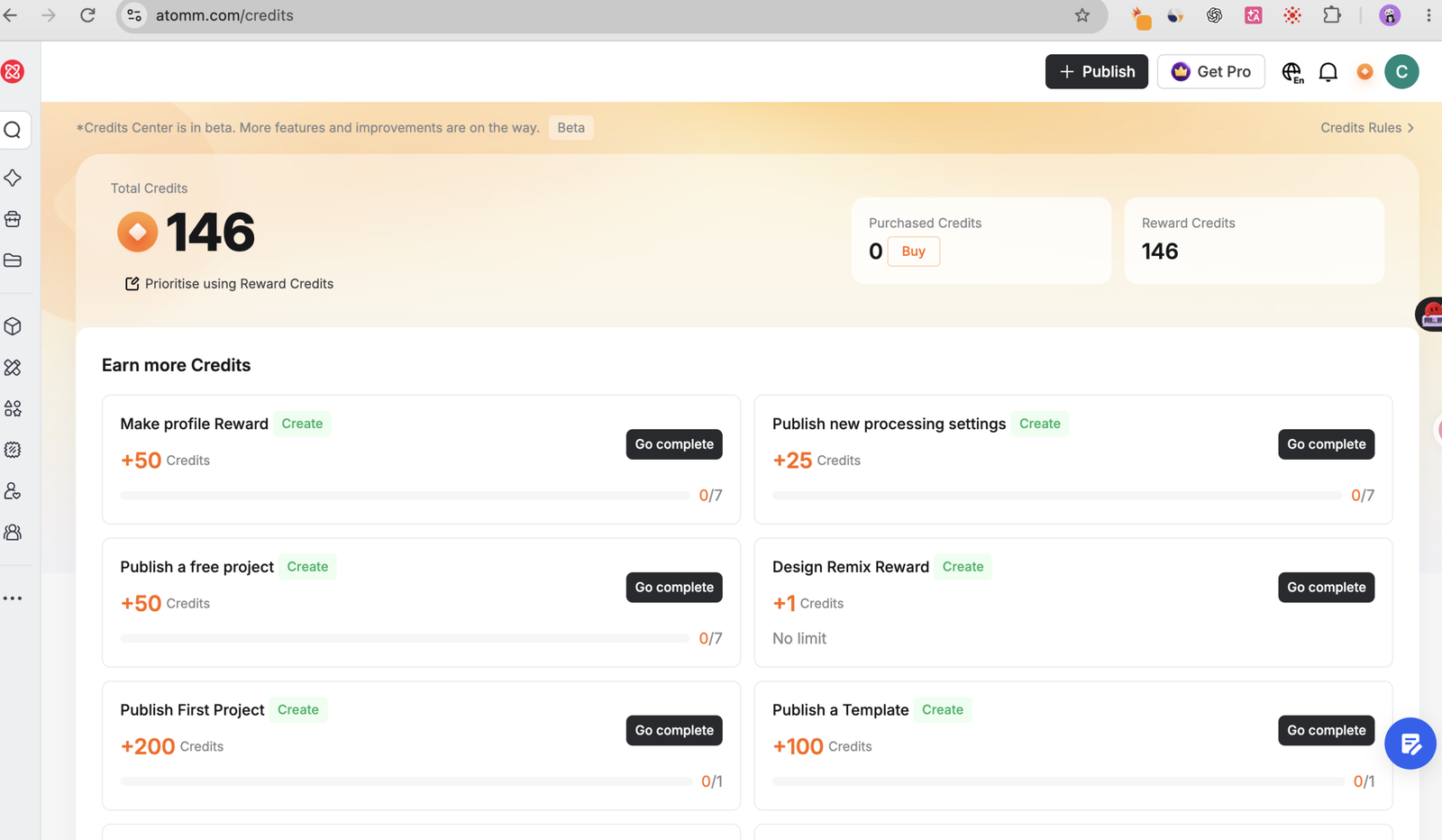
Background removal is where I have used most of my credits. My recorded cost was 6 credits per use; check the prompt in your own account before running it.
What Does an Atomm Subscription Cost?
The published USD plan prices checked on November 13, 2026 are:
| Plan | Listed monthly billing | Listed annual billing |
|---|---|---|
| Free | $0 | $0 |
| Pro | $9.90/month | $99/year |
| Max | $14.90/month | $129/year |
Atomm publishes these USD plan prices; your checkout shows the final charge for your location and billing period. Free users can also buy credits separately, so occasional credit use doesn’t automatically require a recurring plan.
A subscription becomes easier to assess once you know how often you use credit-based services.
Does a Six-Month Offer Mean the Machine Stops Working Afterwards?
A promotional Atomm membership covers the included subscription benefits. Studio remains free to use after that membership ends.
If your order advertises six months of membership, check the named plan, activation requirements and conversion date on that specific offer. Do not assume every X1 purchase includes the same promotion.
The subscription terms say paid subscriptions renew automatically until canceled. A promotional subscription that requires a payment method and specifies conversion to paid service can charge you after the offer ends. Cancel before the applicable renewal or conversion date if you do not want that charge. Cancellation stops future renewal while access to the current paid period continues.
If Studio Does Not Show the X1, Check the Installed Version
Studio Desktop V1.10 explicitly added X1 support. An older report that Studio has no X1 entry may describe software from before that release. Check the installed version against the official release notes to confirm that it includes X1 support.
I used v1.10.2 [test] for my earlier X1 testing and have since updated to v1.10.15.
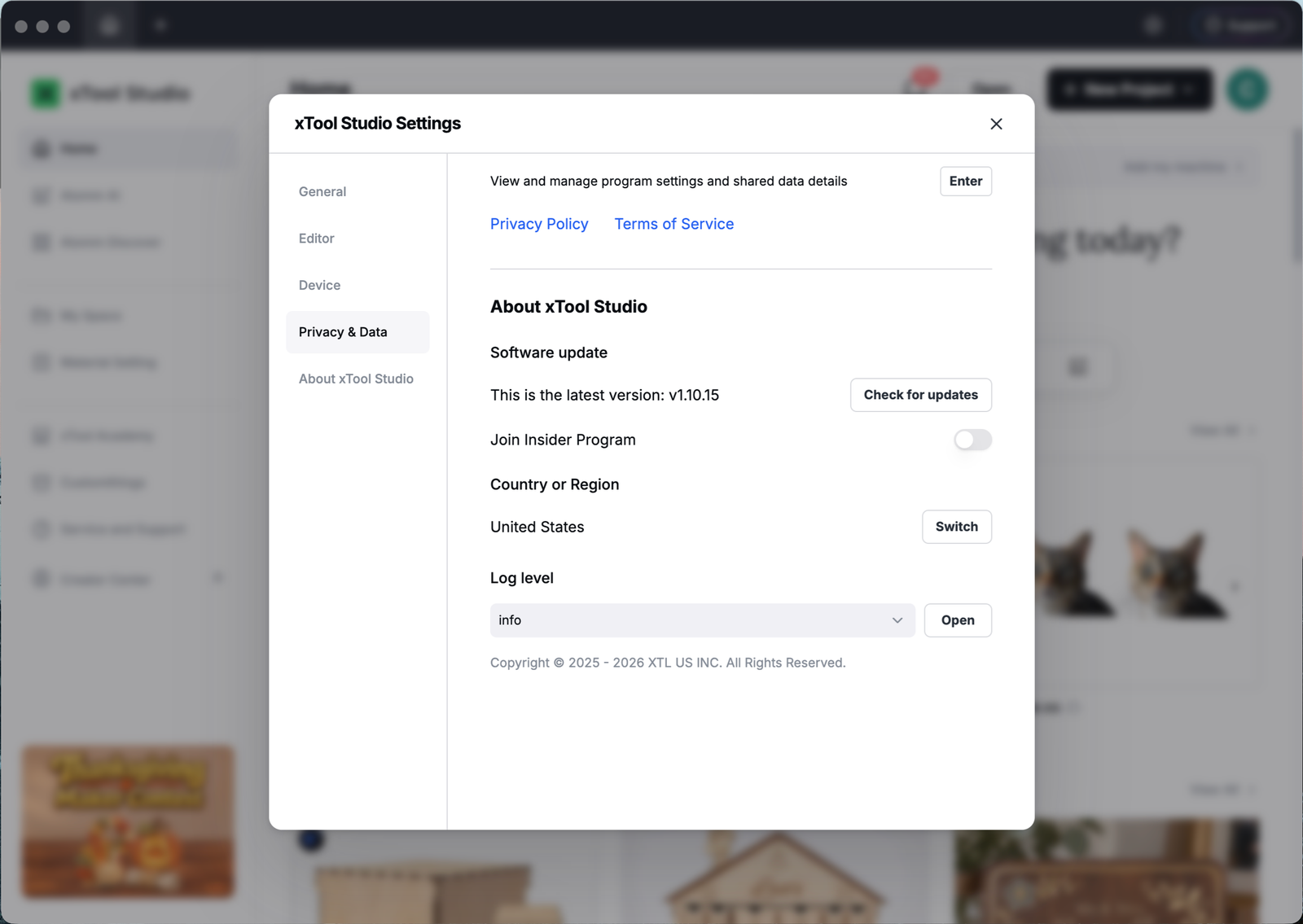
Follow the documented update path:
- Open Studio’s Settings, then About xTool Studio. Record the current version.
- Choose Check for updates, or download the appropriate installer from the official Studio download page.
- Check that your installed release includes X1 support. Studio Desktop V1.10 added the device.
- If the X1 remains unavailable, send xTool Support your operating system, Studio version and a screenshot of the device selection screen.
If Studio lists the X1 but cannot connect to it, include that detail when contacting support.
Moving Artwork From LightBurn: A Checklist Before Production
LightBurn can export SVG and DXF artwork, and Studio can import both formats. Import the artwork, then set up the processing operations in Studio.
Use a copy of a representative project for the first transfer:
- Keep the original LightBurn project. Export the required artwork as SVG or DXF.
- Check dimensions after importing into Studio. Compare a known width and height with the original. Studio provides DXF unit settings; confirm those when using DXF.
- Inspect the artwork. Check lettering, holes, closed outlines and any raster images against the original design.
- Assign processing operations in Studio. Review the laser source, engraving or cutting operation, settings and execution order for each part of the design.
- Validate a sample before committing a batch. Check dimensions, alignment and finish against your own acceptance criteria.
Check a finished sample before using the transferred design for production.
For planning purposes, allow time to rebuild and verify the job in Studio. Keep your LightBurn originals so you can compare the imported artwork and retain the existing workflow for other machines.