
I earn a commission if you buy through links on this page, at no extra cost to you. As an Amazon Associate, I earn from qualifying purchases.
Opening LightBurn for the first time can feel scary. The screen is full of buttons and panels. Tiny icons crowd every corner. Many beginners want to close the program right away.
You do not need to learn every button. LightBurn only asks you to know about ten things well. That’s it.
This guide walks you through the whole path. You’ll go from installing the software to burning your first project. Along the way, I’ll show you the mistakes that trip up almost every beginner.
Table of Contents
- What LightBurn Actually Does (And What It Doesn’t)
- Is LightBurn Right for Your Laser in 2026?
- What You’ll Need Before You Start With LightBurn
- LightBurn 101: Beginner’s Tutorial for 2026 (Your First Project)
- Setting Up LightBurn the Right Way (Device Settings)
- Understanding Layers, Speed, and Power in LightBurn
- Positioning Your Design in LightBurn: Frame, Origin, and Coordinates
- Running Your First LightBurn Cut: Material Test Comes First
- Common LightBurn Mistakes Beginners Make
- 5 LightBurn Tricks Worth Learning Early
- Frequently Asked Questions About LightBurn
What LightBurn Actually Does (And What It Doesn’t)
LightBurn does not draw your design for you. Think of it like a translator: you hand it a picture, and it turns that picture into a list of moves and power settings your laser can follow.
If you’ve used 3D printing software before, this will click fast. LightBurn does for lasers what Cura does for 3D printers: it turns a design into machine instructions, not the design itself.
If you want to draw your own artwork, you’ll need a separate program. Illustrator, Inkscape, or CorelDRAW are common choices. Many beginners skip this step and just use free clip art or text instead.
Once your design is ready, LightBurn takes over. It sets the speed. It sets the power. It sends the job to your laser.
Is LightBurn Right for Your Laser in 2026?
Most diode, CO2, and fiber lasers work with LightBurn. But you should check your machine before you buy the software. Bambu’s new R1, for one, launched with only Bambu Suite on its spec sheet.
LightBurn Core License vs Pro License
LightBurn sells two license types. Picking the wrong one wastes money. Don’t worry about what the words “G-code” and “DSP” mean yet. Just match your laser type to the right row below.
| Controller Type | Example Lasers | License You Need | Price | 2026 Note |
|---|---|---|---|---|
| G-code (diode) | xTool, most entry lasers | Core License | $100 | Most common for beginners |
| DSP (CO2/fiber) | Larger CO2 and fiber machines | Pro License | $199 | Needed for DSP controllers |
| Either | Any supported laser | 30-day free trial | Free | Try before you buy |
Prices are current as of this writing. Always check LightBurn’s own site for the latest number.
Diode lasers usually run on G-code controllers. Those only need the Core License. Bigger CO2 or fiber lasers often use DSP controllers, and those need the more expensive Pro License.
Not sure which one you have? Our guide to diode, CO2, and fiber lasers breaks the difference down in plain terms.
LightBurn 2026 Compatibility Check
Some laser brands have started building their own software instead of supporting LightBurn. A few community posts say certain new models no longer support LightBurn at all. Nobody at LightBurn has confirmed this officially, so check for yourself before you buy.
Before you buy a laser, check the manual or the brand’s website. Search for “LightBurn compatible” plus your exact model name. Five extra minutes now can save you a returned laser later.
What You’ll Need Before You Start With LightBurn
You need seven things to start, and most of them are cheap:
| Item | Why You Need It |
|---|---|
| LightBurn software | Download it and start your 30-day free trial |
| A license (once trial ends) | Core or Pro, based on your laser’s controller |
| A laser cutter or engraver | Haven’t picked one yet? See our tested picks for the best laser engravers |
| Cheap practice material | Thin wood or acrylic scraps, not your good stuff |
| Air assist | Blows smoke and debris away from your cut |
| A way to clear fumes | A window fan or a real fume extractor |
| Safety glasses | Rated for your laser’s exact wavelength |


Air assist matters more than beginners think. Without enough airflow, your cuts come out scorched and black around the edges instead of clean.
LightBurn 101: Beginner’s Tutorial for 2026 (Your First Project)
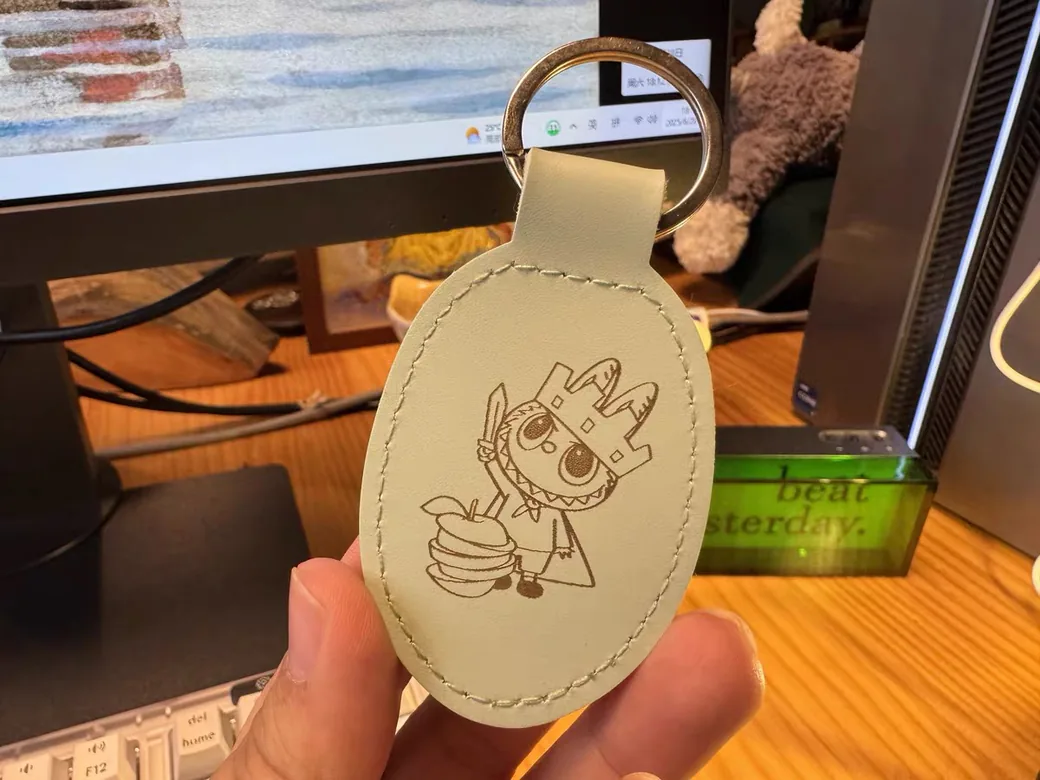
You don’t need to read the whole guide before you burn something. This part takes about 10 minutes. These ten skills get you there:
- Open or import a file
- Undo and redo (you’ll use this a lot)
- Move, copy, or resize shapes
- Use the Select tool
- Draw basic shapes
- Add text
- Center and align objects
- Set your layer speed and power
- Trace an image into a shape
- Use Offset to add an outline
Try this simple project next. It’s based on a real beginner build using a machine like the xTool X1.
- Type your name with the Text tool.
- Use Offset to draw a border around the text.
- Select both the text and the border. Click Weld to join them into one shape.
- Set the text layer to engrave and the border layer to cut.
- Click Preview to see how long the job will take.
- Click Frame to check the laser lines up with your material.
- Hit start.
That’s it. One small project, and you’ve already used most of the tools you need.
Setting Up LightBurn the Right Way (Device Settings)
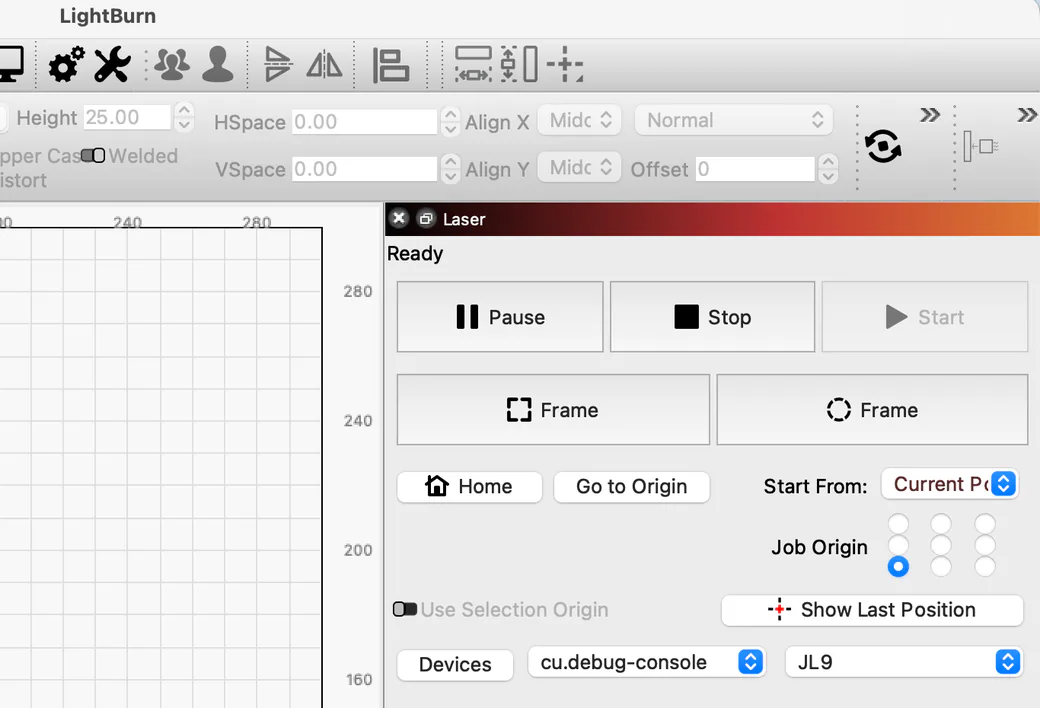
Skipping this step is the number one reason new users get errors. Check these four things before you burn anything.
- Your workspace size (usually in millimeters)
- Your origin point (often the bottom-left corner on diode lasers, but check your manual)
- Auto-home on startup and the out-of-bounds warning (turn both on)
- Click “Read from controller” so LightBurn pulls your machine’s real settings
If you have a diode laser, a common starting point is an S-value max of 1000 and a baud rate of 250000. Don’t worry if those words sound strange. You don’t need to know what they mean, just type them in, or click “Read from controller” and let LightBurn fill them in for you. These numbers can change between LightBurn versions, so treat them as a starting point and test from there.
Connection trouble? Try these three fixes in order: restart the software, restart the laser, then try a different USB port. Also double check you picked the right port. Debug and Bluetooth ports look similar but won’t work.
Understanding Layers, Speed, and Power in LightBurn
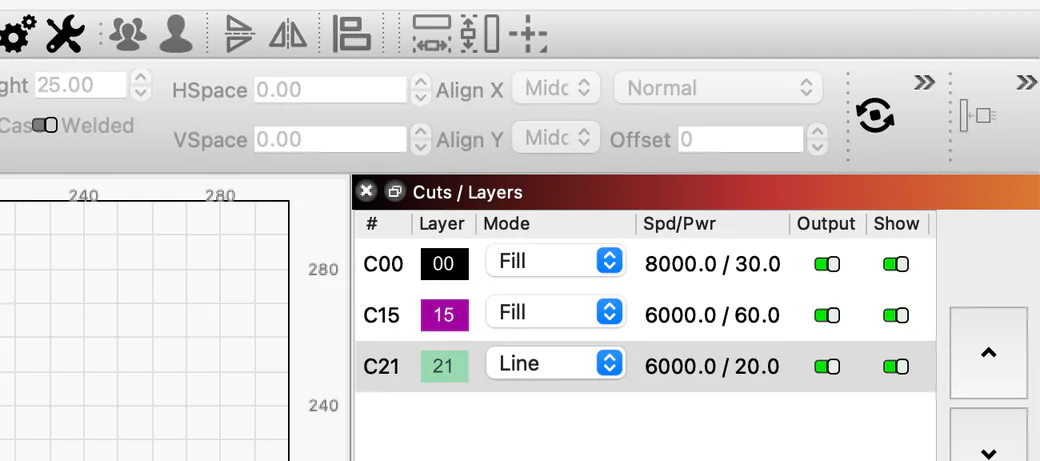
Layers in LightBurn are not like layers in Photoshop. They don’t stack pictures on top of each other.
A layer in LightBurn is a set of instructions. Each color you use gets its own layer, and each layer holds its own speed and power, plus its own mode.
There are two main modes. Line mode traces an outline, usually for cutting. Fill mode fills in a shape, usually for engraving.
The order of your layers matters too. LightBurn runs them top to bottom in the layer panel. Engrave first, then cut last. This keeps your material from shifting before the engraving is done.
One trap catches a lot of beginners: the Tool Path layer. It looks like a normal layer, but it has no speed or power settings. Your laser will skip it completely. Use it only for notes or guide lines, never for real cuts.
Positioning Your Design in LightBurn: Frame, Origin, and Coordinates
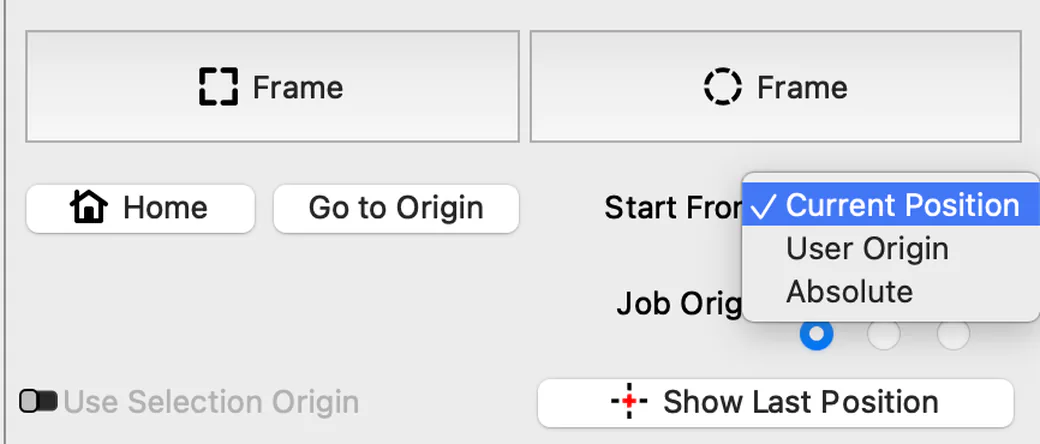
A design in the wrong spot wastes material. LightBurn gives you a few ways to check your position before you burn.
Current Position mode starts the job wherever your laser head sits right now. Absolute Coords mode uses a fixed point on your machine as the starting spot. Beginners usually find Current Position easier to work with.
Before you hit start, click Frame. This traces the outline of your job at low power so you can see exactly where it will land. Turn on “laser on when framing” in your device settings to see the actual outline light up.
Here are three ways to line up your material:
- Low-power outline pass: Run your design at very low power first, just to check the placement.
- Frame button: Quick outline trace, good for one-off jobs.
- Absolute coordinates with a template: Best for repeat jobs, like a stack of matching coasters.
Running Your First LightBurn Cut: Material Test Comes First
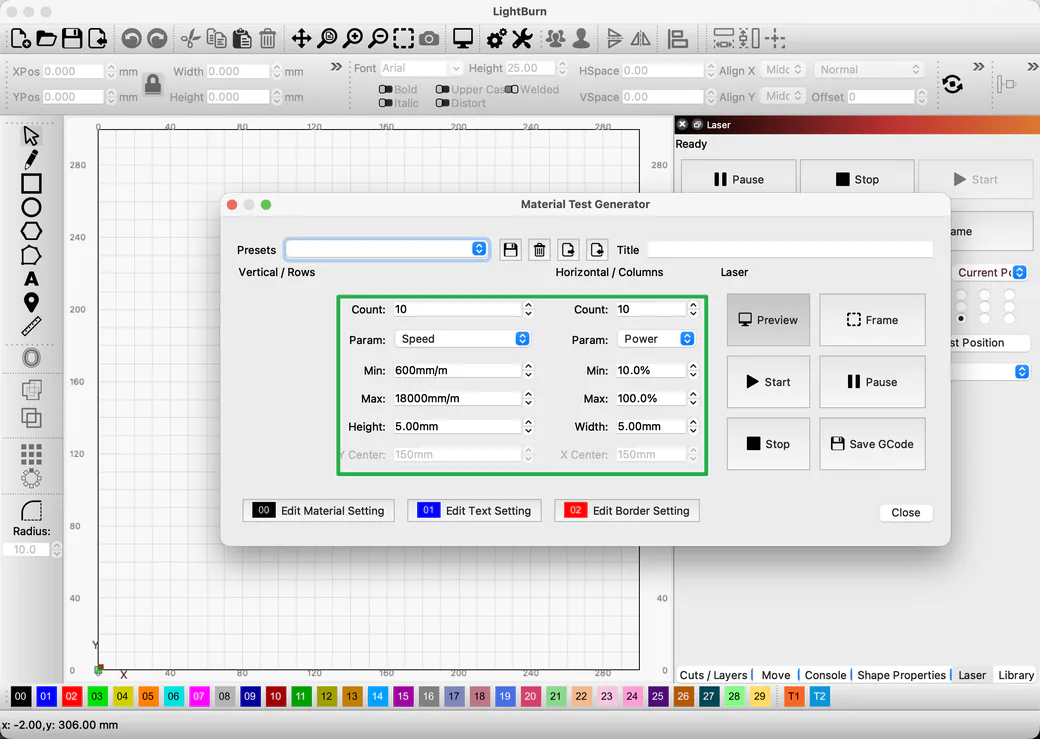
There’s no settings chart that works for every laser. Your machine, your material, and even the batch of wood you bought all change the right numbers.
Material Test is how you find your real settings. Run a small grid of test cuts at different speeds and powers, then pick the square that looks best.
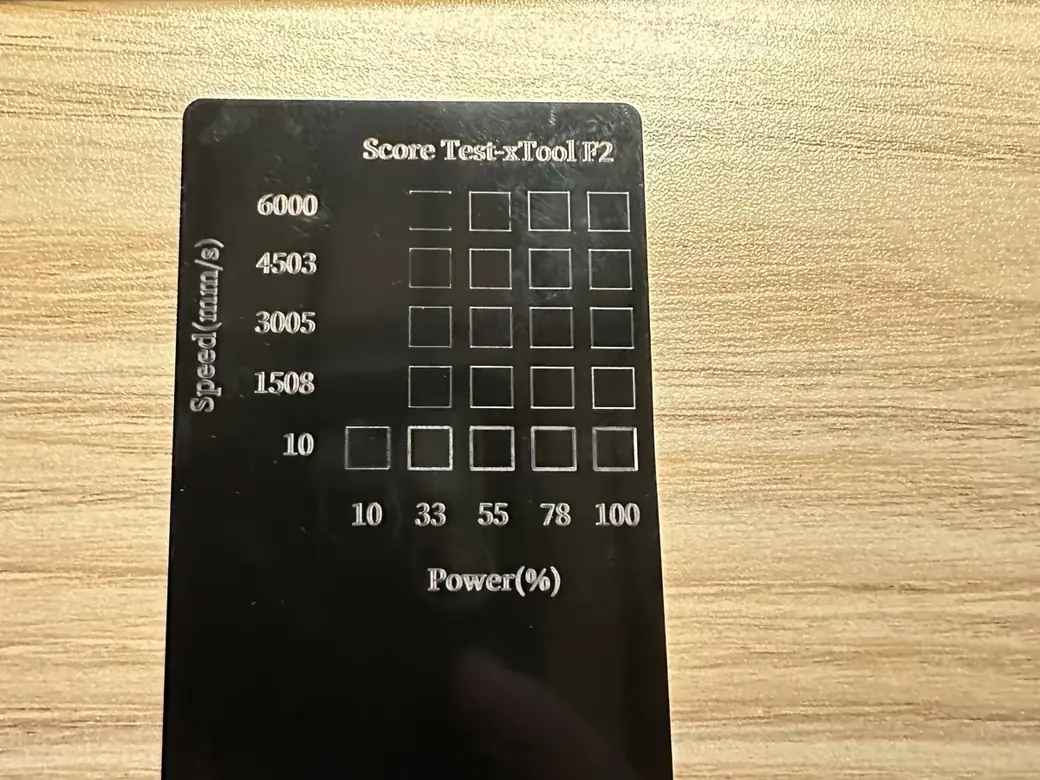
As a rough starting point, some beginners cut 1/4-inch birch plywood at 6mm/s and 40% power, and engrave the same wood at around 317mm/s and 35% power. These are just starting numbers. Test your own machine before trusting them.
Air assist changes your results too. Without enough airflow, edges come out charred and dark instead of clean.
Materials You Should Never Put in a Laser Cutter
Some materials are dangerous to cut or engrave. Skip these:
- PVC and vinyl: Burning releases chlorine gas, which is toxic and damages your machine.
- Carbon fiber: The dust released is harmful to breathe.
- Any material you can’t identify: If you don’t know what it’s made of, don’t risk it.
When in doubt, look up the material’s safety sheet before you burn it.
Common LightBurn Mistakes Beginners Make
I’ve set up LightBurn on more than one laser in my own shop, and these mistakes come up almost every time. Knowing them ahead of time saves you real material.
Forgetting to weld your text. If you don’t click Weld after combining shapes, you’ll end up with extra cut lines running through your letters.
Hitting “Error 9.” This means your design goes past the edge of your workspace. Open Preview and turn on “show traversal moves” to see the real path, then nudge your design inward.
Tracing images with low contrast. If your Trace result looks messy, adjust the Threshold and “Ignore Less Than” sliders until the outline cleans up.
Not pressing Escape after drawing. Draw a shape, then forget to hit Escape or switch tools. The next click can create an extra shape by accident.
Giving up on a cut that didn’t finish. If your material hasn’t moved, use “Start Here” in Preview. Pick the spot where the cut stopped and re-run just that part, instead of wasting the whole piece.
Cutting too deep on the first pass. If your starting point looks burned or too deep, lower your power, add a second pass, or space your lines further apart.
5 LightBurn Tricks Worth Learning Early
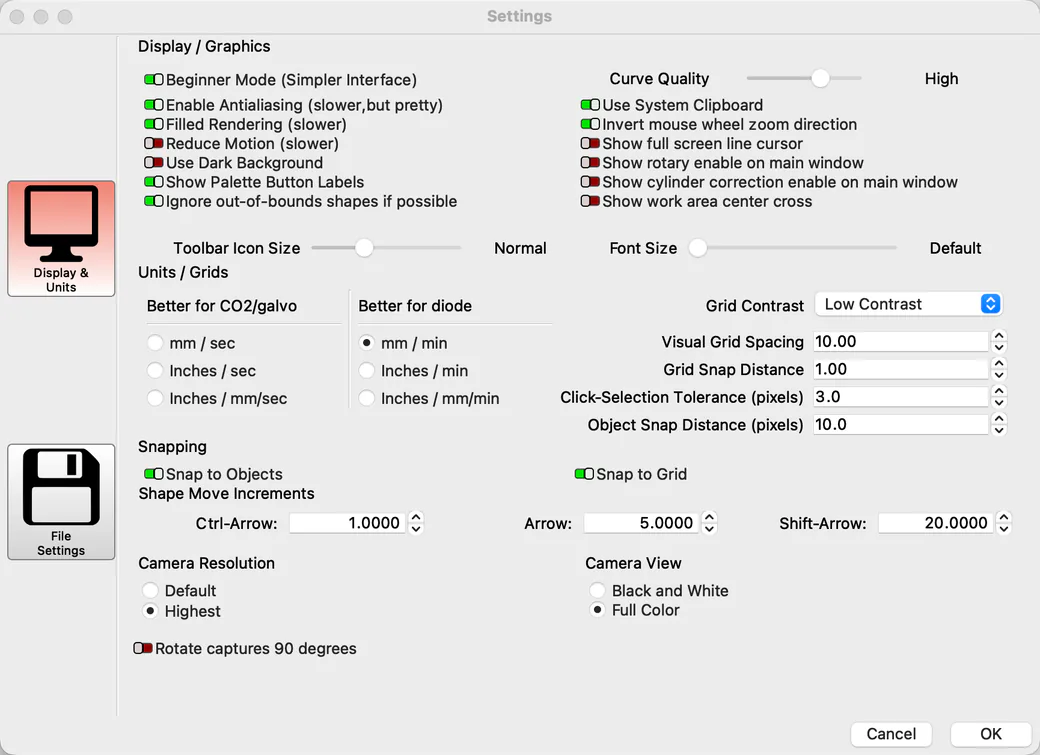
These aren’t must-know basics. But learning them early saves you time later.
- Turn off Beginner Mode. It’s on by default, and it hides useful tools like Cut Selected Graphics.
- Type math into number fields. You can type “2 in + 25 in” directly into a size box and LightBurn will do the math.
- Add a Start Delay. A delay of around 12 seconds lets your fan clear smoke before the laser fires. Less smell, less smoke buildup.
- Turn on Remove Overlapping Lines. This stops your laser from cutting the same shared edge twice on nested designs.
Frequently Asked Questions About LightBurn
How easy is LightBurn to learn?
It depends on your background. If you’ve used design software before, expect a few days to feel comfortable. If you’re starting from zero, give yourself a few weeks. Either way, you don’t need to master it all before your first project.
Is there an instruction book for LightBurn?
There’s no official printed book. LightBurn’s own documentation site is the closest thing to a manual, and it’s free. Their tutorials page also has short guides and videos for common questions.
What should you not laser engrave?
Skip PVC and vinyl. Also skip any material with chlorine in it, since burning it releases toxic gas. Skip carbon fiber too, since the dust is harmful to breathe.
When you can’t identify a material, skip it and look it up first.
What software is better than LightBurn?
It depends on your laser. Machine-specific software like EZCad or RDWorks can fit certain hardware closely. But LightBurn works across brands and has a bigger community for help. For most beginners, that trade-off favors LightBurn.
Is there a free LightBurn tutorial PDF?
LightBurn’s documentation can be printed or saved as a PDF straight from your browser. The Quick Start list in this guide also works well as a printable cheat sheet.
Want to see how a specific machine handles LightBurn in real use? Check out our review of the Creality Falcon T1.

CERTAIN CONTENT THAT APPEARS ON THIS SITE COMES FROM AMAZON. THIS CONTENT IS PROVIDED ‘AS IS’ AND IS SUBJECT TO CHANGE OR REMOVAL AT ANY TIME.
Price details
Product prices and availability are accurate as of the date/time indicated and are subject to change. Any price and availability information displayed on Amazon.com at the time of purchase will apply to the purchase of this product.