
Last updated: August 12, 2026.
- Best overall FDM slicer: OrcaSlicer, especially if you use multiple printer brands or Klipper style workflows.
- Best for Bambu Lab: Bambu Studio, because the printer, AMS, profiles, and slicer are tuned together.
- Best beginner FDM slicer outside Bambu: UltiMaker Cura, because it has broad printer profiles and a gentle settings path.
- Best stable open source workhorse: PrusaSlicer, especially for Prusa users and people who like structured controls.
- Best resin route: Lychee Slicer or CHITUBOX, because resin slicing is a different job from FDM slicing.
The best slicer for 3D printing in 2026 is OrcaSlicer for mixed brand FDM users, Bambu Studio for Bambu owners, UltiMaker Cura for beginners outside Bambu, PrusaSlicer for stable open source work, and Lychee or CHITUBOX for resin. Your printer profile matters more than any universal leaderboard.
If you’re new, don’t switch slicers just because a list says to. Start with a slicer that has a matching printer profile, learn it well, and keep a backup slicer for weird models.
If you’ve opened five tabs trying to choose between Cura, Orca, Bambu Studio, PrusaSlicer, Lychee, and CHITUBOX, the confusion is normal.
Most slicer guides make the problem worse. They rank software as if an Ender owner, a Bambu A1 owner, a Voron builder, and a resin mini painter all need the same tool. They don’t.
A slicer isn’t just a button that turns STL files into G-code. It’s your printer profile, support strategy, filament behavior, preview, calibration workflow, and safety net when a model slices badly. Pick the wrong one and you may blame the printer for a slicer setup problem.
This guide gives you the practical answer: which slicer I’d start with by printer type, what each one is actually good at, and when switching is worth the effort.
Table of Contents
- Best Slicer for 3D Printing: Quick Comparison
- How I Ranked These Slicers
- Best Overall for Most FDM Users: OrcaSlicer
- Best for Bambu Lab Printers: Bambu Studio
- Best Beginner Slicer for Non Bambu Printers: UltiMaker Cura
- Best Stable Open Source Workhorse: PrusaSlicer
- Best Resin Slicers: Lychee vs CHITUBOX
- Niche Picks Worth Knowing
- Should You Use the Slicer That Came With Your Printer?
- How to Switch Slicers Safely
- FAQ
Best Slicer for 3D Printing: Quick Comparison
| Slicer | Best for | Type / price | Biggest reason to choose it | Biggest catch |
|---|---|---|---|---|
| OrcaSlicer | Mixed FDM printers, Klipper, Voron, Creality, Bambu plus other brands | Free, open source | Bambu style workflow, broad profiles, built in calibration | Some setups need tinkering, and vendor support differs from official slicers |
| Bambu Studio | Bambu Lab printers and AMS workflows | Free | Best first stop for Bambu owners | Less appealing if you run many non Bambu printers |
| UltiMaker Cura | Beginners with non Bambu FDM printers | Free | Huge profile base, plugins, hidden advanced settings | Can feel cluttered once you want faster calibration workflows |
| PrusaSlicer | Prusa users, stable open source workflows, structured settings | Free, open source | Mature supports, per object control, simple/advanced/expert modes | Less aggressive than Orca for built in calibration convenience |
| Lychee Slicer | Resin users, miniatures, resin plus filament users | Free Lite plus paid tiers | Strong resin support workflow and modern interface | Advanced tools can sit behind paid tiers |
| CHITUBOX | SLA, DLP, and LCD resin users | Tier/pricing not verified in this check | Very common in resin printer workflows | Check the official page before judging cost or features |
| Simplify3D | Advanced paid workflows and users who already know it deeply | Paid/pro software | Granular process control and familiar production workflow | Hard to justify for most beginners today |
| SuperSlicer, ideaMaker, Kiri:Moto | Advanced backups and niche workflows | Mostly free or free to access | Useful as second slicers or special case tools | Poor default for a new user |
Use this table as a filter. It’s only a starting point. If you’re tuning temperatures, speeds, flow, or retraction after choosing a slicer, the Print Settings Finder is a better next step than reading another ranking.
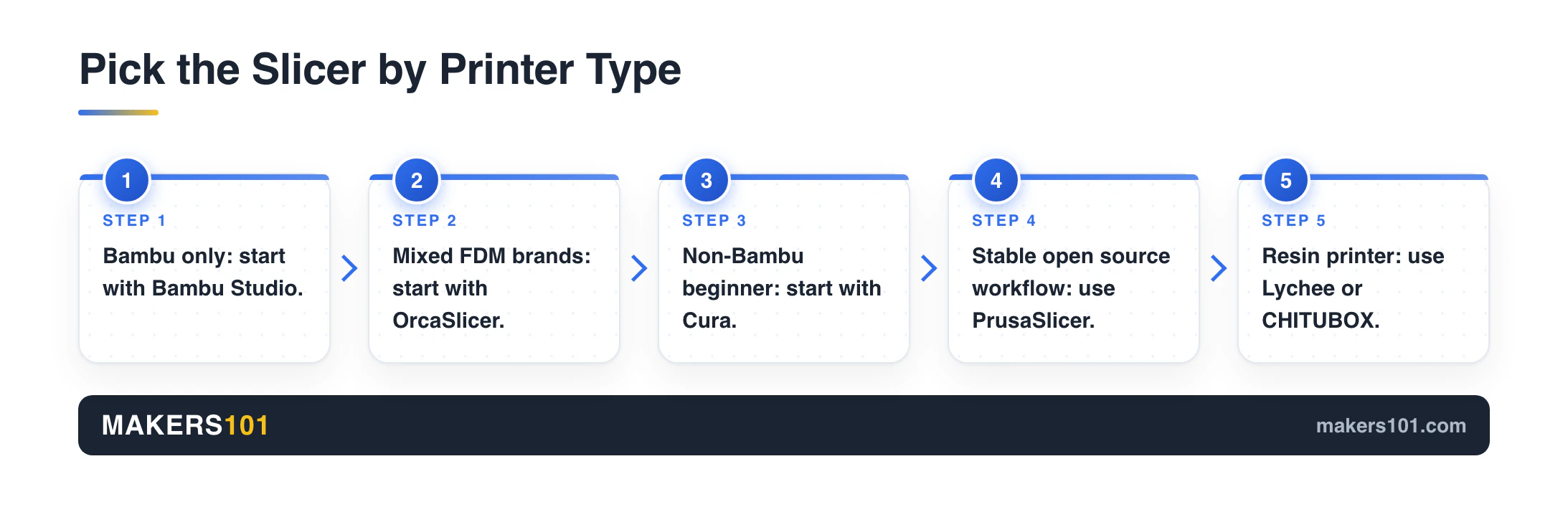
Quick decision rule:
- If you own only a Bambu printer, start with Bambu Studio.
- If you own several FDM printer brands, start with OrcaSlicer.
- If you’re new and your printer isn’t Bambu, start with Cura.
- If you value stable open source controls, start with PrusaSlicer.
- For resin printers, pick a resin-first slicer such as Lychee or CHITUBOX.
How I Ranked These Slicers
I ranked slicers by workflow fit. Reddit logo popularity is a weak signal.
The first question is simple: does the slicer have an exact machine profile? A beginner with a Flashforge, Ender, Anycubic, Bambu, or Prusa machine shouldn’t spend day one inventing start G-code. Start from a profile that already knows your bed size, firmware flavor, acceleration limits, nozzle size, and basic material presets. On an Ender 3 those acceleration limits do more work than they look like, since Orca clamps anything you type above them. Here’s which numbers actually reach the printer.
The second question is whether the slicer is actively maintained. For this update, I checked official release sources. OrcaSlicer v2.4.2 was published on July 7, 2026. PrusaSlicer 2.9.6 was published on June 25, 2026. UltiMaker Cura 5.13.0 was published on May 28, 2026. Bambu Studio 2.7.1.62 was published on June 16, 2026. SuperSlicer’s cached GitHub release check points to July 1, 2024, so it belongs in the niche bucket instead of the default bucket.
The third question is machine type. FDM slicers and resin slicers solve different problems. FDM slicing is about extrusion paths, temperatures, speeds, cooling, walls, infill, and motion. Resin slicing is about exposure, lift behavior, hollowing, drainage, islands, and supports. That’s why Lychee and CHITUBOX belong in the resin section. They solve a different problem from Cura or Orca on a bed slinger.
The fourth question is how you actually troubleshoot. The best slicer is often the one you know deeply. Practical advice. If you know where supports, walls, seams, flow, cooling, and pressure advance live, you can fix a bad print faster than someone who keeps hopping to the newest slicer.
If you’re still choosing a printer, read our guide on how to choose a 3D printer first. Printer ecosystem matters more than slicer branding.
Best Overall for Most FDM Users: OrcaSlicer
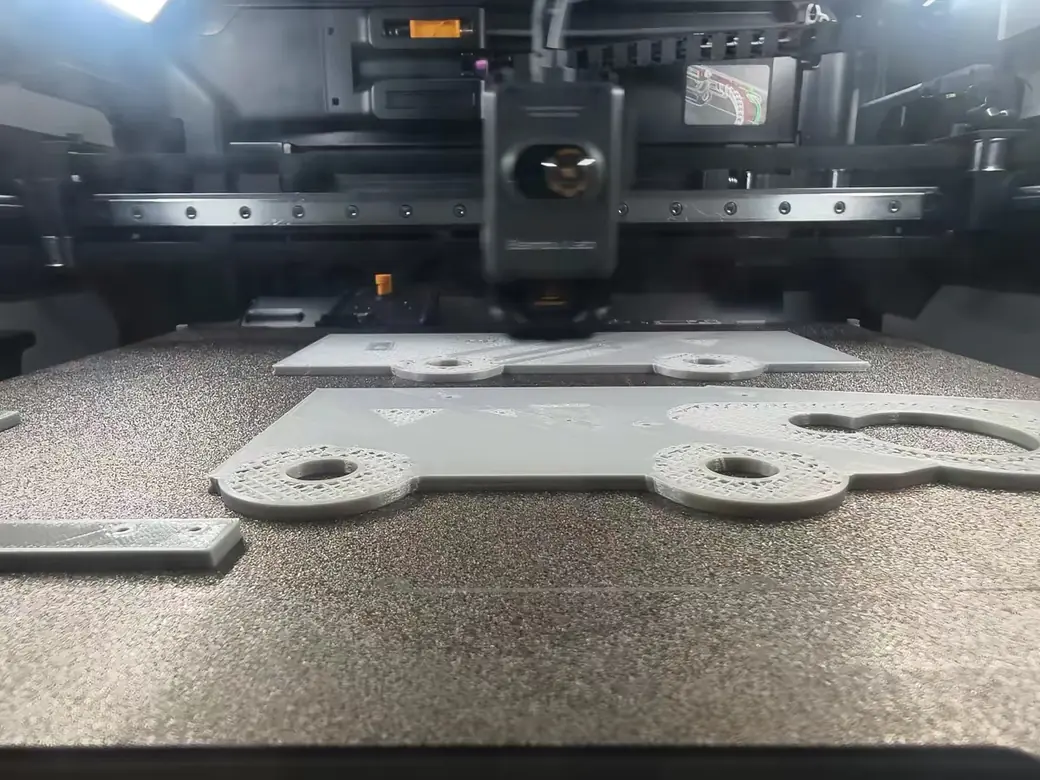
Choose OrcaSlicer if you run mixed FDM printers, use Klipper style printer management, or feel limited by Cura or Bambu Studio. One Cura limit pushes people over on its own: it can’t change layer height partway up a print, and Orca’s height range modifier can.
OrcaSlicer wins because it sits in a useful middle lane. Its family tree matters: PrusaSlicer influenced Bambu Studio, and OrcaSlicer forked from Bambu Studio. That’s why Orca can feel familiar if you’ve used modern plate based slicers, while still giving you broader printer control.
The big advantage is calibration. OrcaSlicer includes built in tests for things like flow and pressure advance, which is exactly where many real print quality problems live. On a Creality K1 style workflow, one creator note in my research described better surface confidence after moving from Creality Print to Orca and then running flow and pressure advance calibration.
That doesn’t mean Orca is magic.
Some setups need work. A Bambu printer is usually easy to connect. A Creality or Klipper based printer may need network setup, firmware settings, or root access depending on the machine. That can be intimidating, and root access has real security and maintenance tradeoffs. If you don’t want to think about any of that, Orca may be too much on day one.
- Broad FDM printer support and fast community iteration.
- Built in calibration tools for flow, pressure advance, and tuning.
- Bambu style workflow without being limited to Bambu printers.
- Embedded printer management for OctoPrint, Mainsail, and Fluidd style setups.
- Vendor support differs from using your printer maker’s official slicer.
- Some printer connections take real setup work.
- New features can feel less polished than a locked down vendor workflow.
If you use PETG, Orca’s calibration tools pair well with basic material tuning. Start with sane temperature ranges, then refine with a focused guide like our PETG print temperature tuning.
Safe download path: official OrcaSlicer GitHub releases.
Best for Bambu Lab Printers: Bambu Studio
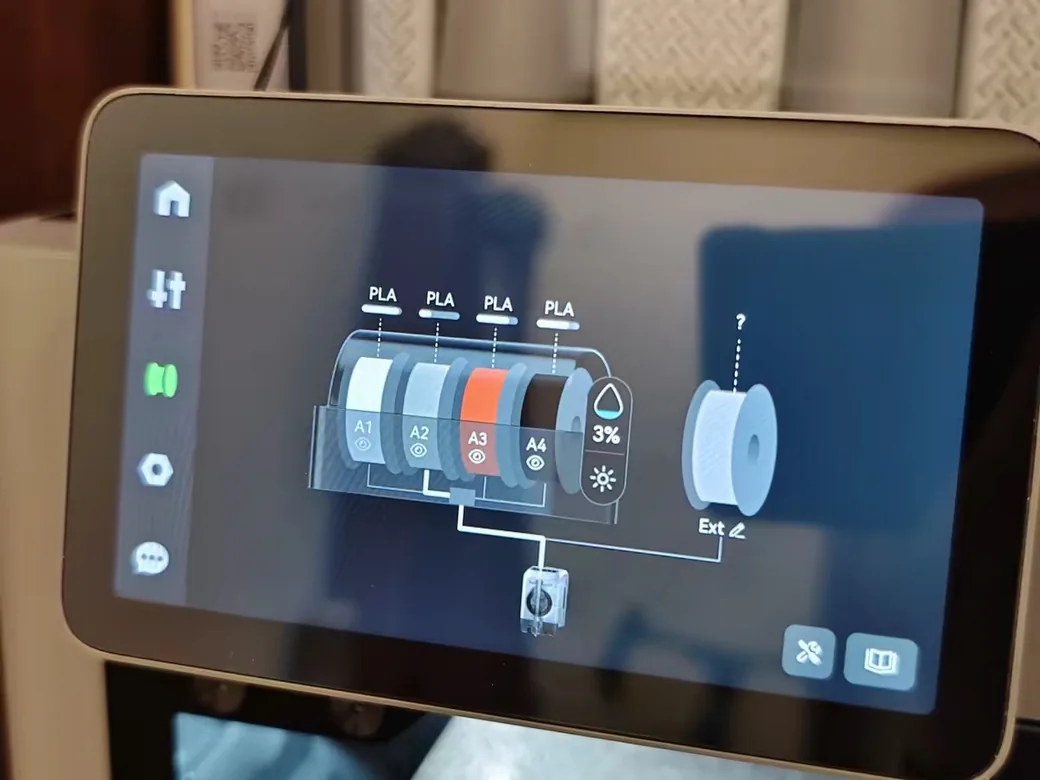
If you own a Bambu Lab printer and just want reliable first prints, start with Bambu Studio.
This is where internet advice often gets too clever. Yes, OrcaSlicer gives you more control and is better for mixed printer workflows. But if you just unboxed an A1, P1S, X1 Carbon, or similar Bambu setup, Bambu Studio is the calmest starting point. The slicer and printer ecosystem are tuned together, and the AMS workflow is built around that integration.
Bambu Studio is the slicer I’d hand to a Bambu beginner before I handed them Orca. Orca is still excellent. Bambu Studio simply removes decisions at the exact moment a beginner already has too many.
The tradeoff is control and ecosystem fit. If you run Bambu plus Creality plus a Klipper machine, you may outgrow Bambu Studio quickly. If you dislike account and cloud shaped workflows, you’ll probably prefer Orca.
- Best first stop for Bambu Lab printers.
- Strong AMS and plate based workflow.
- Polished defaults for supported machines.
- Release checked: Bambu Studio 2.7.1.62 (June 16, 2026).
- Less useful as a universal slicer for mixed brand shops.
- Some advanced controls are easier to reach in Orca.
- The closed polish that helps beginners can feel limiting later.
For Bambu owners, slicer settings often matter more than switching software. If PLA cooling numbers confuse you, read Bambu Studio PLA cooling settings before blaming the slicer.
Verify releases here: Bambu Studio public releases or Bambu Lab’s official download page.
Best Beginner Slicer for Non Bambu Printers: UltiMaker Cura
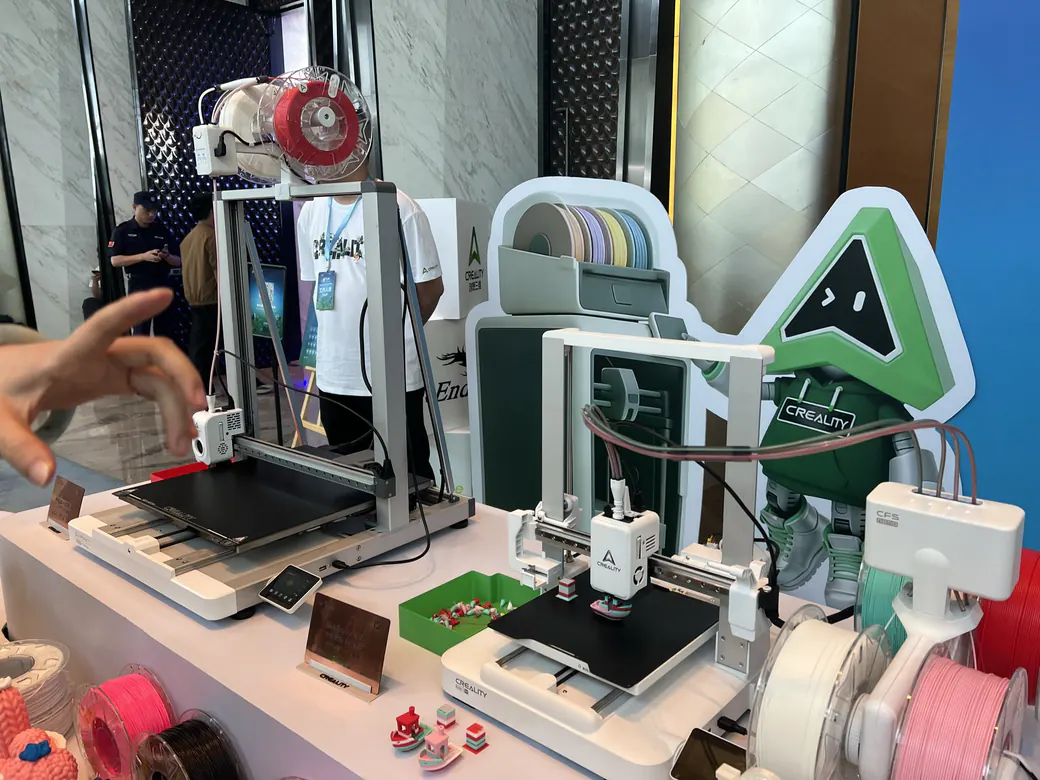
Choose UltiMaker Cura if you’re new, your printer isn’t a Bambu, and you want the safest broad recommendation.
Cura is still the boring answer that often works. That’s a compliment. It has a huge printer profile base, a large community, a plugin marketplace, and advanced settings that can stay hidden until you need them. For a first Ender style printer, Anycubic bed slinger, or older FDM machine, Cura is often the fastest way to get a usable baseline. Its defaults lean conservative rather than wrong, and the ironing panel is the clearest example.
Reddit reflects that. Beginners often say they started with Cura because a friend recommended it or because it felt easiest. That’s a solid reason. A slicer your local friend can help you troubleshoot may beat a more powerful slicer you’re learning alone.
Where Cura loses ground is speed of tuning. If you know you want built in flow and pressure advance workflows, Orca gets attractive. If you prefer a more structured interface, PrusaSlicer may feel cleaner. Cura can also feel crowded once you start exposing hundreds of settings. If you already know you want out, we sorted the free alternatives by why people leave.
- Very broad printer profile support.
- Free and easy to recommend to beginners.
- Plugin ecosystem and large troubleshooting footprint.
- Release checked for this guide: 5.13.0, dated May 28, 2026.
- The settings list can get noisy.
- Advanced calibration feels less packaged than Orca.
- Slower path for some tuned Klipper workflows.
Use UltiMaker Cura plus the official Cura release archive.
Best Stable Open Source Workhorse: PrusaSlicer
Choose PrusaSlicer if you want a mature, structured, open source slicer that doesn’t chase every trend.
PrusaSlicer is the adult in the room. It may feel quieter than Orca, but its simple, advanced, and expert modes make sense once you settle into them. It also has strong support tools, paint on supports, per object settings, and a workflow that many experienced FDM users trust. Its Cut tool is one of the better ones too, with plug, dowel, and snap connectors built in. We walk through splitting a model in each of these slicers.
PrusaSlicer also matters historically. It is part of the lineage that shaped Bambu Studio and OrcaSlicer. If you learn PrusaSlicer well, a lot of modern slicer interfaces will feel less mysterious.
I like PrusaSlicer most for users who value stability and repeatability. If you own a Prusa machine, it’s the obvious first stop. If you’re troubleshooting odd model behavior, it’s also a smart second slicer to keep installed.
- Mature open source workflow.
- Strong supports and per object control.
- Three skill modes let the slicer grow with you.
- Prusa release reference: 2.9.6 (June 25, 2026).
- Less beginner friendly than Cura for some non Prusa owners.
- Calibration tools feel less packaged than Orca.
- The interface can feel less modern if you came from Bambu Studio.
When you compare slicer results, look beyond the finished part. Check dimensions too. A simple 3D printer calibration cube can show whether the slicer, profile, or printer motion settings are drifting.
Use PrusaSlicer’s official page. The PrusaSlicer builds history works too.
Best Resin Slicers: Lychee vs CHITUBOX
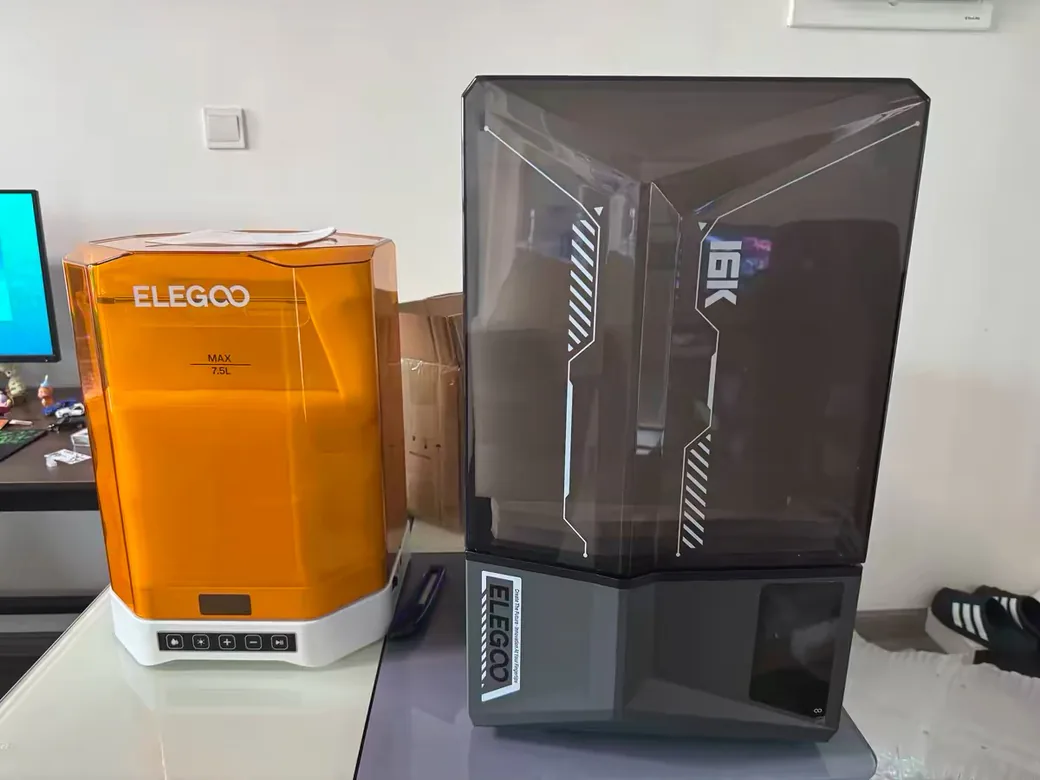
If you print resin, start with Lychee Slicer or CHITUBOX instead of trying to force an FDM first answer.
Resin users care about different failure points. Supports peel off. Islands appear. Hollowed parts trap resin. Drainage fails. Exposure and lift settings matter more than nozzle temperature or pressure advance. That’s why resin slicers deserve their own decision.
Lychee Slicer is the friendlier pick for many miniature and resin hobby users. Mango3D’s official page confirms a free Lite tier, paid Plus tiers, a 30 day Plus trial, Windows, MacOS, and Linux downloads, and current release data including 7.6.6. Its strongest appeal is workflow: orientation, supports, resin preparation, and a modern interface.
CHITUBOX is also a core resin name. The official page I fetched identifies it as SLA, DLP, and LCD 3D slicer software. I’m leaving current pricing out because the static page shell didn’t expose a stable pricing table. Check CHITUBOX’s official pricing page before choosing based on cost or tier-specific features.
If you’re tuning resin exposure, slicer choice is only half the job. Run a resin calibration model and read the result carefully before changing exposure, support density, and lift settings at the same time.
Niche Picks Worth Knowing
Most readers shouldn’t start here. These slicers matter when your workflow gives you a specific reason.
Simplify3D is the paid/pro option I would only consider if you already know why you need it, or if you already own it and have built a production workflow around it. One pro focused note in my research preferred Simplify3D for high temperature functional printing because of precise process control. That same note is biased by long familiarity, which matters. Familiar software makes troubleshooting faster.
The strongest practical lesson from that note wasn’t “buy Simplify3D.” It was that slicer control can change the economics of a job. In the creator’s CF nylon example, nozzle, layer, and slicer tuning reportedly cut one production print from 36 hours to 10 hours after many iterations. That’s a pro workflow case. Beginners shouldn’t expect the same result.
Simplify3D’s feature page lists Version 5.1 and has purchase, pricing, and license navigation. I didn’t find a stable dollar price in the static fetch, so check the live page before making a price based decision.
SuperSlicer gives granular control and still has loyal advanced users, but I wouldn’t point a beginner there first. The newest release cache I checked was from July 2024. It’s still useful in the right hands. It belongs as a niche recommendation in a 2026 beginner buying guide.
ideaMaker can be useful as a backup slicer. One creator note described a case where ideaMaker helped expose a missing layer issue that another slicer didn’t make obvious. That’s the real reason to keep a second slicer installed: you want another preview engine available when a model behaves strangely.
Kiri:Moto is the browser based niche option. Its official page describes it as a browser based 3D slicer and toolpath generator. I wouldn’t make it my default for a normal FDM printer, but it’s worth knowing if you like browser based tools or need a quick cross check. If you’re stuck on a machine you can’t install to, we put it up against the other free browser slicers.
Creality Print and Anycubic Slicer Next are worth trying when your printer manual points there. Use them to establish a baseline. Then switch if profiles, updates, calibration, or community help become limiting.
If your goal is fine detail from common hardware, slicer settings can matter more than slicer brand. A focused settings workflow like printing close to 0.2mm quality with a 0.4mm nozzle is often more useful than installing yet another slicer.
Should You Use the Slicer That Came With Your Printer?
Yes, use the included slicer for your first few prints unless it’s clearly outdated, broken, or pointing you to a suspicious download.
This advice sounds conservative because it is. Your first goal is to prove the printer works. The vendor slicer or recommended profile usually gives you the cleanest baseline.
After that, switch for a reason. Switch because you need better calibration. Switch because your slicer lacks a good profile. Switch because you run multiple printer brands. Switch because support control, preview behavior, or printer management is slowing you down.
Don’t switch because someone online made your current slicer sound uncool.
Reddit threads around this topic show the same pattern again and again. Beginners ask whether Cura, Orca, PrusaSlicer, Creality Print, or Bambu Studio is safest. Bambu owners often stay with Bambu Studio because it came with the printer and works. Ender owners often start with Cura because the community can help. Mixed printer users often move toward Orca.
That’s a healthy pattern. It means the right slicer is contextual.
How to Switch Slicers Safely
Don’t switch slicers and change five print settings at once. Move one profile, one filament, and one calibration step at a time.
1. Download only from the official site or official GitHub release. 2. Choose the exact printer profile. Avoid similar model names. 3. Start with PLA and a known good model. 4. Slice in the old slicer and the new slicer, then compare previews before printing. 5. Keep layer height, nozzle size, infill, wall count, temperature, and speed similar for the first test. 6. Run flow, temperature, and pressure advance calibration only after you have a clean baseline. 7. Keep your old slicer installed until the new one has proven itself.
The download step matters more than people think. One Reddit thread in this research came from a new printer owner who noticed fake slicer download sites and didn’t know what was safe. That’s a real concern. Search results can show mirrors, ads, and lookalike pages. Use the official project site, the printer maker’s download page, or the official GitHub organization.
FAQ
What is the best slicer for 3D printing in 2026?
OrcaSlicer is the best default pick for most people with mixed FDM setups in 2026. Bambu Studio is better for Bambu owners, Cura is the safer first choice for other beginners, PrusaSlicer is best for stable open source workflows, and Lychee or CHITUBOX are better for resin.
Is there a better slicer than Cura?
Yes, for some users. OrcaSlicer is usually better if you want built in calibration and mixed printer workflows. PrusaSlicer may feel cleaner if you like structured settings. Cura is still a good beginner slicer because it has broad profiles and a large community.
Which 3D slicer is the easiest for beginners?
Bambu Studio is easiest for Bambu Lab beginners. UltiMaker Cura is the easiest broad recommendation for most other FDM beginners. The easiest slicer is usually the one with a ready profile for the machine you own.
Can I use any slicer with any 3D printer?
No. You need a compatible machine type, a correct printer profile, and the right output format. An FDM slicer won’t replace a resin slicer for normal resin workflows, and a slicer without your printer profile can create avoidable setup problems.
What is the best free 3D slicer?
For free FDM slicing, start with OrcaSlicer, UltiMaker Cura, PrusaSlicer, or Bambu Studio depending on your printer. For resin, Lychee Lite is the verified free starting point in this check; compare CHITUBOX on its official page before assuming cost or tier details.
Should resin users use the same slicer as FDM users?
Usually no. FDM tools prepare melted plastic paths. Resin tools prepare light-cured layers, support contact points, hollowed shells, drain holes, and island checks. For resin, choose a resin-first tool unless your printer maker gives you a specific supported workflow.
Is Cura completely free?
Cura is free for normal 3D printing use. Download it from UltiMaker’s official Cura page. The official GitHub releases are also fine. Skip random mirror sites.
Is Cura or PrusaSlicer better?
Cura is better for many beginners thanks to its large profile list and huge help footprint. PrusaSlicer is better if you want cleaner modes, reliable supports, and object level edits. Neither is universally better.
Is Cura or Creality slicer better?
Creality Print is fine for first prints on a supported Creality machine. Cura or OrcaSlicer often become better once you want broader community help, stronger calibration tools, or a workflow that follows you to other printer brands.
Should I use OrcaSlicer or Bambu Studio?
Use Bambu Studio first if you own only Bambu printers and want the smoothest start. Use OrcaSlicer if you want more control, run multiple printer brands, or need built in calibration tools beyond the default Bambu workflow.